

With Cloud Integrations, you can power your Domo instance using Databricks. Use this guide to set up a Databricks integration for read-only and read/write access. After setup, you can use Databricks DataSets to create cards, configure alerts, and build Magic ETL DataFlows.Documentation Index
Fetch the complete documentation index at: https://domoinc-arun-raj-connectors-domo-479695-remove-crime-report.mintlify.app/llms.txt
Use this file to discover all available pages before exploring further.
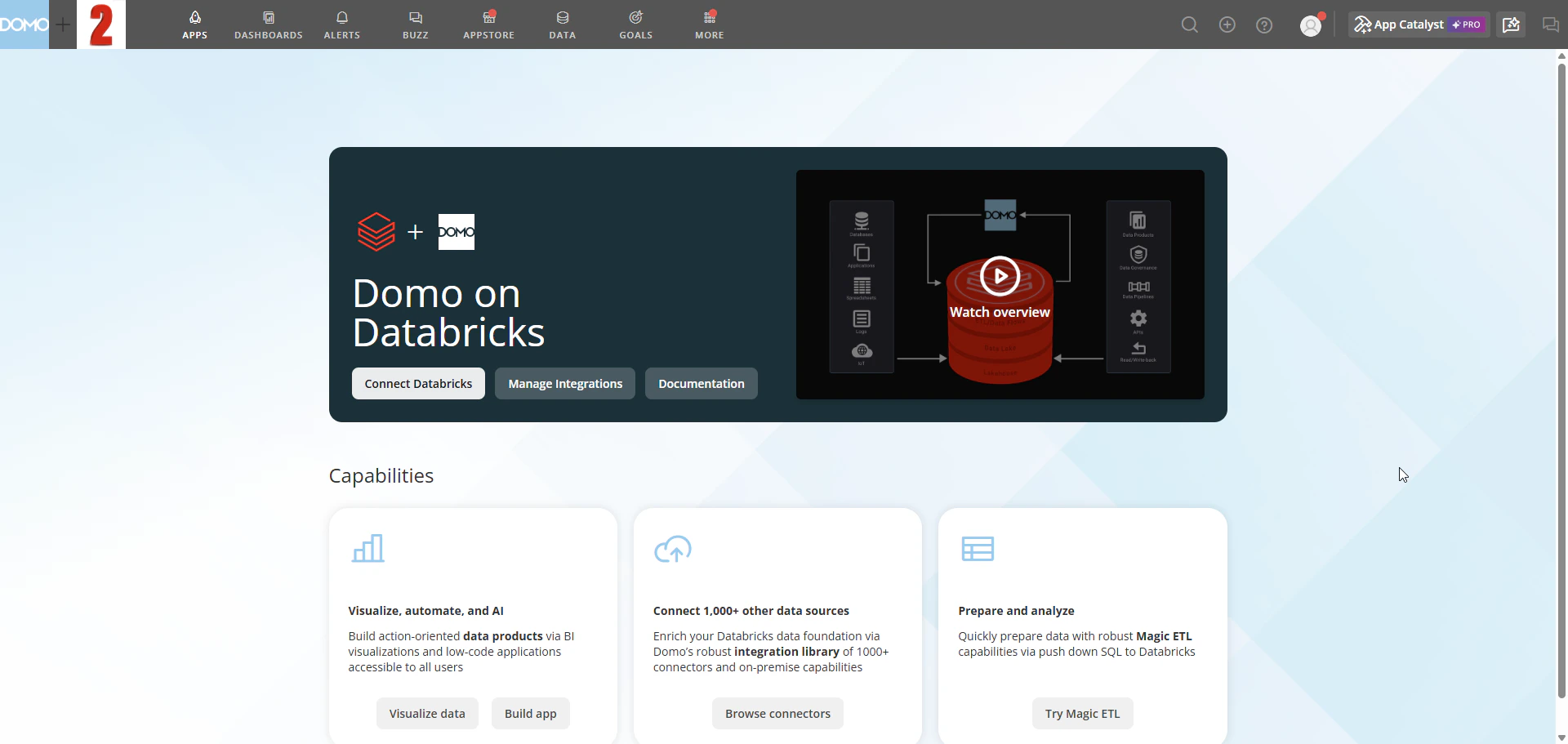
Architectural Overview
The diagram below shows how Domo connects to Databricks through Cloud Integrations. Domo queries data live from your Databricks environment; no data is copied to Domo storage.
Before You Begin
- (Recommended) Create a Databricks service account—Create a new Databricks account specifically for this integration. You can use any account with read access in Databricks, but best practice is a dedicated service account with read access to your default Databricks environment.
- (Recommended) Create a Domo service account—Create a new Domo account specifically for this integration. Your account’s custom role must include the Manage Cloud Accounts and Manage DataSet grants.
- (Conditional) If you are migrating from a federated or connector-based integration, review Migrate from Federated to Cloud Integrations before proceeding—Beast Mode formulas written in MySQL syntax may not be compatible with Spark SQL.
Set Up Read-Only Access
-
In the navigation menu, select Data Warehouse > Connect Data > Cloud Integrations > Databricks. The Databricks Cloud Integrations list opens.
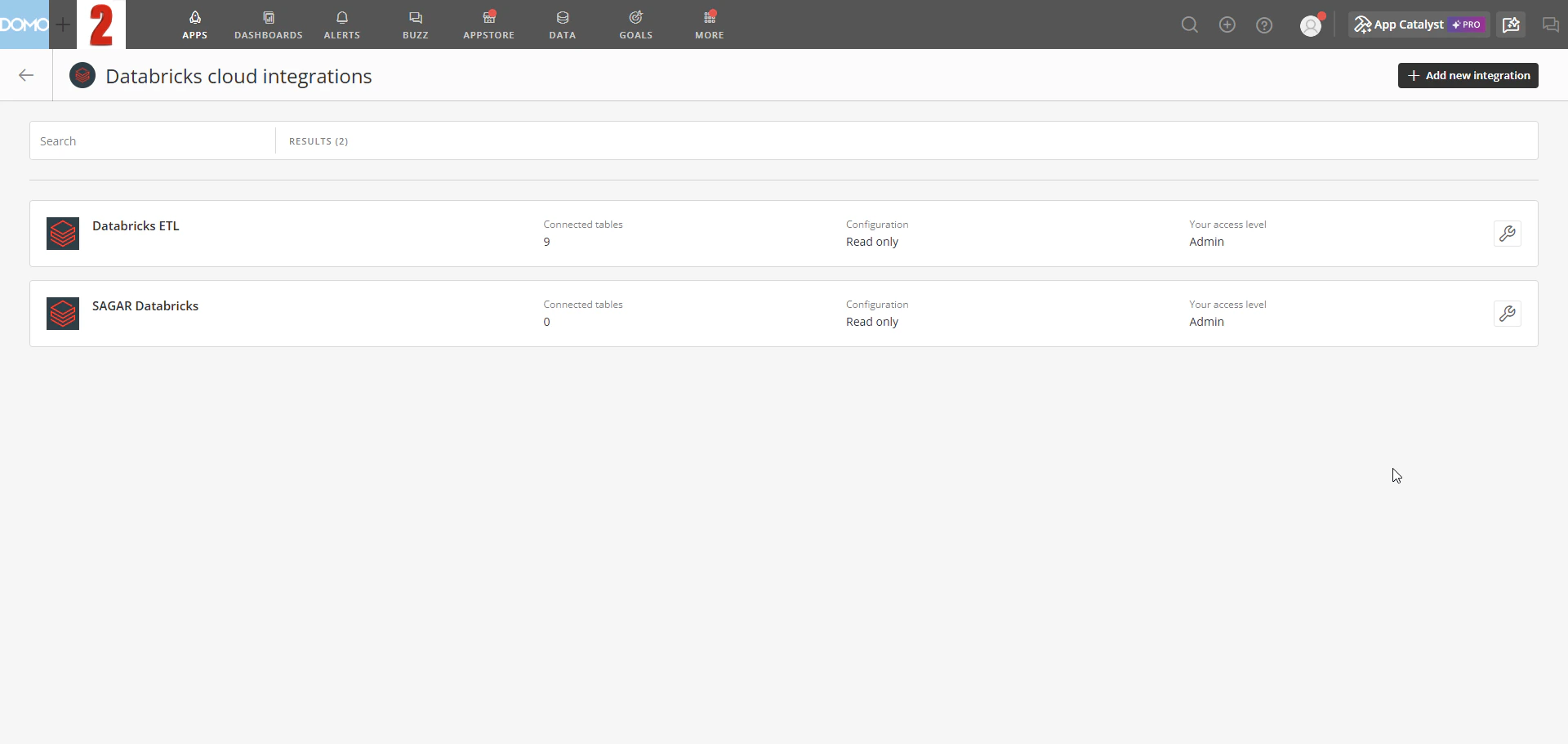
- Select + Add new integration. The new integration form opens.
-
Enter a name and optional description in the Integration name and Integration description fields.
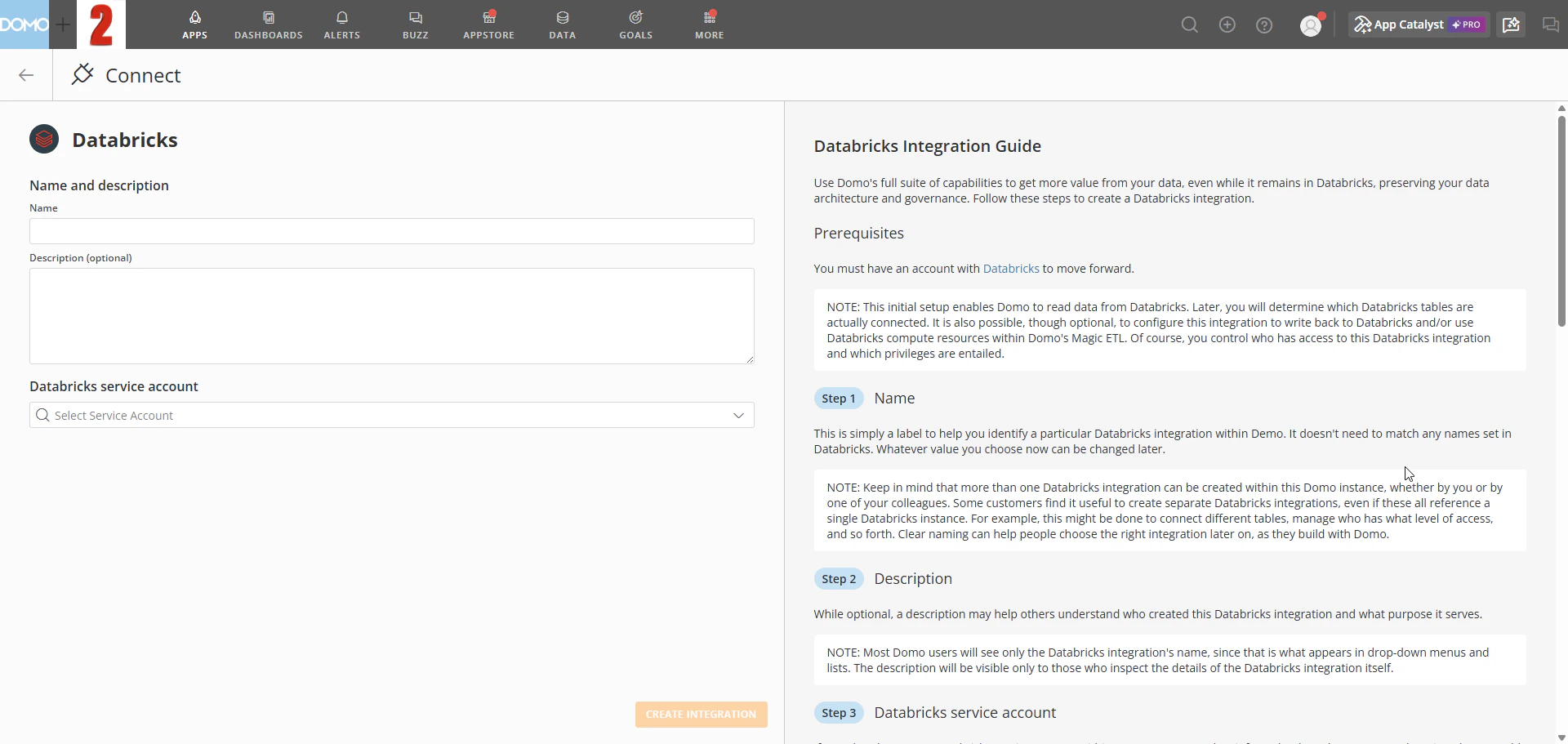
- Under Databricks service account, select an existing account from the dropdown.
-
(Conditional) To create a new service account, fill in the connection details in the New Databricks Service Account modal:
- Enter a name for the account.
- Enter your Databricks server hostname and HTTP path.
- In the Connect with dropdown, select your authentication method:
-
Personal Access Token—Create a personal access token in your Databricks account and paste it into the Databricks personal access token field.

-
M2M OAuth—Enter your Databricks OAuth application’s Client ID and Client Secret in the Client ID and Client Secret fields.

-
Personal Access Token—Create a personal access token in your Databricks account and paste it into the Databricks personal access token field.
Note: Do not include protocol identifiers in the connection URL.jdbc:databricks://is assumed;jdbc:spark://is not supported. -
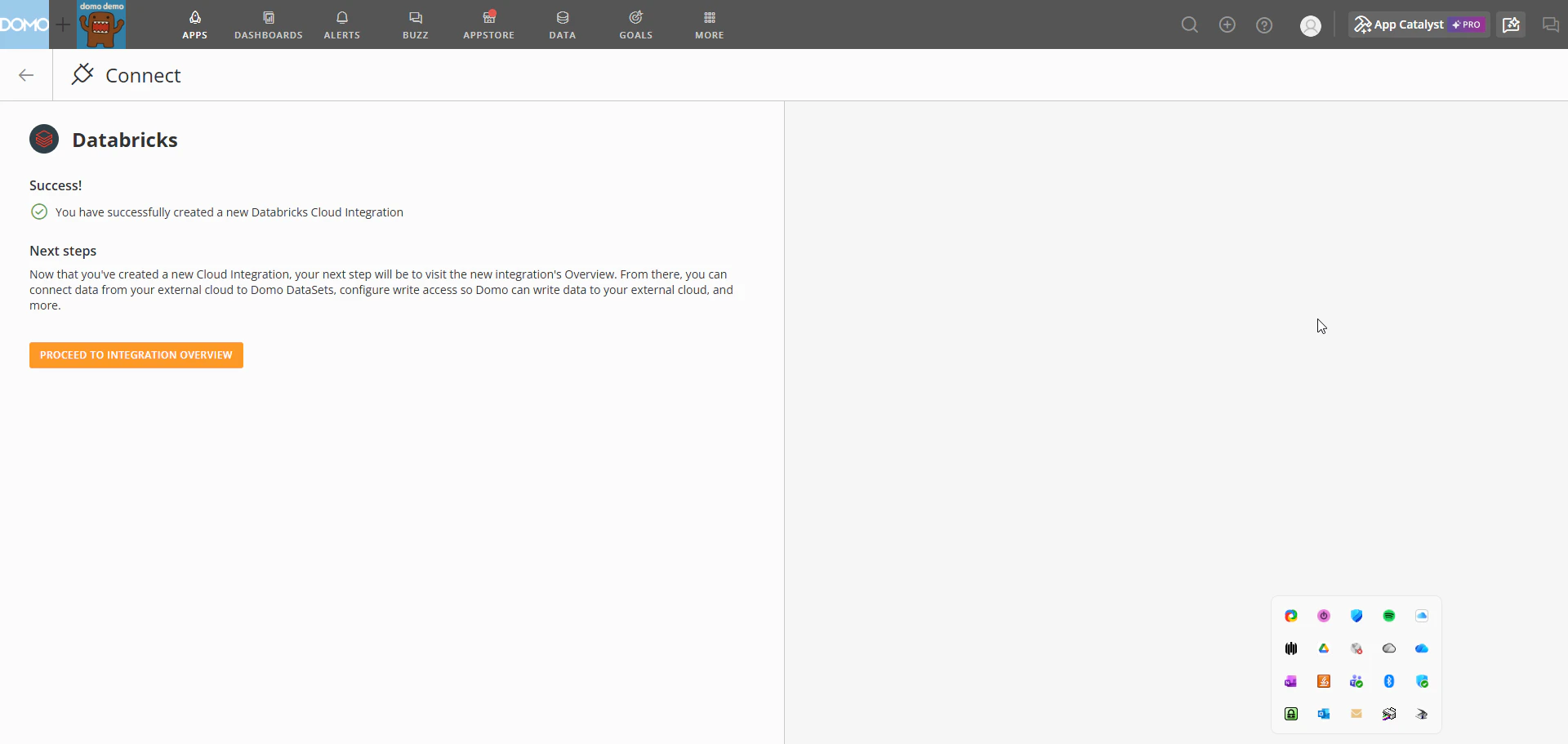
Select Create integration. On the success screen, select Navigate to integration overview to proceed.
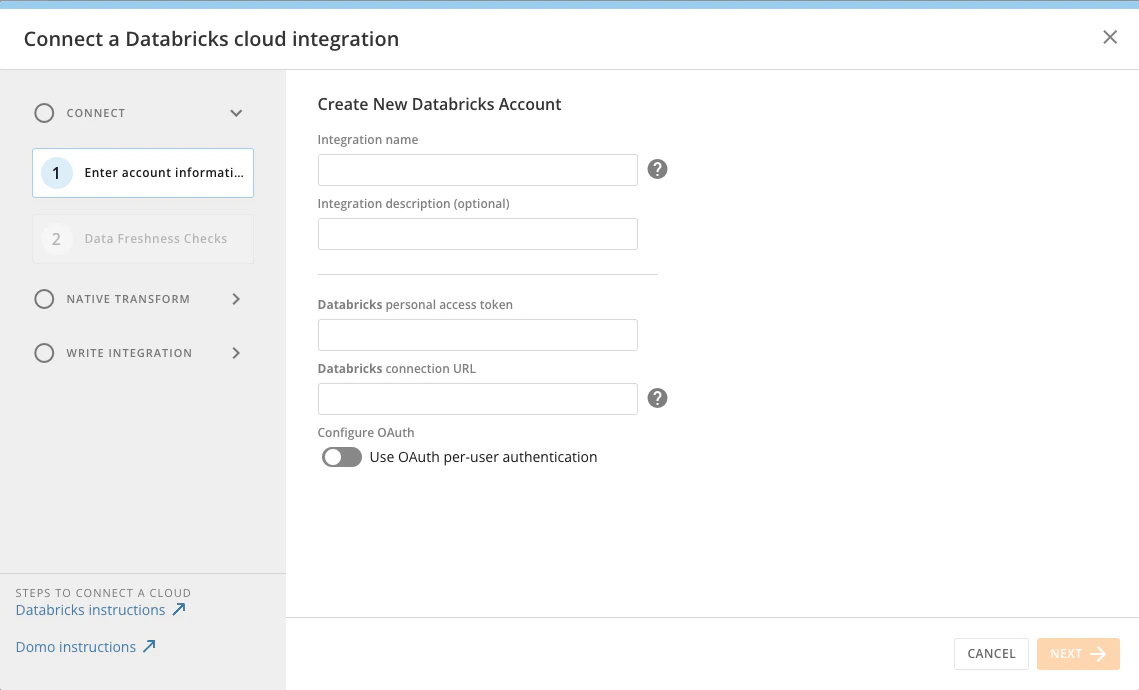
- Configure your data freshness settings. Learn about advanced scheduling for data freshness.
Add Databricks Tables to Domo
The following process is optional.-
After setting up your read-only integration, select
Choose Tables to Connect.

- Search for and select Databricks schemas and tables you want to use to create DataSets in Domo.
-
Select
Create DataSets.
Add Databricks Tables to Domo
After creating your integration, connect Databricks tables as DataSets in Domo. For step-by-step instructions, see Connect tables in Cloud Integrations.
Configure OAuth
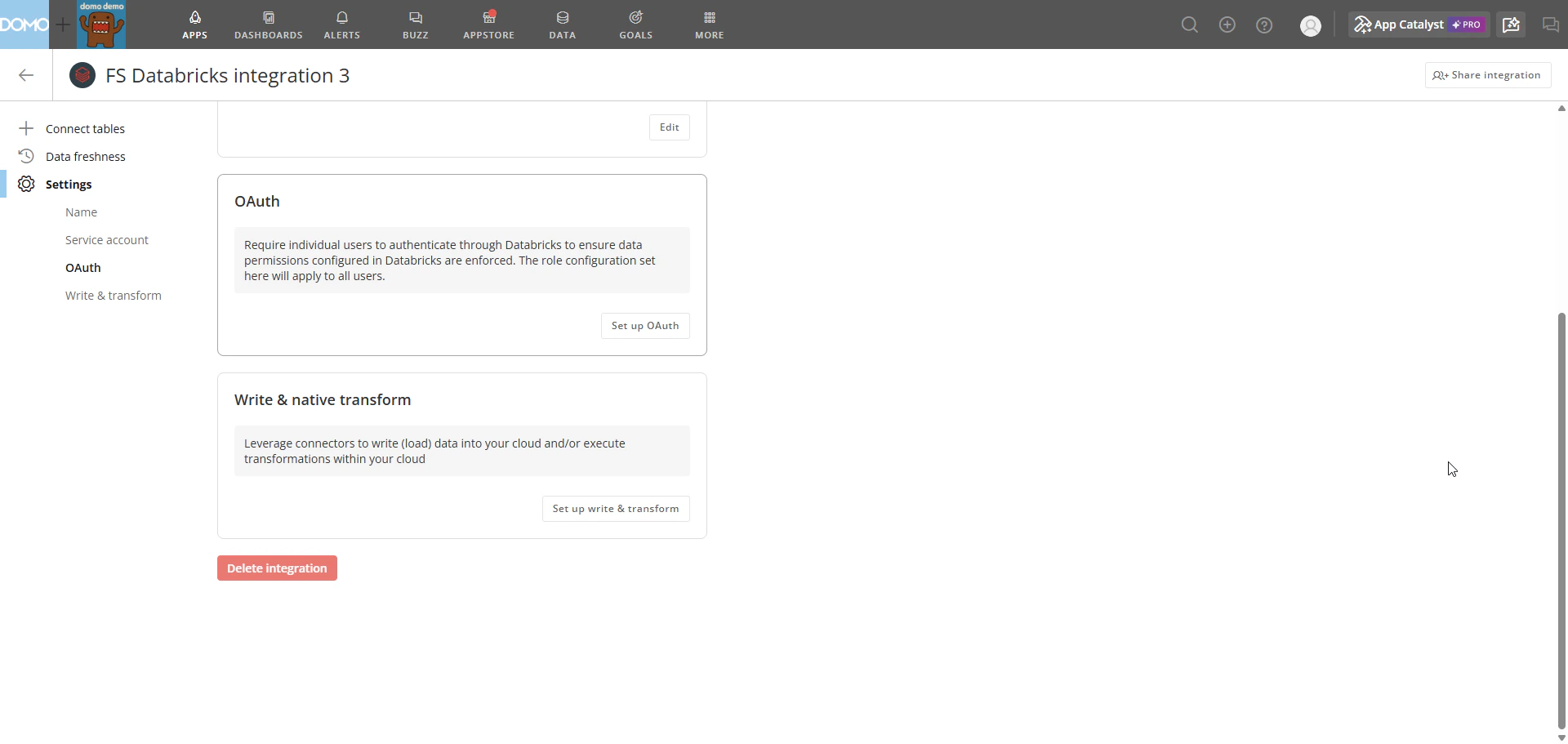
(Optional) Configure OAuth to require users to sign in with their own Databricks credentials when they view cards or DataSets connected through that integration. OAuth does not currently apply to Magic ETL, write-back, or native transforms.- From the Databricks Cloud Integrations list, select the wrench icon on the integration you want to configure, then select Settings.
-
In the Settings panel, under OAuth, select Set up OAuth. The Configure OAuth Settings modal opens.
- Select an existing configuration from the dropdown, or select Add OAuth Config… to create a new one.
-
(Conditional) To create a new configuration:
- In Databricks, navigate to Account Console > Settings > App connections and add a new app connection for Domo. Enable a custom OAuth application for your Domo instance. For details, see the Databricks OAuth documentation.
- Add the Domo redirect URLs shown in the modal to your Databricks OAuth app.
- Back in Domo, enter the OAuth configuration name, your Databricks account identifier, Client ID, and Client Secret.

- Select Save.
Set Up Write & Native Transform
Enable write-back, native transforms, or both on an existing Databricks integration. You must complete the read-only setup before proceeding.- From the Databricks Cloud Integrations list, select the wrench icon on the integration you want to configure, then select Settings.
-
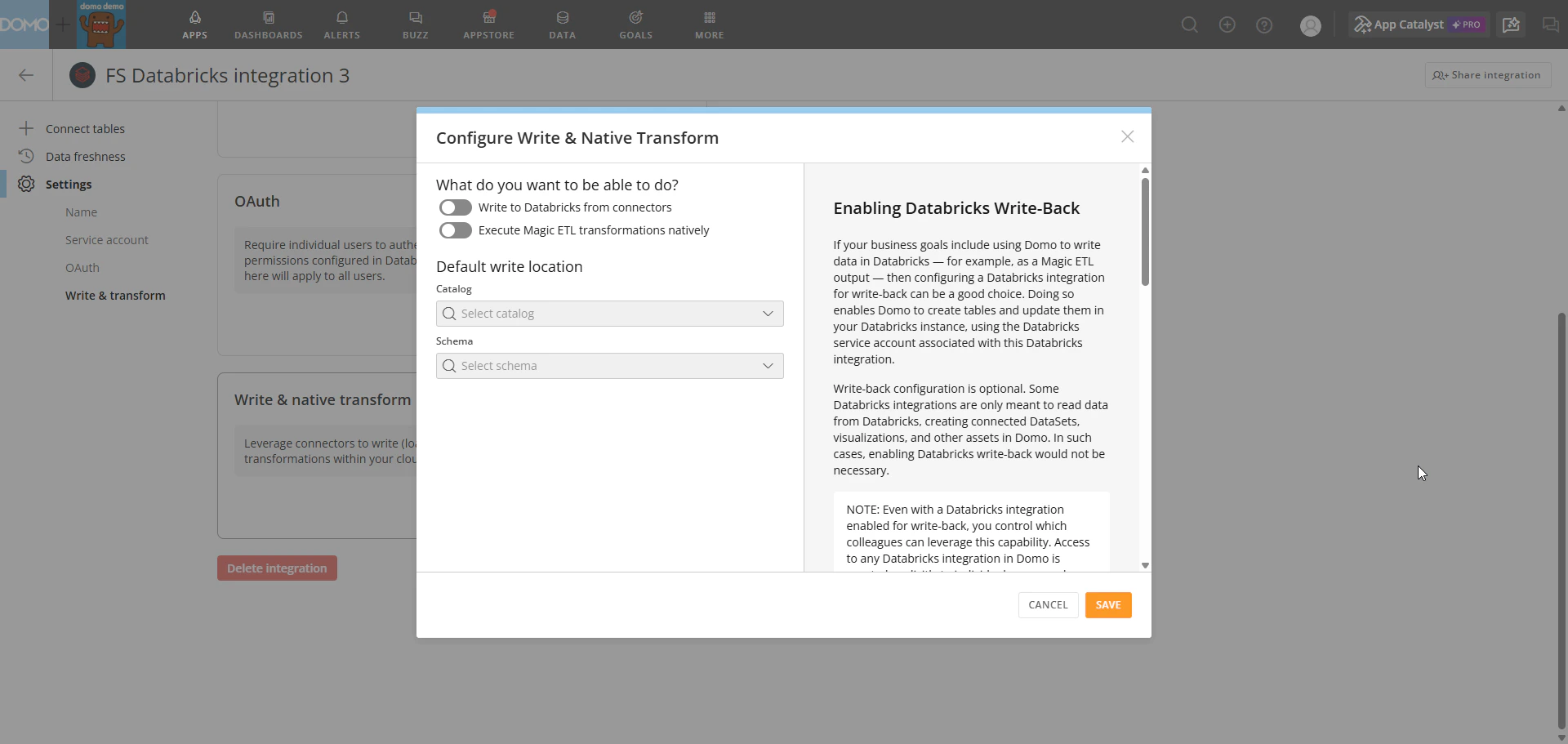
In the Settings panel, under Write & native transform, select Set up write & transform. The Configure Write & Native Transform modal opens.
-
Under What do you want to be able to do?, select one or both capabilities:
- Write to Databricks from connectors—enables Domo to write data back to Databricks.
- Execute Magic ETL transformations natively—enables Magic ETL DataFlows to run transformations directly within your Databricks environment.
-
Under Default write location, select your target Catalog and Schema from the dropdowns. This is the Databricks location where Domo writes data during write-back operations and native transform executions.
- Select Save to complete the setup.
Troubleshoot
Authentication fails during setup
Authentication fails during setup
If authentication fails when configuring your integration:
- Verify that your personal access token or M2M OAuth credentials (Client ID and Client Secret) are correct and have not expired.
- Confirm that the Databricks service account has read access to your default Databricks environment.
Connection URL is rejected
Connection URL is rejected
If the Databricks connection URL is not accepted:
- Confirm that you are not including a protocol identifier.
jdbc:databricks://is assumed;jdbc:spark://is not supported. - Confirm you are using the correct server hostname and HTTP path from SQL Warehouses > your warehouse name > Connection details in Databricks.
Catalog or schema not found during write & native transform setup
Catalog or schema not found during write & native transform setup
If your catalog or schema does not appear in the dropdowns during write & native transform setup:
- Confirm that the Databricks service account has the necessary permissions to access the target catalog and schema.
- Try refreshing the integration settings and repeating the setup steps.
How do Databricks-sourced DataSets work?
How do Databricks-sourced DataSets work?
When a DataFlow uses a Databricks-sourced DataSet, Domo queries the data live from Databricks when the DataFlow runs. Domo checks Databricks-sourced DataSets for updates every 15 minutes using the table’s
LAST_ALTERED timestamp. If Domo detects an update, it triggers any DataFlows that use that table.Next Steps
- Cloud Integrations overview—Learn how Cloud Integrations works and which integrations are supported.
- Magic ETL DataFlows—Build and run DataFlows using your Databricks-sourced DataSets.
- Migrate from Federated to Cloud Integrations—Guidance for migrating existing integrations.