

Documentation Index
Fetch the complete documentation index at: https://domoinc-arun-raj-connectors-domo-479695-remove-crime-report.mintlify.app/llms.txt
Use this file to discover all available pages before exploring further.
Intro
You can format the size of bars in bar charts using various options in Chart Properties, including the following:- Changing the percentage of space taken up by each bar
- Specifying how bars appear in charts with only one bar
Changing bar width or height percentage
In a bar chart, each bar takes up a set amount of space. By default, a bar takes up about 90% of its given space. By changing the Width Percentage or Height Percentage for a vertical or horizontal bar chart, respectively, you can change the percentage of space taken up by each bar. Possible values range from 0 (at which bars appear as lines) to 100 (at which bars touch other bars). The following example shows a vertical bar chart with a Width Percentage of 20.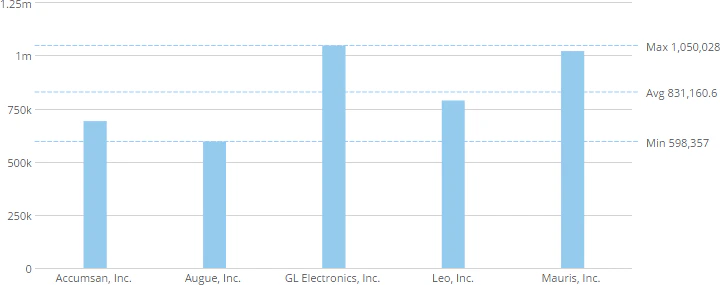

- Open the Analyzer for the chart you want to edit.
- In Chart Properties, click Bar Settings.
- Enter the desired percentage value in the Width Percentage field (for a chart with vertical bars) or Height Percentage field (for a chart with horizontal bars).