

Documentation Index
Fetch the complete documentation index at: https://domoinc-arun-raj-connectors-domo-479695-remove-crime-report.mintlify.app/llms.txt
Use this file to discover all available pages before exploring further.
Intro
When you add cards as Favorites, copies of those cards are added to your Favorites page. To add a card to your Favorites, you must have access to the card. You can receive status reports via email and text for favorited cards by configuring the following:- Daily Alerts are scheduled. For more information about getting Daily Alerts for your Favorites, see Customizing Notification and Alert Settings.
- A valid email address and telephone number in your profile. For more information, see Specifying Your Personal Profile Information.
- A summary number on each card. For more information, see Configuring Your Chart Summary Number.
Adding Cards to Favorites
You can add cards as Favorites from a dashboard or Details view. If you’re viewing the card in a dashboard, follow the steps below:- Hover over the card you want to add as a Favorite.
-
Depending on where you’re viewing the card, select
 Card options from a dashboard OR
-
Choose Add To Favorites.
The card is added to your Favorites page.
Locating Your Favorite Cards
- In the navigation header, select Dashboards.
-
Expand the
 Dashboards menu and select Favorites.
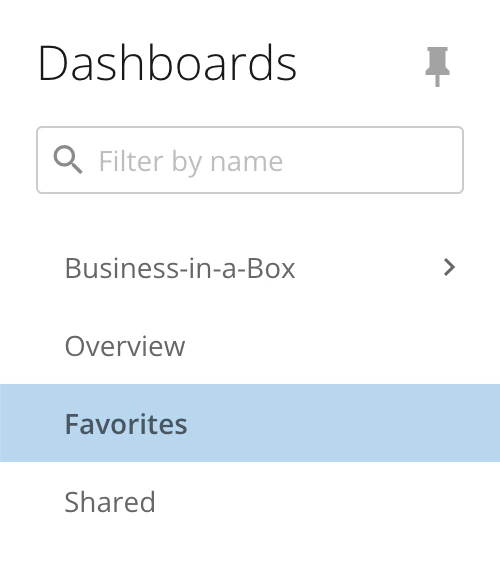
Note: The Favorites page cannot be converted to a dashboard, but you can create Collections by selecting
 Add > New Collection in the Favorites view. This can be useful when organizing your Favorite cards into categories.
Removing Cards from Favorites
You can also remove cards from your Favorites. You can do this from the following places:- The dashboard where the card appears
- The Details view for the card
- From your Favorites page
Note: Domo removes a card from your Favorites if your access to the card is removed.
- Hover over the card you want to remove as a Favorite.
-
Depending on where you’re viewing the card, select Card options from the Favorites page and dashboard OR
- Choose Remove From Favorites.