

Documentation Index
Fetch the complete documentation index at: https://domoinc-arun-raj-connectors-domo-479695-remove-crime-report.mintlify.app/llms.txt
Use this file to discover all available pages before exploring further.
Intro
Jupyter Workspaces in Domo is a web-based interactive development environment for Jupyter notebooks, code, and data. Workspaces are tightly integrated with Domo to allow users to easily explore their Domo DataSets, leverage instantaneous code execution to develop pipelines for data science and machine learning, document their processes, create custom visualizations, and write transformed data back into Domo. Jupyter Workspaces use the JupyterLab interface. For more information about JupyterLab, see the JupyterLab Documentation .
Jupyter Workspaces is a premium Domo feature. Contact your Domo account team to get access. For help, reach out to support@domo.com
.
Jupyter Workspaces is a premium Domo feature. Contact your Domo account team to get access. For help, reach out to support@domo.com
This article provides information on integrating Jupyter Workspaces with Domo in the following topics:
Required Grants
To access Jupyter, you need one of the following two grants enabled: Create Jupyter Workspace or Manage Jupyter Workspace. You can add these grants to a custom Domo role.- **Create Jupyter Workspace —**Allows a user to create, edit, and delete Jupyter Workspaces to which they have access.
- Manage Jupyter Workspace(Jupyter Admin) — Allows a user to view, edit, and delete any Jupyter Workspaces in the instance. This grant is needed to enable workspace sharing for other users.
- **Create Fileshare Directories —**Allows a user to create, edit, and delete File Share directories to which they have access.
- **Manage Fileshare Directories —**Allows you to view, edit, and delete any File Share directory in this instance.
Enable Jupyter
To start using Jupyter, a Jupyter Admin must enable the feature for your instance. Admins can follow the steps below:- In the navigation header, go to More > Admin.
- In the Features menu, selectJupyter.
- Activate the feature by adjusting the toggle next to Jupyter Account Inactive.
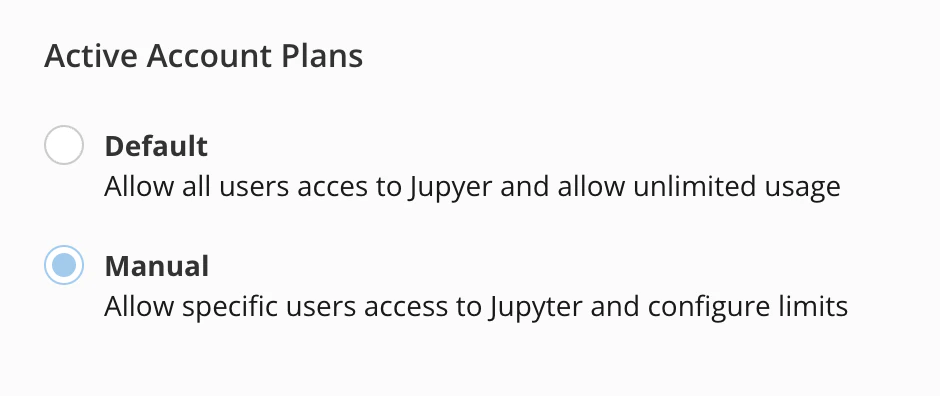
- After activating the account, choose the account plan you want:
- The Default account plan allows all users access to Jupyter and gives all users unlimited usage.
- The Manual account plan allows specific users access to Jupyter and gives you the option to configure usage limits.
- Select a Compute Tier Limit. To learn more about tier limits, contact your Domo account team.
- Select Save.
Access Jupyter Workspaces
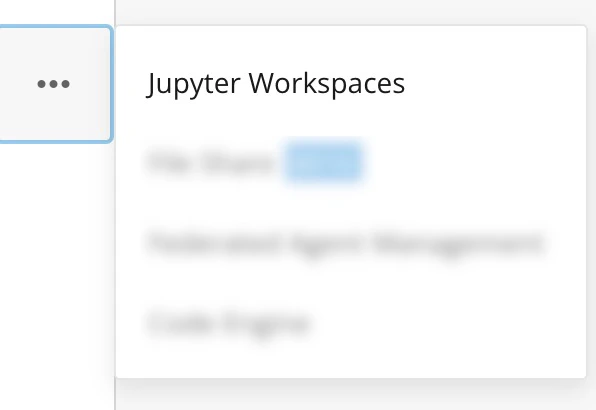
In the navigation header, select Data.The Data Center displays. In the left navigation, select
 More > Jupyter Workspaces.
Jupyter Workspaces Tasks
The next sections describe certain tasks within Jupyter Workspaces, including creating a workspace, enabling workspace sharing, sharing a workspace, viewing instances in a shared workspace, running a workspace, editing a workspace, and deleting a workspace.Create a Workspace
To create a workspace, Jupyter must be enabled for your instance. See the headings for Required Grants and Enable Jupyter for instructions.- In the navigation header, select Data.
- In the left side rail, select More > Jupyter Workspaces.
- Select + New Workspace**.**
The Create Jupyter Workspace modal displays. - Customize the workspace by configuring the following:
- In the Name and Descriptionfields, enter a workspace name and optional description.
- Enter values in the Kernel, Compute Tier Limit,and Timeout fields.
- (Optional) Select Input DataSets
- (Optional) Select Output DataSets
- (Optional) Add an Account.In this step, you can add a third-party account, such as your Google account, to reference in your workspace.
- (Optional) Add a File Share. See Create a File Share for instructions.
| Option | Description | |
|---|---|---|
| Name | The name of the Jupyter workspace The following characters are not supported in the name: [:*?”<> | ]“ |
| Description | Optional description to provide more details about the workspace | |
| Computer Tier Limit | The computer size that is allocated to the workspace and any data flows that are associated with this workspace | |
| Timeout | The amount of time with no user activity in the Jupyter UI before the workspace automatically stops. | |
| Kernel | Python or R Kernels are available | |
| Start workspace on successful creation | Once created, the process to start the workspace will be performed | |
| Input DataSets | Optional Domo data sources that are available to use in the Jupyter workspace | |
| Output DataSets | Optional DataSets that are available to write data as part of the Jupyter processing | |
| Account | Optional third-party account(s) to reference in your workspace | |
| File Share | Optional avenue to share files within your workspace. To learn more, see the headings for Create a File Share and Use a File Share. |
- Select Save.
Enable Workspace Sharing
In order for a workspace to be shared, an Admin or user with the Manage Jupyter Workspace grant must enable sharing.- From the Jupyter Workspaces list, navigate to the workspace you wish to share.
-
Hover to the right of the workspace. The
 Manage Workspace menu displays.
-
Select the Manage Workspace menu and choose Enable Sharing.
- Select Continueand Confirm. By selecting Confirm, you are acknowledging the risks associated with sharing notebooks and workspaces.
Share a Workspace
In order for a workspace to be shared, an Admin or user with the Manage Jupyter Workspace grant must enable sharing. See Enable Workspace Sharing.- From the Jupyter Workspaces list, navigate to the workspace you wish to share.
-
Hover to the right of the workspace. The Manage Workspace menu displays.
-
Select the Manage Workspace menu and choose Share this Workspace.
- Enter the recipient’s name, select the appropriate permissions, and select Add.
- Select Save.
View Instances in a Shared Workspace
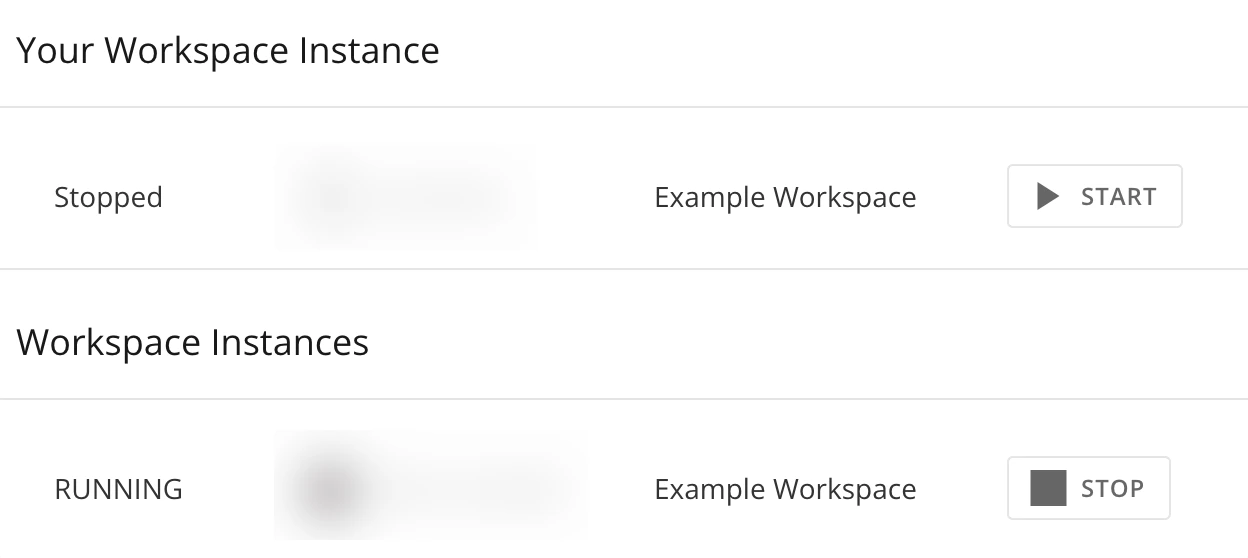
When a workspace is shared, other users can add an instance to the workspace. In the image below, the workspace has sharing enabled and has been shared with one other user.

Run a Workspace
- From the Jupyter Workspaces list, select the workspace you want to run.
- Select Start.
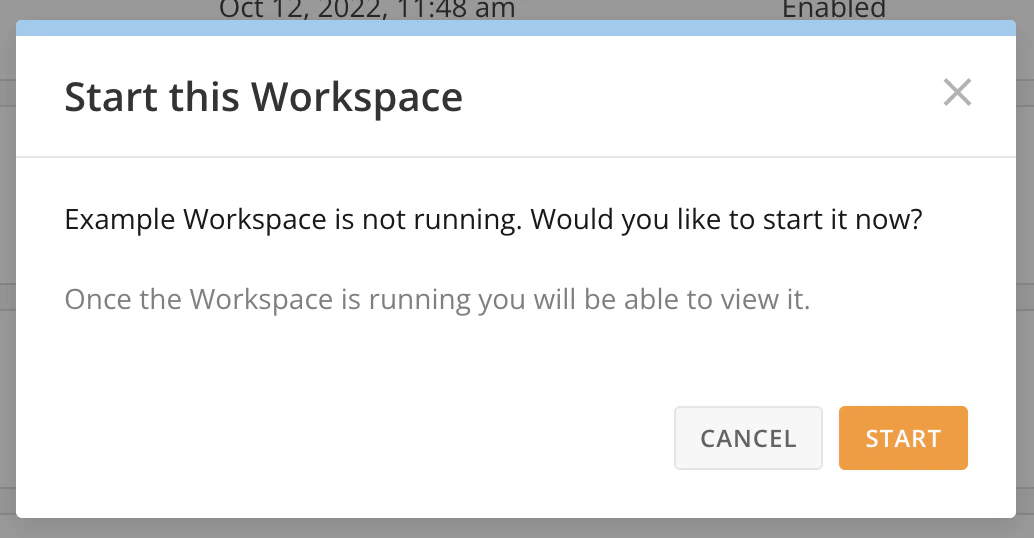

- After the workspace is done loading, select the workspace title.

Edit a Workspace
- From the Jupyter Workspaces list, locate the workspace you wish to edit.
-
Hover to the right of the workspace. The Manage Workspace menu displays.
-
Select the Manage Workspace menu and choose Edit.
- Add new specifications to the workspace and select Save.
Delete a Workspace
- From the Jupyter Workspaces list, navigate to the workspace you wish to delete.
-
Hover to the right of the workspace. The Manage Workspace menu displays.
-
Select Manage Workspace menu and choose Delete.
- Confirm that you wish to delete the workspace by selecting the Delete button.
File Sharing
You can create and add a File Share to your Jupyter Workspace. The following headings describe how to create a File Share, add it to your workspace, and delete a File Share from your workspace.Create a File Share
Follow these steps to create a File Share to use in Jupyter Workspaces. See the heading for Use a File Share to learn how to connect a File Share with Jupyter Workspaces.- In the Domo navigation header, select Data.
-
In the left side rail, select
 More > File Share.
-
Select + New File Share.
The Create a File Share modal displays.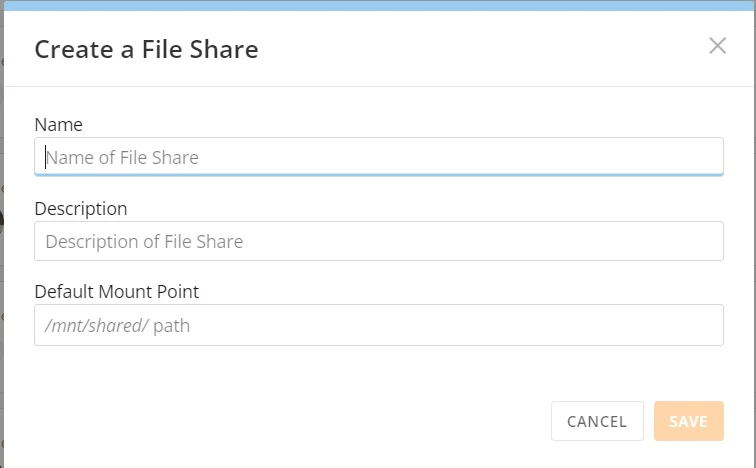
-
Customize the File Share by configuring the following:
- In the Name and Description fields, enter a File Share name and optional description.
- In the Default Mount Point field, enter a path. This can be whatever you would like.
- Select Save to create the new File Share.
Use a File Share
- In the File Share section of the modal, select Add File Share.
- In the search field, search for and locate the File Share you want to add to the workspace.
- Select the File Share.
-
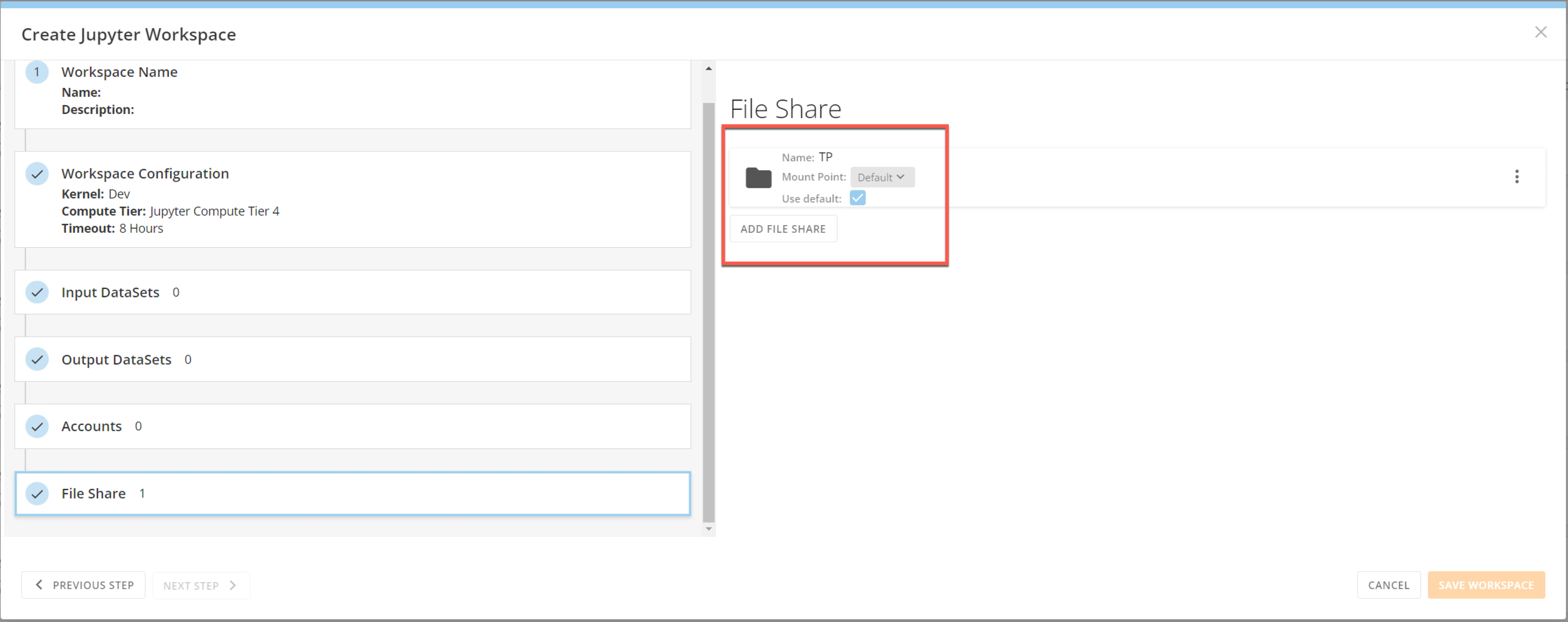
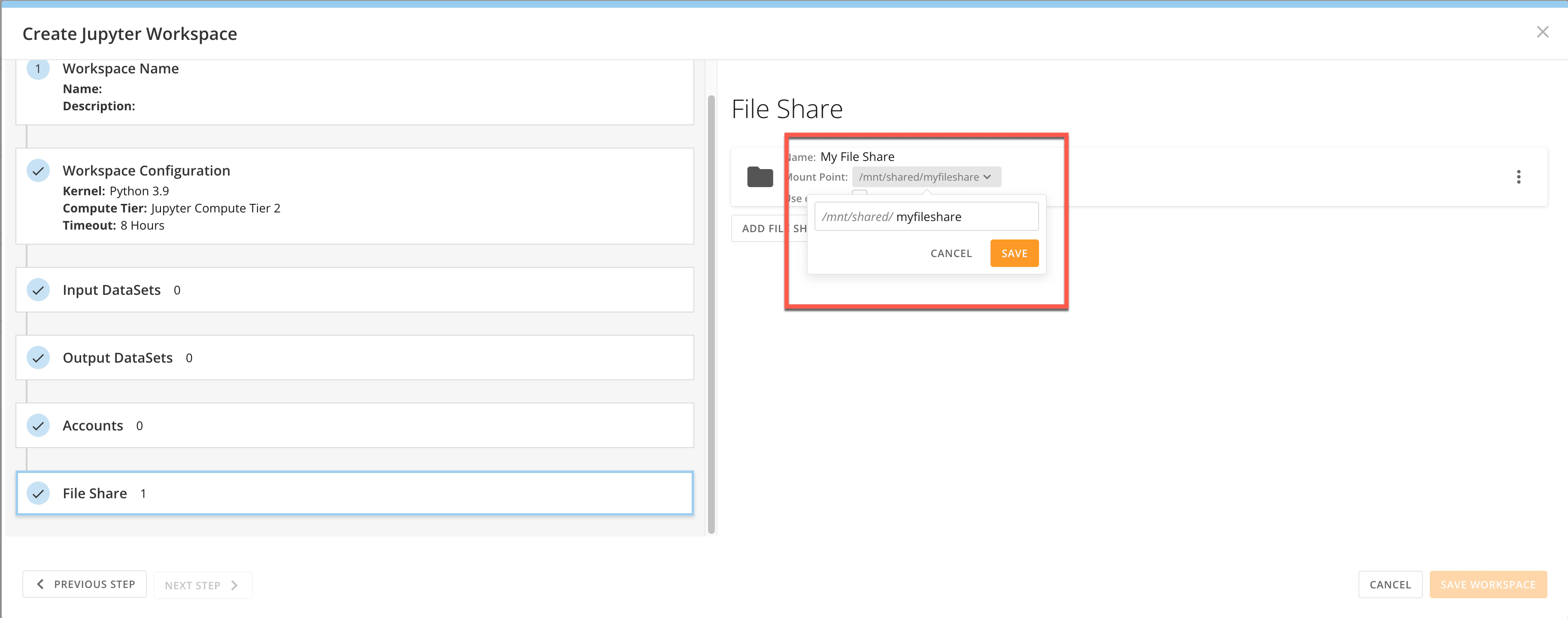
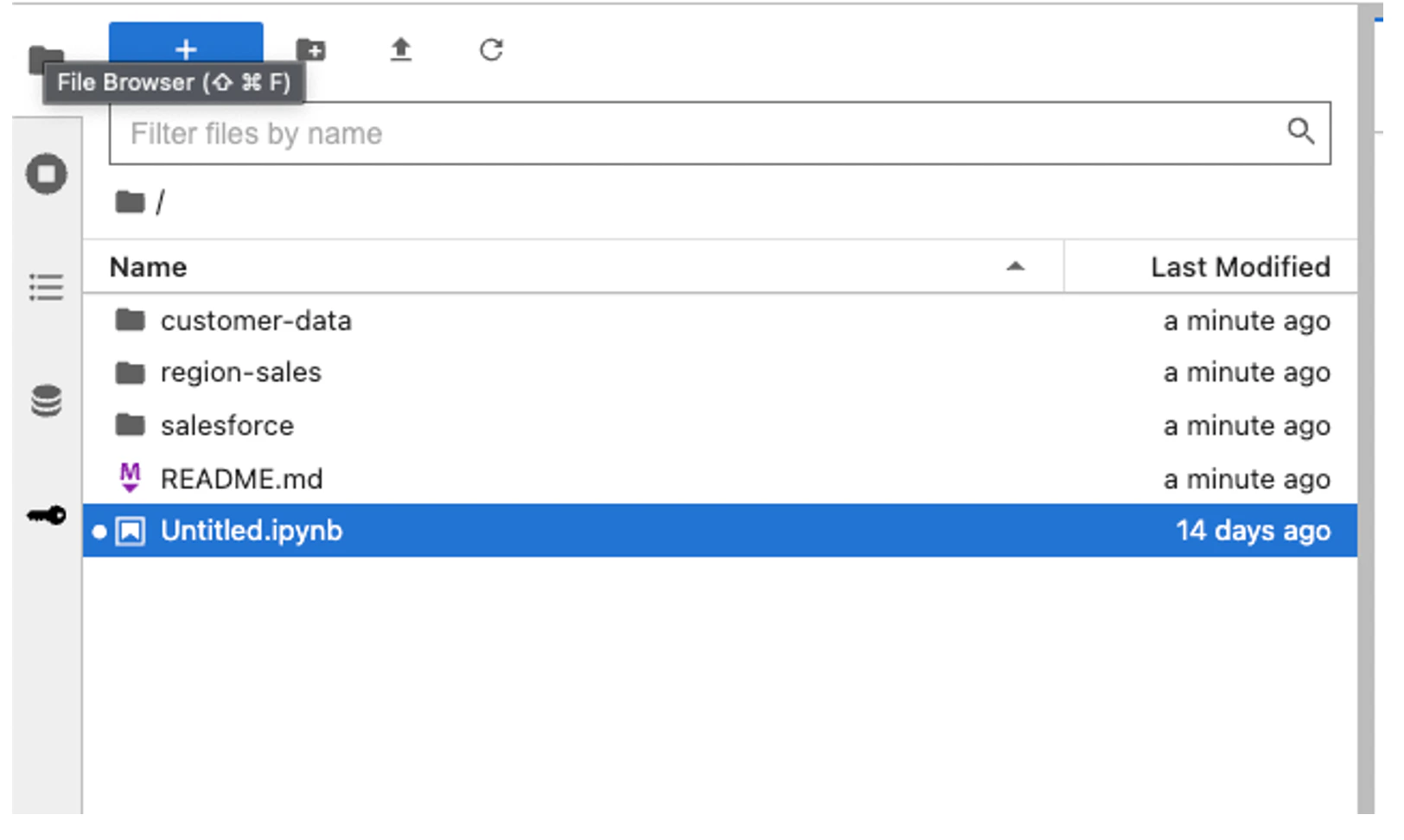
The File Share displays in the modal. By default, the Mount Point is the default Mount Point, and the checkbox for Use default is checked. To use a different Mount Point, uncheck the Use default checkbox and expand the list to select the Mount Point you want to use.
- Select Save Workspace.
Delete a File Share
- Access the **Create Jupyter Workspace orEdit Jupyter Workspace **modal.****To learn how to access these modals, see the headings for Create a Workspace and Edit a Workspace.
-
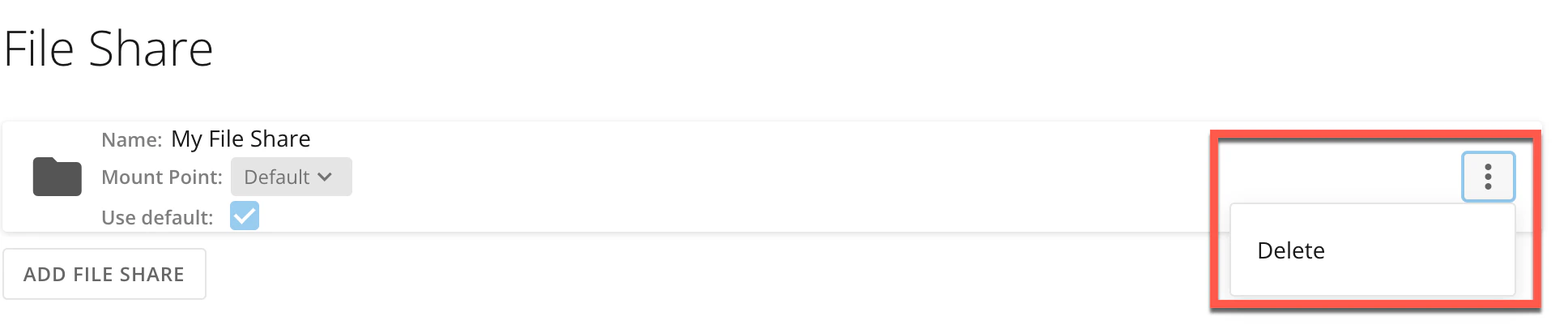
In the File Share section of the modal, identify the File Share you want to delete and select the
 kebab menu.
-
Select Delete.
Jupyter Notebooks
A Jupyter notebook is a file that consists of one or more cells. In these cells, you can write and format text, as well as write code using Python or R programming languages. When you execute the contents of a cell, the resulting output associated with the text or code displays directly in the notebook. The output can take various forms such as text, figures, tables, and images. You can add, edit, move, duplicate, re-run, and delete cells within a notebook at your discretion. You can also run cells sequentially to perform different phases of your project one after the other. For example, the first cell in your notebook could contain code to read in your DataSet; the second cell could then contain code that specifies what analysis to run on the DataSet. See Cells to learn about the types of cells, how to add them to a notebook, and how to execute them. Because a Jupyter notebook file can display executable code and the associated code output, along with explanatory text and images, a notebook can serve as a complete record of your interactive session. You can save a Jupyter notebook to your Jupyter workspace, enabling you to access your notebook and its contents in the future. Jupyter notebooks are internally JSON files and are saved with the .ipynb extension. You can also download a notebook from your workspace and save it elsewhere or share it.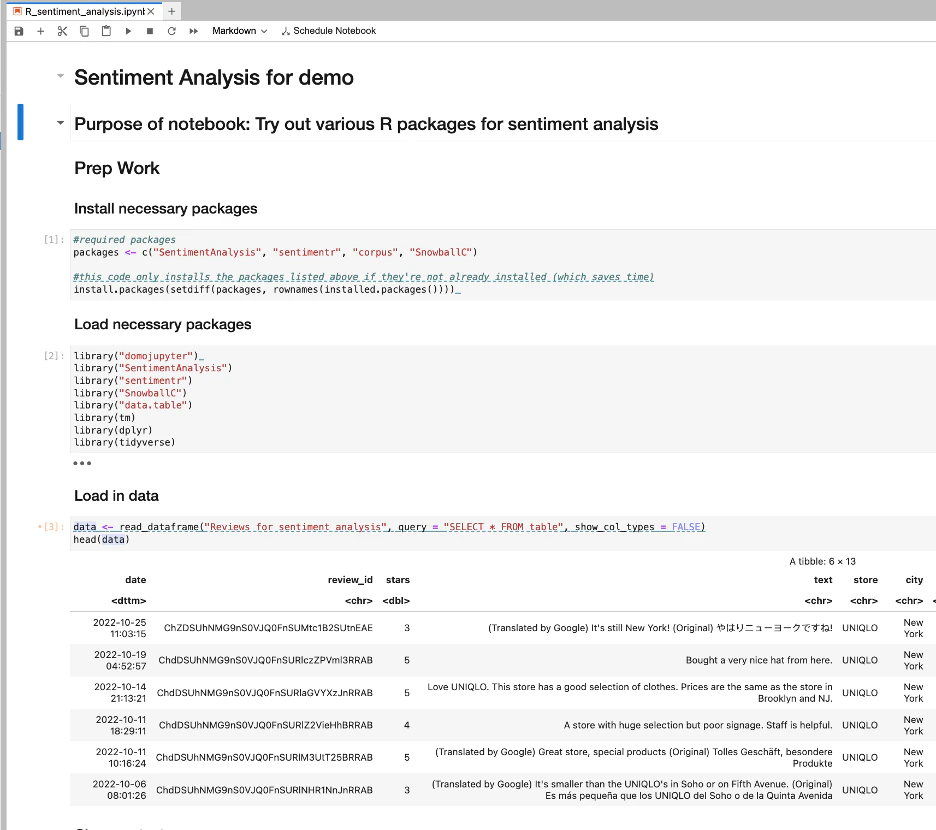
Edit Jupyter Notebooks
Create a Notebook
Follow these steps to create a notebook:-
In the Jupyter workspace, select File > New > Notebook.
The Select Kernelmodal displays.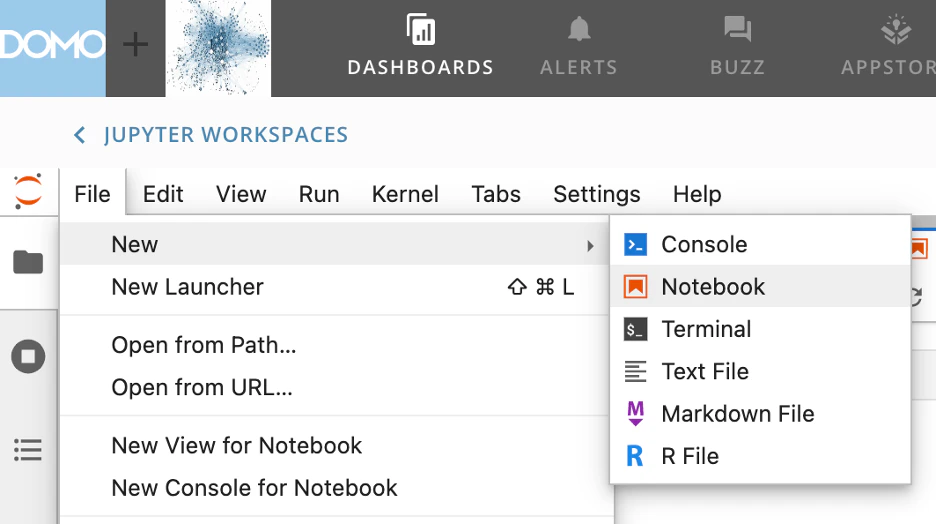
-
Press Select.
A notebook named Untitled.ipynb opens in the main work area. The untitled notebook also displays in the File Browser in the workspace side panel.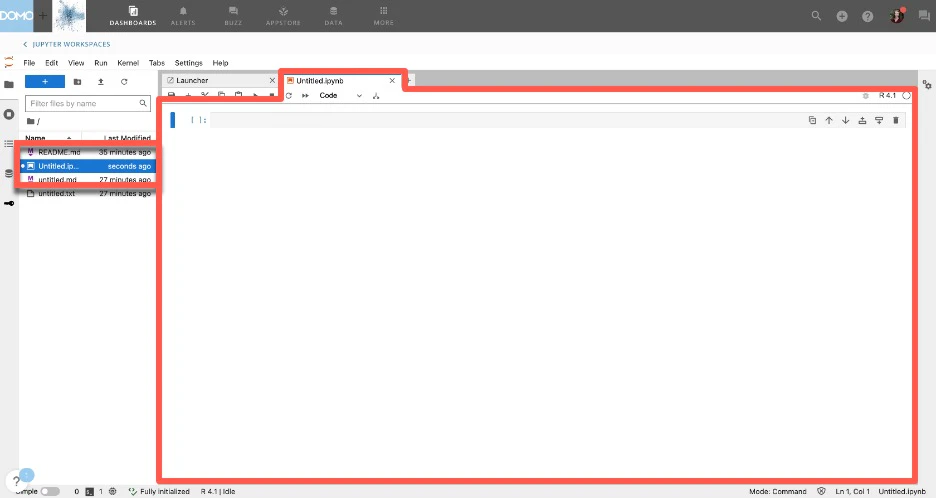
Rename a Notebook
You can rename a notebook either from the main work area or from the File Browser, depending on whether the notebook is open or closed. Select the appropriate option below:-
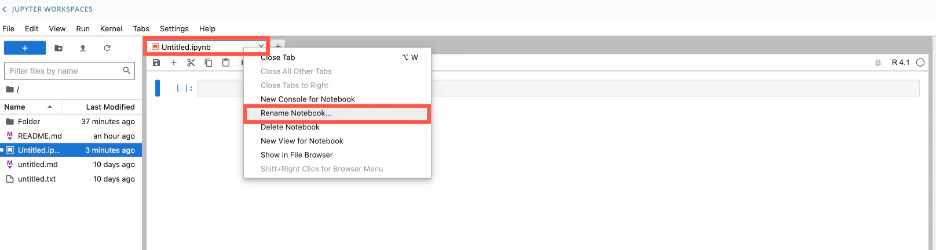
**Notebook open —**In the main work area, right-click the title of the notebook to display the notebook options and select Rename Notebook. The Rename File dialog displays. Enter a new name for the notebook and select Rename.
-
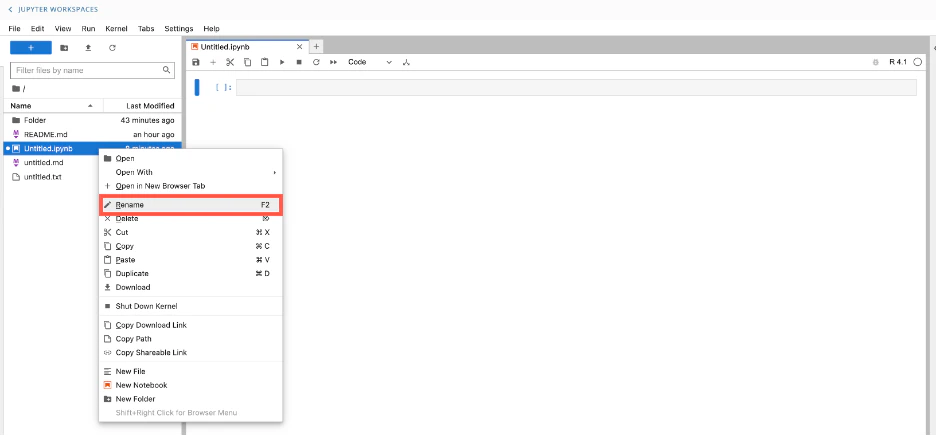
**Notebook closed —**In the File Browser, right-click the title of the notebook that you want to rename to display the file options, then select Rename. Enter a new name for the notebook.
Save a Notebook
To save a notebook to your Jupyter workspace, select Savein the main work area.
Delete a Notebook
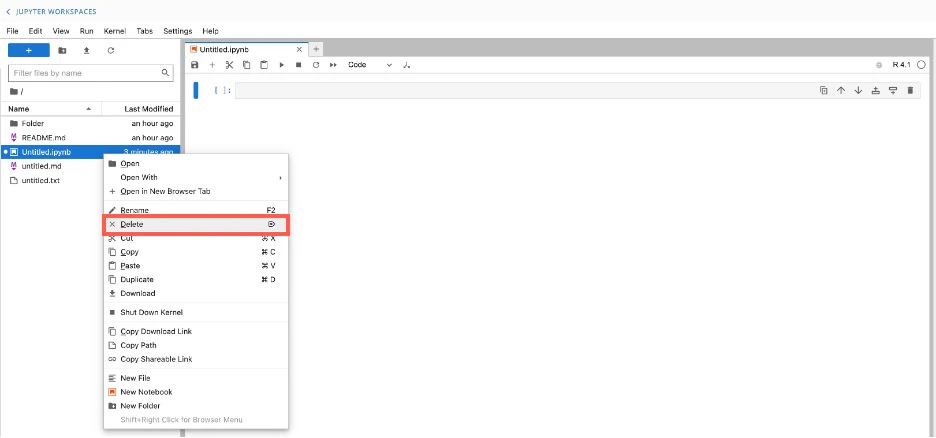
You can delete a notebook either from the main work area or from the File Browser, depending on whether the notebook is open or closed. Select the appropriate option below:-
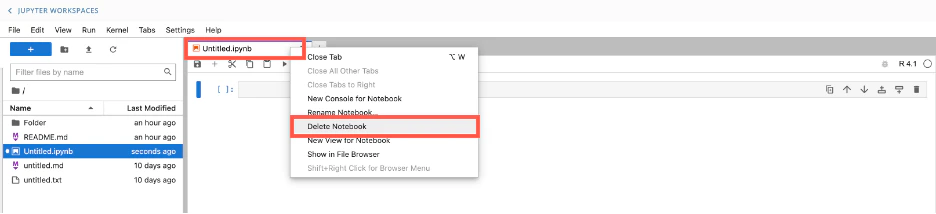
Notebook open — In the main work area, right-click the title of the notebook to display the notebook options and select Delete Notebook. A dialog displays. Select Delete.
-
Notebook closed — In the left panel, right-click the title of the notebook you want to delete to display the notebook options and select Delete. A dialog displays. Select Delete.
Schedule a Notebook
You can schedule a Jupyter notebook to run automatically at a set cadence. The available cadence options are listed below:- Once a day at a set time
- Multiple times a day at set times
- Every day
- Specific days of the week
- Specific days of the month
- Every month
- During specific months
-
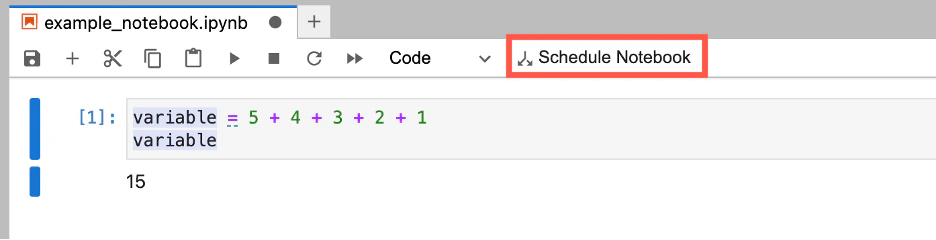
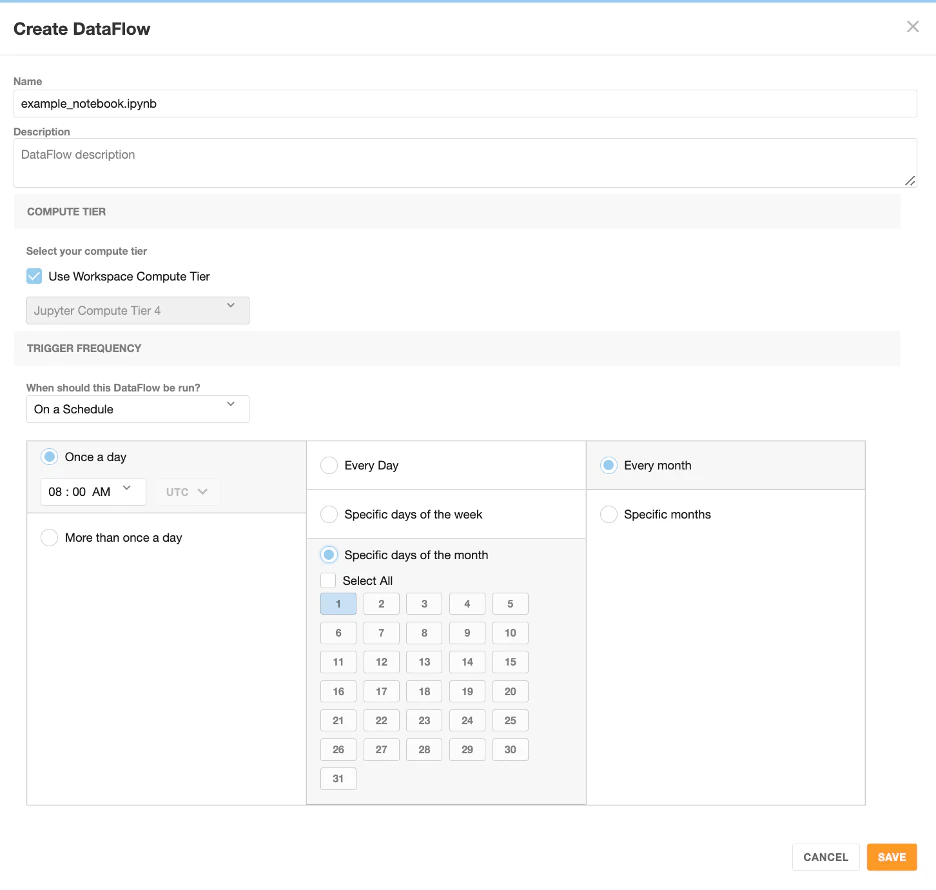
Open the notebook you want to schedule. In the toolbar, select Schedule Notebook. The Create DataFlowmodal displays.
- In the modal, fill in the Name and optional Description fields.
- Select a Compute Tier.
- In the **When should this DataFlow be run?**menu, select On a Schedule.
- Set the schedule for the notebook.
-
Select Save.


Download Notebook Output
You can download notebook output for a specific execution of a Jupyter DataFlow by following these steps:-
Navigate to the Historytab of the Details view for that DataFlow.
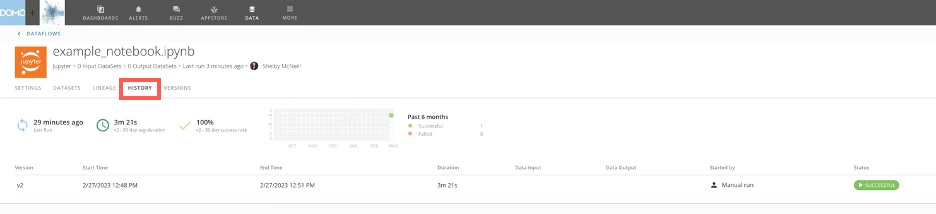
- Identify the row in the log that represents the run for which you want output information.
-
Select the
 action menu for that row.
-
Select View Detailsin the action menu.
A dialog displays where you can select to download the output as an IPYNB, HTML, or PDF file.

Manually Run a Scheduled Notebook
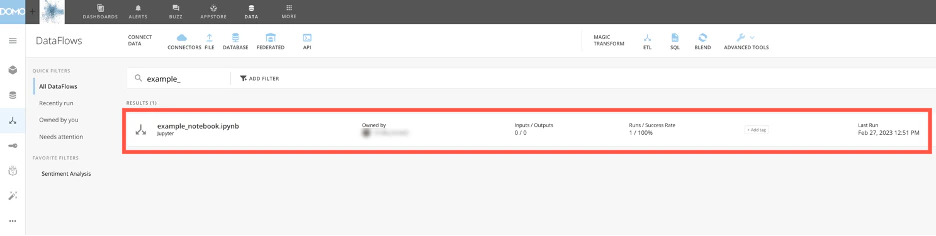
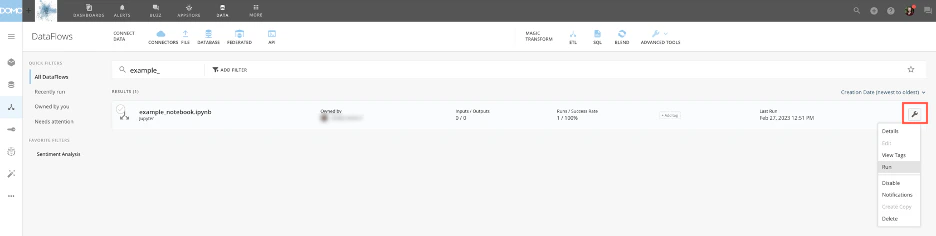
Manually run a scheduled Jupyter notebook by following these steps:- Locate the Jupyter DataFlow for the scheduled Jupyter notebook in the DataFlows section of the Data Center.
- Select
 DataFlow optionsin the row for the Jupyter DataFlow. In the list of options, select Run.
Cells
A Jupyter notebook file consists of one or more gray, rectangular fields called cells.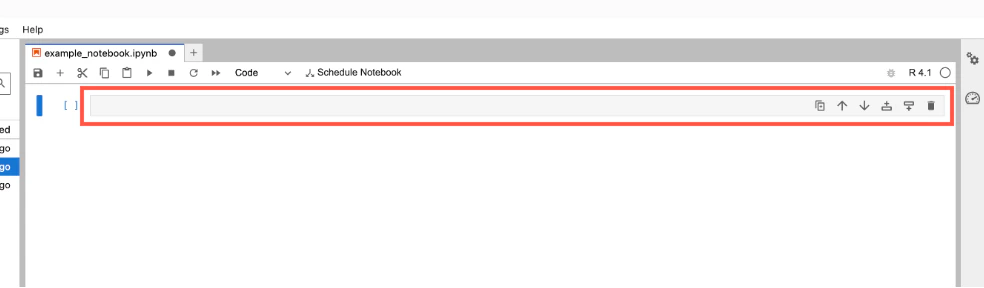
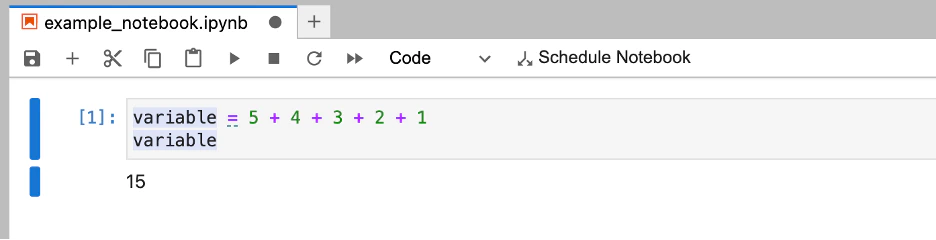
- **Code cells —**In these cells, you can write and edit code. The programming language that you use to write code depends on the type of kernel (either Python or R) that you selected when creating your Jupyter workspace. After you execute or run a code cells, the output of the code displays directly below the code cell. The output can take various forms such as text, figures, tables, and images.
- Markdown cells — In these cells, you can write text. You can also use Markdown language to mark up or format text, including italicizing and bolding, specifying lists, and creating headings. After you execute or run a markdown cell, the text you wrote is formatted into rich text. You can learn about basic Markdown synxtax
 here.
here. - **Raw cells —**In these cells, you can write output directly or save code that you don’t want to run.
Change Cell Type
You can change a cell’s type by selecting the cell and then selecting the cell type menu in the toolbar and choosing the cell type you want: code, markdown, or raw. To learn more about the cell types, see Cells.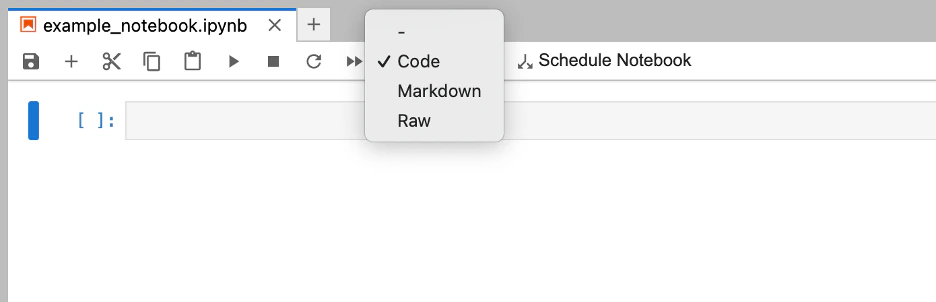
Add Cells to a Notebook
You can add cells to a notebook using one of these two options:- **Add —**Select
 Add in the toolbar. This adds a cell to the end of the notebook.
 - **Insert cell —**Select
 Insert cell above or
  insert cell below to add a cell above or below the currently selected cell.

Other Cell Options
You can make other changes to cells such as delete, move, copy, cut, paste, merge, or split. Select Editin the workspace toolbar and then select the option you want or enter the corresponding keyboard shortcut. You can also use the notebook and cell controls to make changes to cells.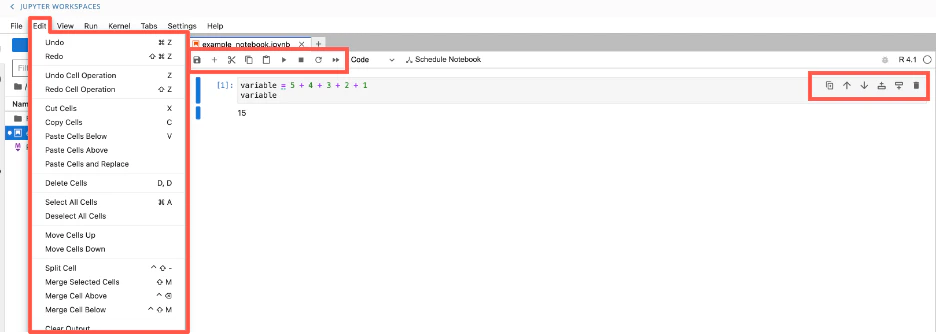
Add Input to Cells
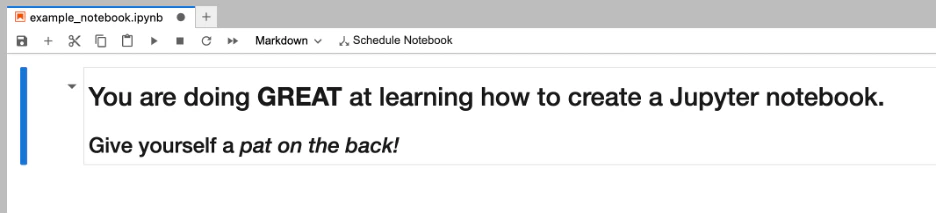
To add input such as text or code (Python, R, or Markdown) to a cell, select the cell in the notebook and enter your input.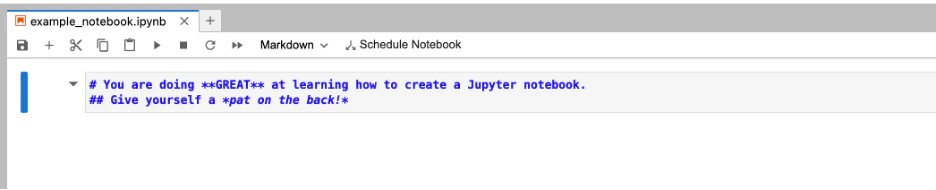
Execute/Run Cells
When you execute or “run” the contents of a cell, the resulting output associated with the input text or code displays directly in the notebook. The output can take forms such as text, figured, tables, and images, depending on the input and cell type. See Cells for more information. You can execute one or more cells at the same time. To execute an individual cell, select the cell and press Play in the toolbar.
To execute multiple cells, follow these steps:
Play in the toolbar.
To execute multiple cells, follow these steps:
- Press Esc on your keyboard.
- Press Shift + Up/Down arrow to select the cells you want to execute.
- Press Playin the toolbar.
 To execute all the cells at the same time, select Run > Run All Cells in the workspace toolbar.
Executions via Workflows
You can execute a Jupyter Notebook in Workflows by creating a new workflow and adding the Domo Jupyter automated function task. Learn more about Workflows. To set up your Jupyter Notebook execution in Workflows, you need the Workspace ID, the path to the Notebook, and the payload to execute against. You can retrieve the Workflow ID from your browser’s navigation bar after selecting the Workflow.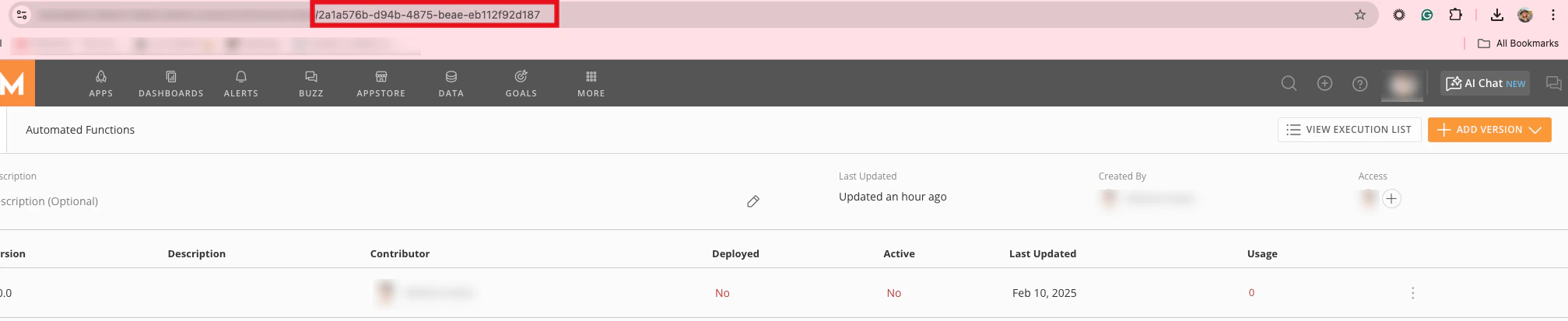
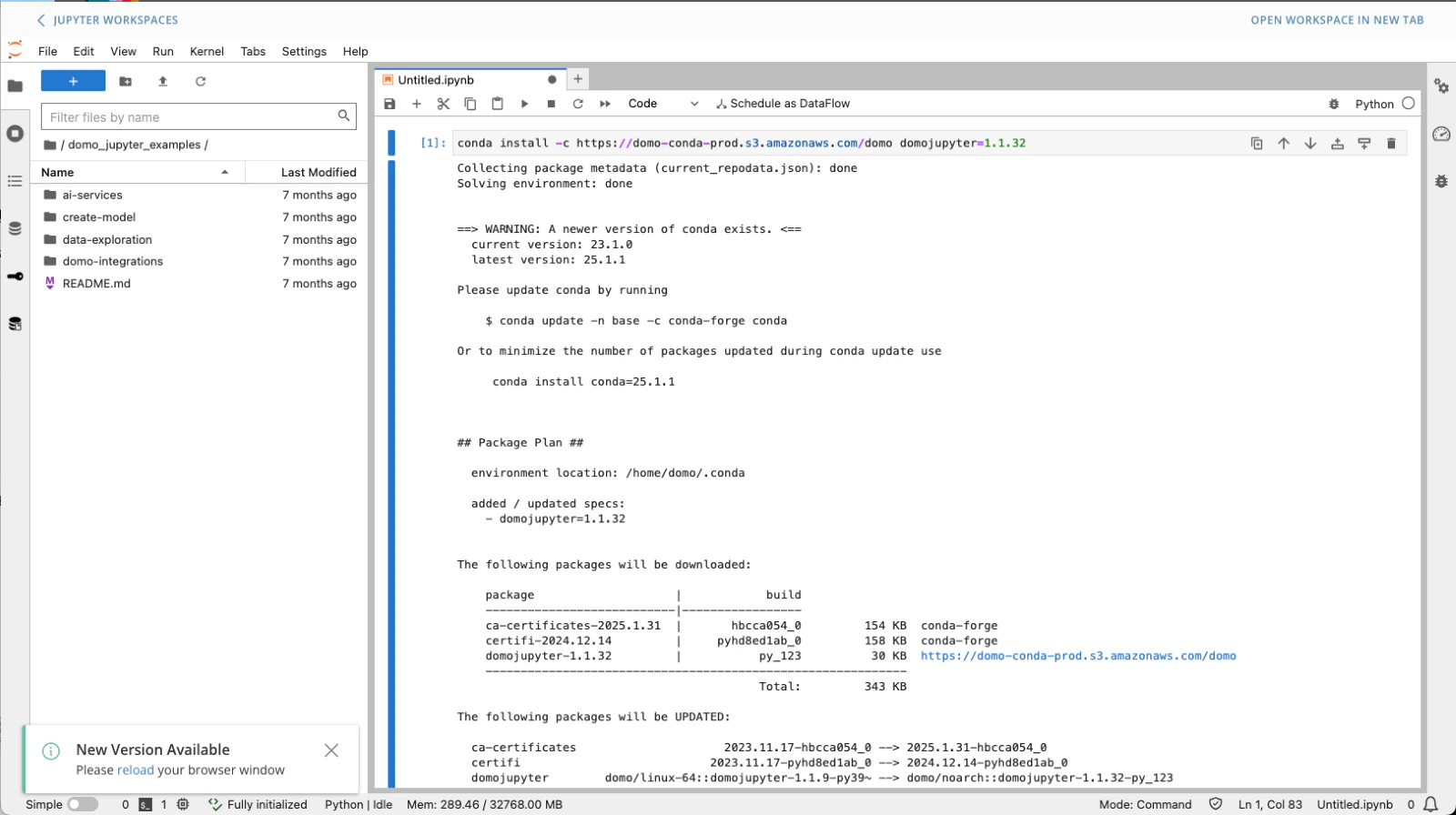
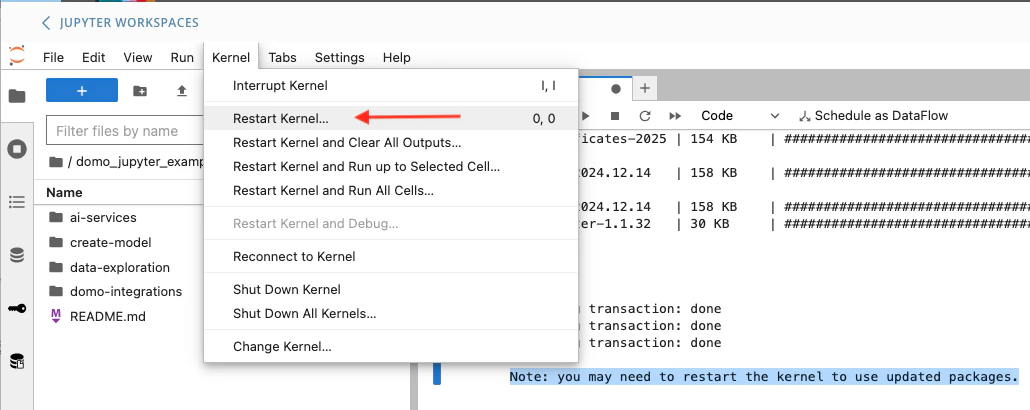
Jupyter Basics
This section contains information about other features of Jupyter Workspaces.Reading Data
Data can be read into a Jupyter Notebook using the domojupyter library. This library provides useful functionality to interact with Domo within Jupyter. Before data can be read into a Jupyter Notebook using the domojupyter library, your workspace must have an input data source. If you are creating a new workspace, see the earlier section, Create a Workspace. If your workspace already exists but doesn’t have an input data source, follow the steps below:- In Jupyter Workspaces, locate your workspace from the list. You can search and filter by owner.
-
Hover over your workspace. The Manage Workspace menu displays.
-
Select the Manage Workspace menu and choose Edit.
- In the Edit Jupyter Workspace view, select Add Input DataSetand choose a data source to be read into a Jupyter Notebook.
- After choosing a DataSet, select Save Workspace.
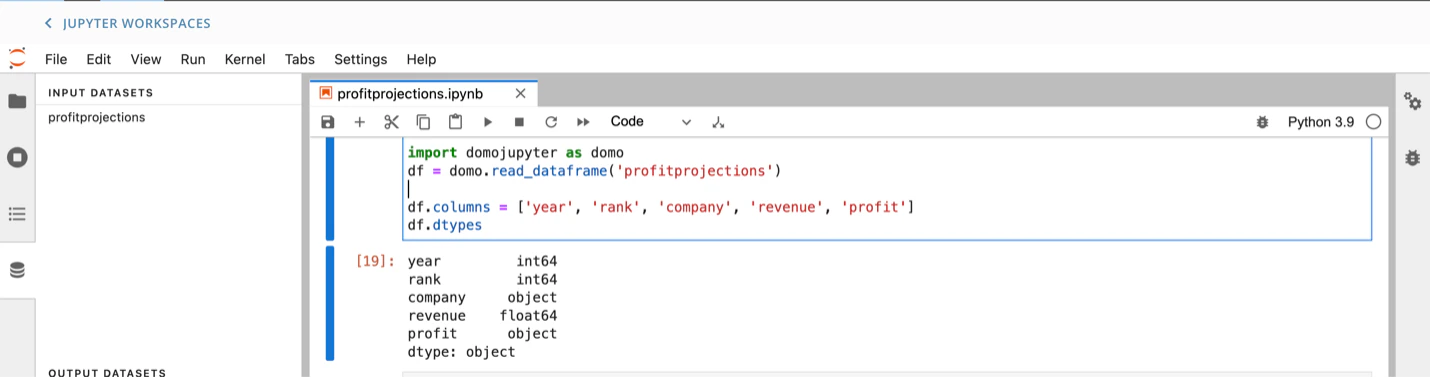
- Use the
domo.read_dataframecommand to read data from a Domo data source into your Jupyter Notebook for further processing and analysis.
Writing Data
Data can be written back to a Domo data source using the domojupyter library. This library provides useful functionality to interact with Domo within Jupyter. Before data can be written into a Jupyter Notebook using the domojupyter library, your workspace must have an output data source. If you are creating a new workspace, see the earlier section, Create a Workspace. If your workspace already exists but doesn’t have an output data source, follow the steps below:- In Jupyter Workspaces, locate your workspace from the list. You can search and filter by owner.
-
Hover over your workspace. The Manage Workspace menu displays.
-
Select Manage Workspace menu and choose Edit.
- In the Edit Jupyter Workspace view, select Add Output DataSet and choose a data source to be written into a Jupyter Notebook.
- After choosing a DataSet, select Save Workspace.
- Use the
domo.write_dataframecommand to write results back to the Domo Data sources configured for the Jupyter workspace.
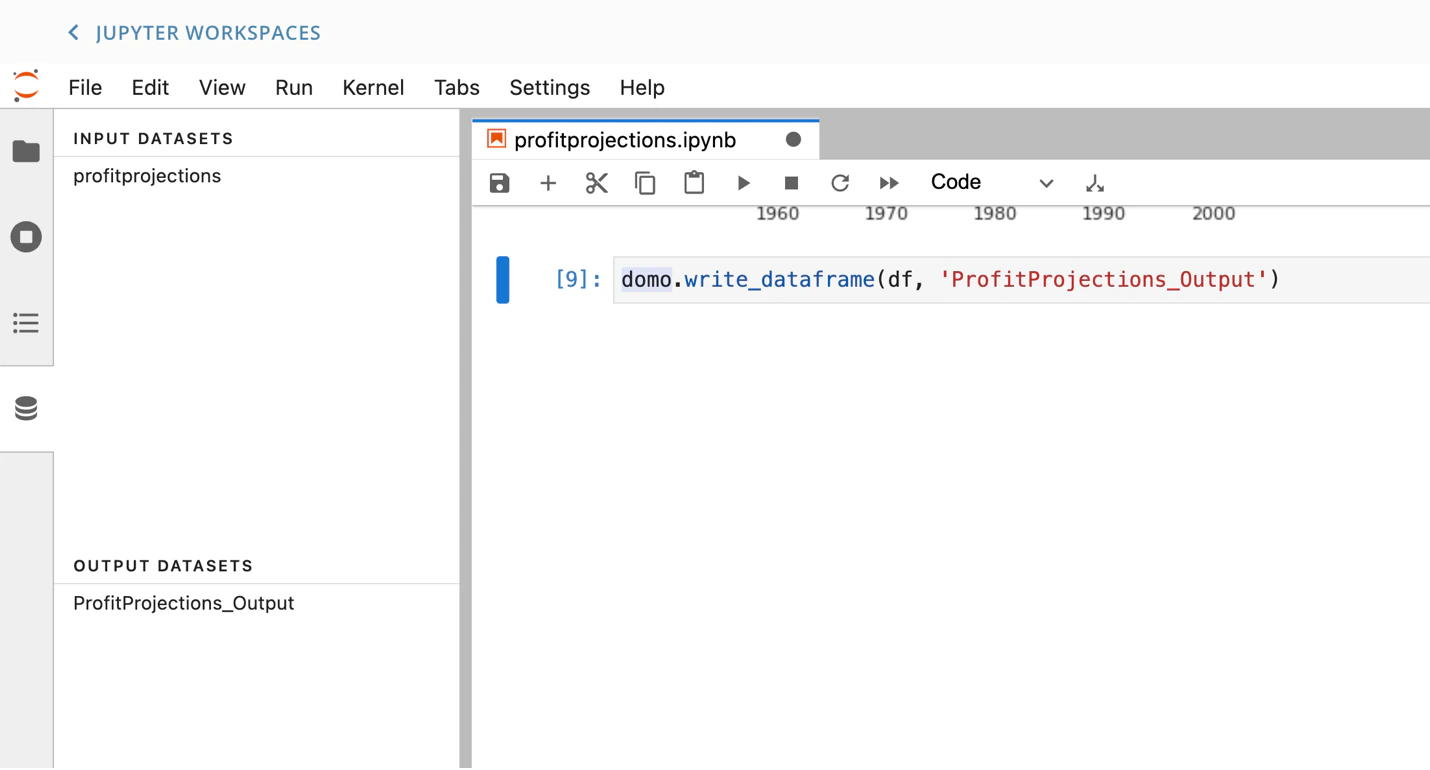
Use Append, Upsert, and Partition
Use the following commands to update a DataSet:- domo.write_dataframe(df, output_dataset)
- domo.write_dataframe(df, output_dataset, update_method=“REPLACE”)
- domo.write_dataframe(df, output_dataset, update_method=“APPEND”)
- domo.write_dataframe(df, output_dataset, update_method=“UPSERT”, update_key=column_name)
- domo.write_dataframe(df, output_dataset, update_method=“PARTITION”, partition_name=‘Example Name’)
update\_key column, or the UPSERT fails.Use Accounts
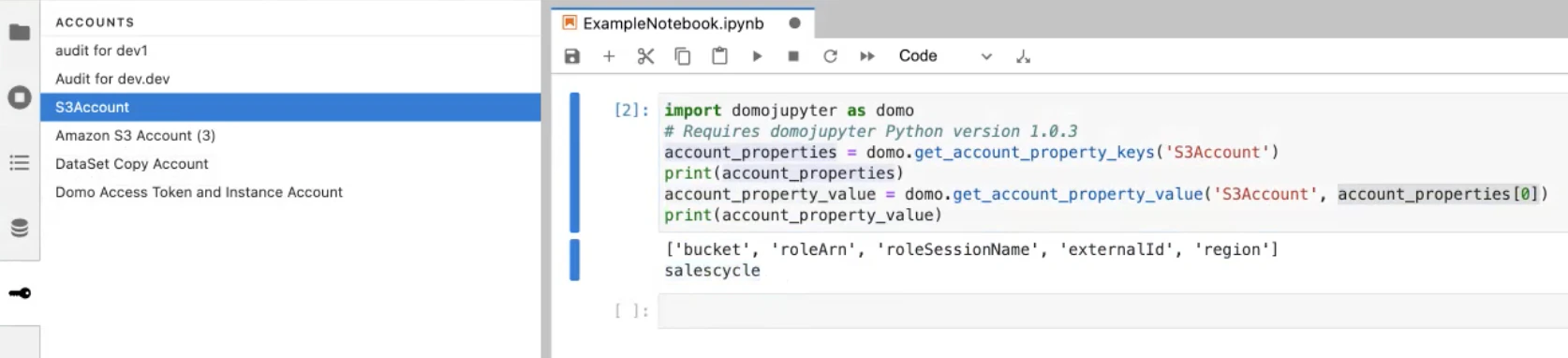
Third-party accounts can be referenced in a Jupyter Notebook using the domojupyter library. This library provides useful functionality to interact with Domo within Jupyter. Before account keys and values can be accessed, your workspace must have an account. If you are creating a new workspace, see the earlier section, Creating a Workspace. If your workspace already exists but doesn’t have a third-party account attached, follow the steps below:- In Jupyter Workspaces, locate your workspace from the list. You can search and filter by owner.
-
Hover over your workspace. The Manage Workspace menu displays.
-
Select the Manage Workspace menu and choose Edit.
- In the Edit Jupyter Workspace view, select Accounts > Add Accountand select a third-party account.
- After making your selection, select Save Workspace.
- The following commands can be used to get account information:
domo.get_account_property_value('account')will return the specific value assigned to a property on your account.domo.get_account_property_value('account',account_properties[0])will return all properties that exist in an account.
Install and Use Libraries
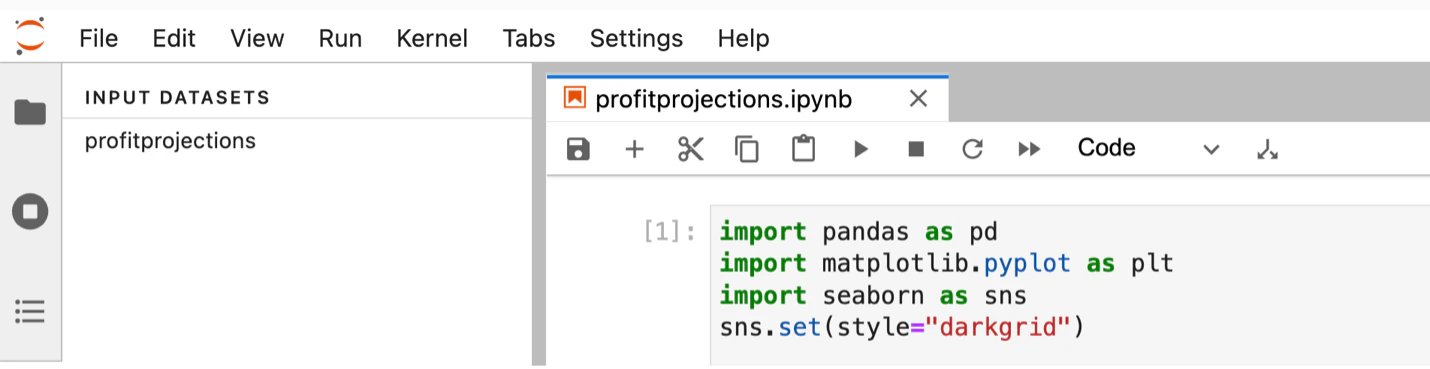
Libraries can be installed in the Jupyter workspace by opening a terminal and executing the appropriate commands. An example command to install the Seaborn library isconda install seaborn -y. Once installed, these libraries can be imported and used within the Jupyter Notebooks.
See the example below:
Usage Monitoring
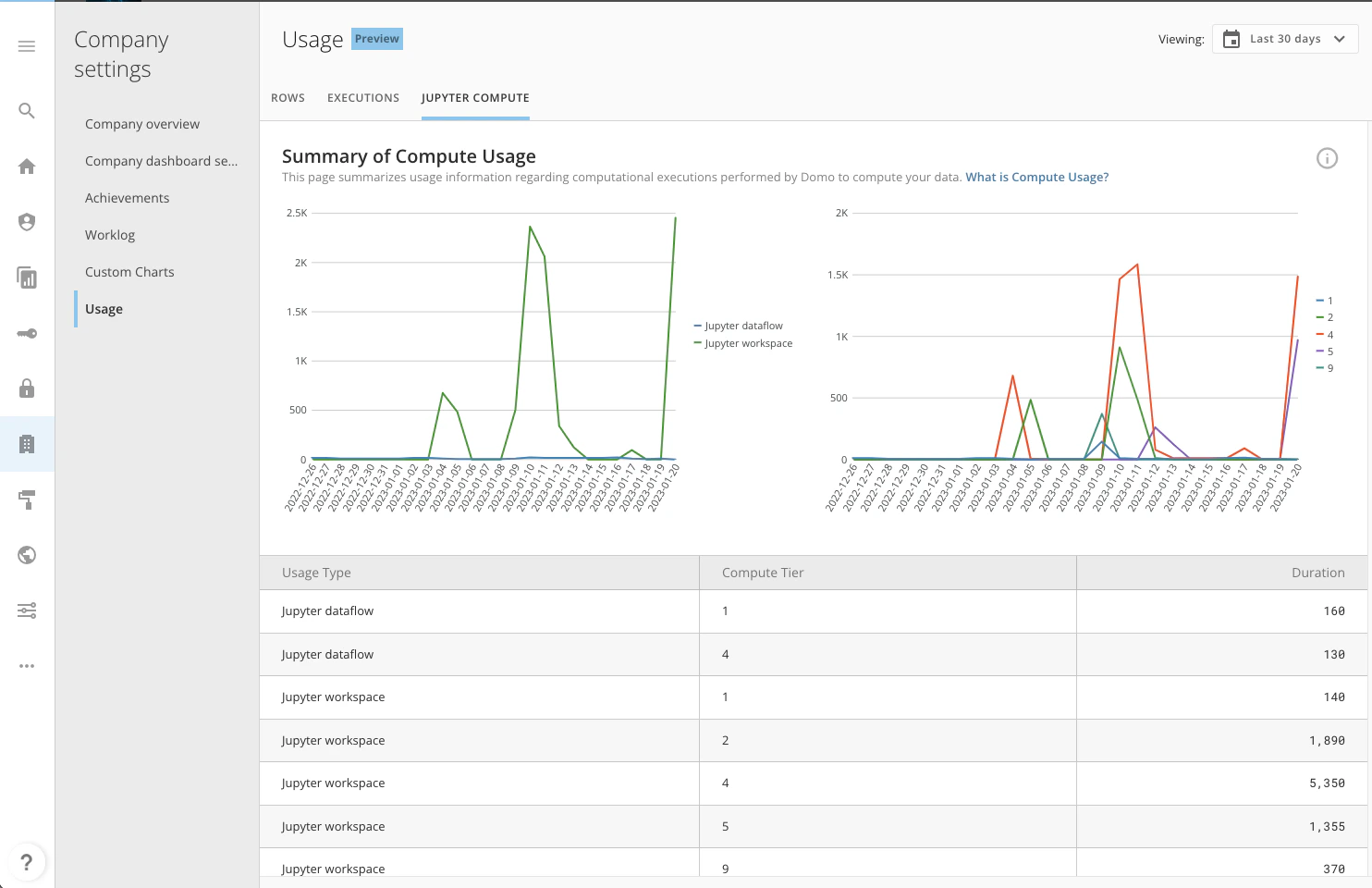
You can monitor Jupyter usage within Domo. As a prerequisite, you need to be assigned either the default Admin role or a custom role with the View Usage Metrics and Manage Jupyter Workspaces grants. Follow the steps below to create a custom role with usage-based billing access.- Clone an existing role such as the default Admin role.
- Remove any grants from the cloned role that are not needed for a billing admin.
- Add the View Usage Metrics and Manage Jupyter Workspaces grants to this role.
- In the navigation header, go to More> Admin.****
- On the Admin screen in the Company settings menu, select Usage.
-
Go to the Jupyter Compute tab.
FAQ
Can I install Plugins?
Can I install Plugins?
Can I trial the feature?
Can I trial the feature?
Does Domo offer data science services?
Does Domo offer data science services?
How do I change the kernel?
How do I change the kernel?
Can I reset the kernel?
Can I reset the kernel?
Manage Workspaces** menu displays. Choose **Restore Kernel Defaults** from the options. All instances must be stopped to fulfill this action.
**Do I need to know how to code using Python or R programming languages in order to use a Jupyter notebook?
Manage Workspaces** menu displays. Choose **Restore Kernel Defaults** from the options. All instances must be stopped to fulfill this action. **Do I need to know how to code using Python or R programming languages in order to use a Jupyter notebook?
I'm experiencing issues integrating third-party libraries.
I'm experiencing issues integrating third-party libraries.
Can I integrate Jupyter Workspaces with GitHub?
Can I integrate Jupyter Workspaces with GitHub?
The minimum Python version available is 3.9, what is Domo's policy of depreciating supported versions?
The minimum Python version available is 3.9, what is Domo's policy of depreciating supported versions?
There are four categories of workspace available, each with the same four CPUs. What will be the configuration of each category in production?
There are four categories of workspace available, each with the same four CPUs. What will be the configuration of each category in production?
How can I host a service that will continuously run as an API?
How can I host a service that will continuously run as an API?
Does Domo have any code copilot/assistant?
Does Domo have any code copilot/assistant?