

Documentation Index
Fetch the complete documentation index at: https://domoinc-arun-raj-connectors-domo-479695-remove-crime-report.mintlify.app/llms.txt
Use this file to discover all available pages before exploring further.
Intro
This article describes how to use the AI Services tiles in Magic ETL. To learn how to use tiles in DataFlows, see Create a Magic ETL DataFlow.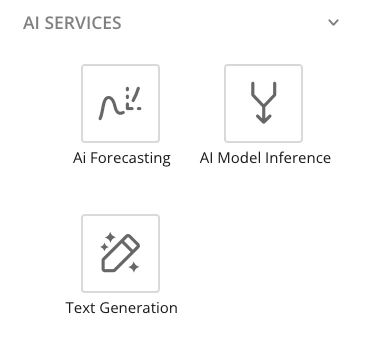
AI Forecasting Tile


Configure the AI Forecasting Tile
After you connect your input DataSet to an AI Forecasting tile on the Magic ETL canvas, you can configure your model preferences. Select the AI Forecasting tile to expand the tile editor. Complete the steps in the editor.
Learn more about models.

| Settings | Description | Recommendations |
|---|---|---|
| Date Column | Select the date column that identifies the date interval corresponding to each row in your DataSet. Values in this column must be stored as a date or time-stamp data type and must also be at the daily, weekly, monthly, quarterly, or yearly granularity level. If you have selected a DataSource, all available data columns with date or time-stamp data types are listed. | — |
| Value Column | Select the numeric column of data to forecast. Values in this column must be stored as an integer, floating decimal, or fixed decimal data type. If you have selected a DataSource, all available numeric data columns that are an integer, floating decimal, or fixed decimal data type are listed. | — |
| Frequency | Select the time-frequency to forecast. | — |
| Forecast Length | Select or input the number of time intervals you want to forecast.For example, if you select the Dayoption for the Frequencysetting and want to receive a forecast for the next two weeks, enter 14 for the Forecast Length. The number you input should be an integer (whole number, no decimals) that is greater than or equal to 1. | — |
| Seasonality Period | Input the number of seasonality periods you would like the forecast to take into consideration. The input should be an integer (whole number, no decimals) that is greater than or equal to one. Seasonality refers to a repeating pattern that occurs in your data at a fixed frequency (ex., every hour, day, week, or month). For example, if you have daily sales data and tend to observe higher sales on weekdays than weekends, your data exhibits weekly seasonality and should set your Seasonality Period to seven. | - Daily Data - Weekly seasonality (a reoccurring pattern for every seven days): set your seasonality period to 7. - Monthly seasonality (reoccurring pattern every thirty days): set your seasonality period to 30. - Annual seasonality (reoccurring pattern every 365 days): set your seasonality period to 365. - For no seasonality, set the period to 1. - The seasonality period is set to 7 if the Frequency = Day. - Weekly Data - Weekly seasonality (a reoccurring pattern every four weeks): set your seasonality period to 4. - Quarterly seasonality (a reoccurring pattern every thirteen weeks): set your seasonality period to 13. - Annual seasonality (a reoccurring pattern every fifty-two weeks): set your seasonality period to 52. - For no seasonality, set the period to 1. - The seasonality period is set to 1 if the Frequency = Week. - Monthly Data - Quarterly seasonality (a reoccurring pattern every three months): set your seasonality period to 3. - Annual seasonality (a reoccurring pattern every twelve months): set your seasonality period to 12. - For no seasonality, set the period to 1. - The seasonality period is set to 12 if the Frequency = Day. - Quarterly Data - Annual seasonality (a reoccurring pattern every four quarters): set the seasonality period to 4. - For no seasonality, set the period to 1. - The seasonality period is set to 4 if the Frequency = Quarterly. - Yearly Data - If your data exhibits a reoccurring pattern every X years (such as 1, 2, 3…, set the seasonality period to X. - For no seasonality, set the period to one. - The seasonality period is set to one if the Frequency = Yearly. |
Note: The number of rows in your output DataSet depends on the number of
data points you configured to be forecasted.
| Column | Description | Example |
|---|---|---|
| forecast_value | This column includes the forecasted values. | — |
| confidence_0 | The type of confidence interval built. | 80% |
| confidence_1 | ||
| lower_0 | The lower range of your confidence interval. The columns depend on the associated confidence interval. For example, lower\_0 is the lower range for the confidence\_0 interval. | — |
| lower_1 | ||
| upper_0 | The upper range of your confidence interval. The columns depend on the associated confidence interval. For example, upper\_0 is the upper range for the confidence\_0 interval. | — |
| upper_1 |
Configure Your AI Forecasting Tile to Match Its Input Granularity
Drag and drop an AI Forecasting tile onto the authoring canvas and connect to your DataFlow. Select the AI Forecasting tile to expand the tile editor. Select Configuration (tab). Adjust your date and value columns, then choose a forecast frequency and length, and select a seasonality period—all according to your specified granularity.For example, if you are ordering granularity by month, you can select your configured column “Order Date Month,” a value sum, a “Monthly” frequency, and a seasonality period of “12.”

Interpret Results from the AI Forecasting Tile
You can interpret and explore the results of your forecast by opening the output DataSet in Analyzer. Use the chart type finder to choose a Forecasting Chart. Use the upper and lower bound columns from your output DataSet to set your bounds and display the forecast confidence ranges. Learn more about the Forecasting Chart.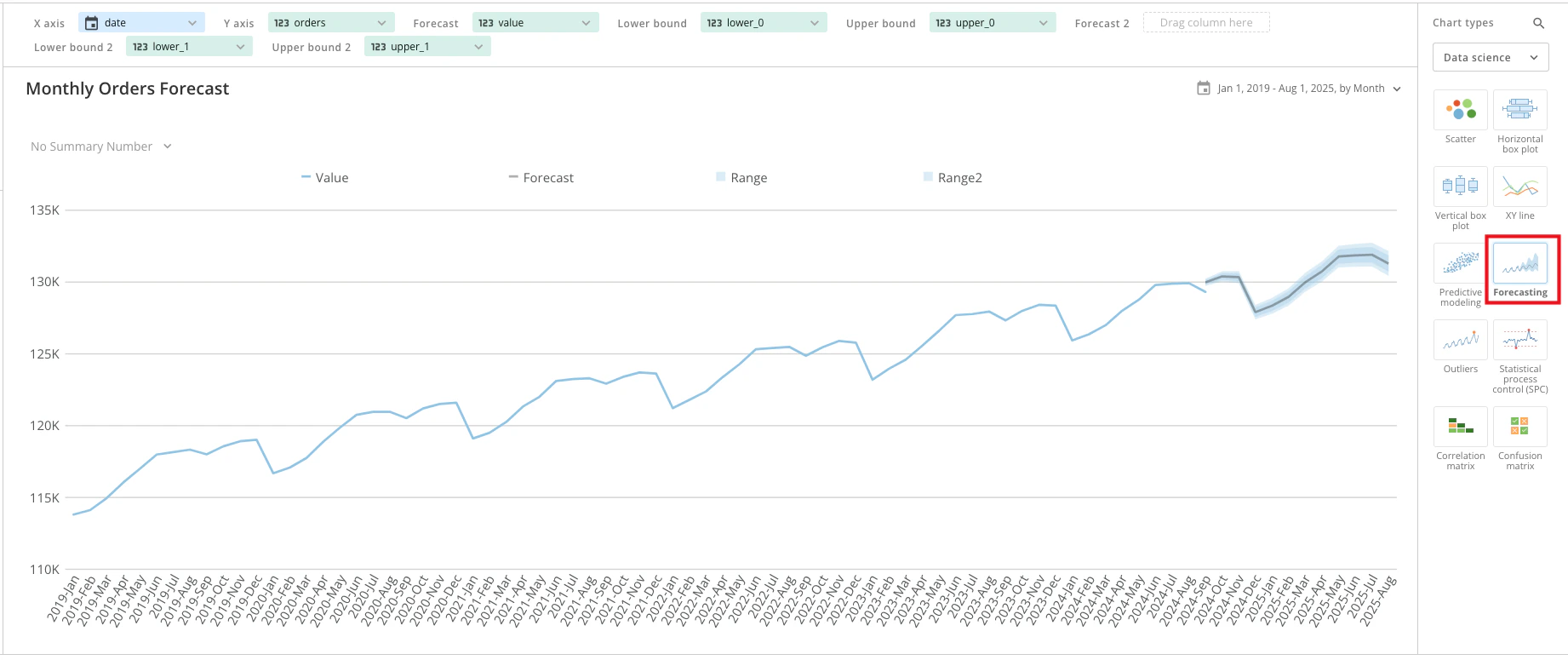
Convert Input Granularity
Follow the steps below to convert your input DataSet from a minute granularity to a month/day or other specific granularity when creating a DataFlow with the AI Forecasting tile.Add a Granularity Formula
Drag and drop an Add Formula tile onto the authoring canvas. Connect that tile to your DataSet. Select the Add Formula tile to expand the tile editor. Select Configuration (tab). Enter a name in the Name output column field.For example, to create a column granularity by month, you can enter “Order Date Month.” Enter the corresponding formula in the Write formula field.
For example, to order granularity by month, you can write
DATE_TRUNC ('month', 'Order Date').

Alter Your Column Granularity
Drag and drop an Alter Columns tile onto the authoring canvas. Connect that tile to your DataFlow. Select the Alter Columns tile to expand the tile editor. Select Configuration (tab). Alter applicable columns.For example, to order granularity by month, you can select the “Order Date Month” column you created with your granularity formula.
Then, change the Cast Data Type to “Date.”

Group Your Column by Granularity
Drag and drop a Group By tile onto the authoring canvas. Connect that tile to your DataFlow. Select the Group By tile to expand the tile editor. Select Configuration (tab). Select the applicable columns.For example, to order granularity by month, you can select the “Order Date Month”column you created and altered in the Add Formula and Alter Columns tiles. You now have a column that you have altered and grouped according to your specified granularity.

Configure Your AI Forecasting Tile to Match Its Input Granularity
Drag and drop an AI Forecasting tile onto the authoring canvas and connect to your DataFlow. Select the AI Forecasting tile to expand the tile editor. Select Configuration (tab). Adjust your date and value columns, then choose a forecast frequency and length, and select a seasonality period—all according to your specified granularity.For example, if you are ordering granularity by month, you can select your configured column “Order Date Month,” a value sum, a “Monthly” frequency, and a seasonality period of “12.”
Save Your Granularity Configuration
Select Save to save your configuration. You can also check your work by selecting the dropdown next to Save and selecting Save and Run.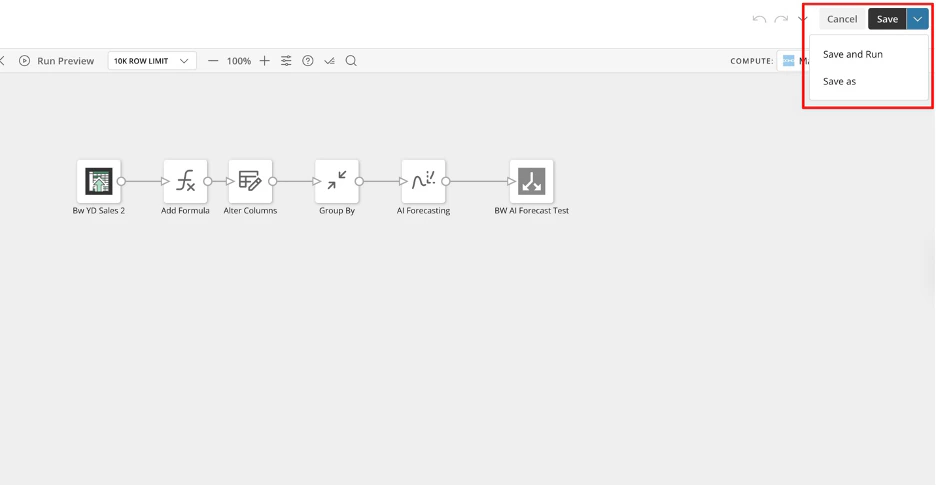

AI Model Inference Tile

Required Grant
To access the AI Model Inference tile in Magic ETL, the following grant must be enabled for your role:- **Use AI Services —**Allows a user to access and use the AI Services in Domo.
Configure the AI Model Inference Tile
- Select the DataSet you want to gather inferences from and open it in Magic ETL.
-
In the Magic ETL sidebar, expand Data Science and drag an AI Model Inference tile to the canvas.
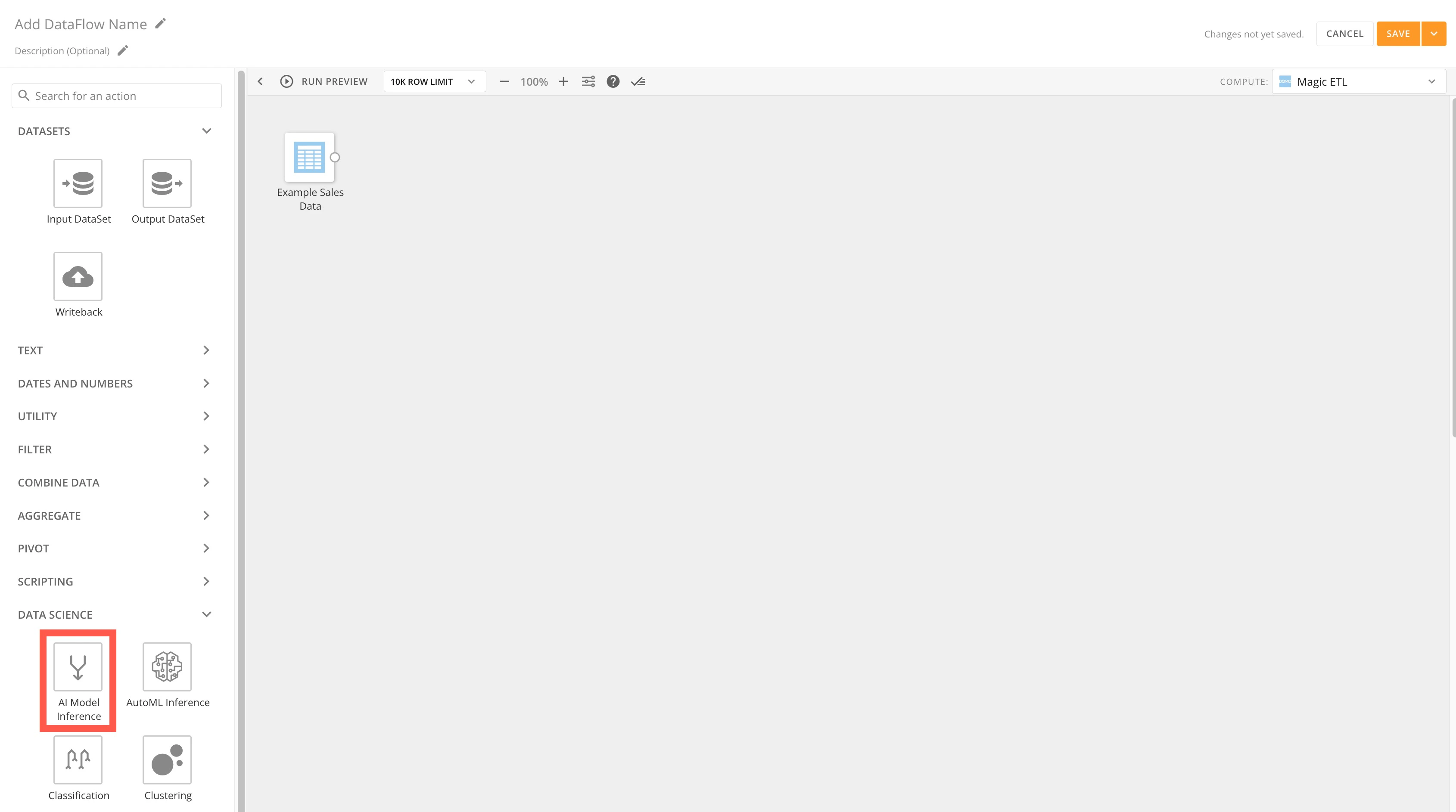
- Connect your input DataSet to the tile. You can only use one DataSet as input.
-
In the tile editor, choose Select a Model to search for and choose a model to use for your inference. The model schema must match the schema of the input DataSet. If the schemas do not match, an error message displays.
If the schema of your input DataSet matches the model’s schema, you can select the model you want to bring in. You can only use models with a CSV type in Magic ETL.
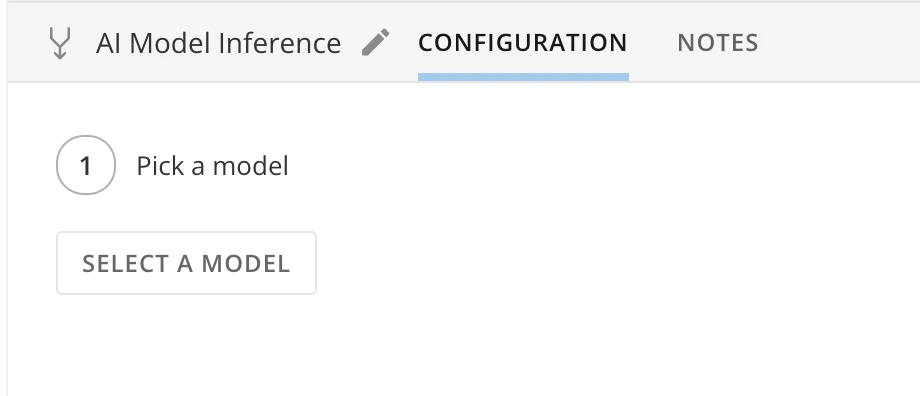

- Depending on the model, you can select a task if multiple options are available in the Pick a Task dropdown. The model task automatically generates from your selected model. Models may have multiple tasks, but only one task is selected for the DataFlow. In the example used above, only the “Other” task type is available.
- Select a tier, depending on the number of resources used to run the model. A tieris the size of the resources the model is running with and the number of central processing units (CPUs) used. Learn more about compute tiers.
-
(Optional) Check the box labeled Include Input Data in Output Data to duplicate all the rows from your input DataSet. This means that if you have 10 rows of data in your input, there will be 10 rows of data in your output.
If you leave the box unchecked, only the inferred data is included in the output DataSet.
Text Generation Tile Beta
Note: This feature is in beta. Beta Program participants can enable
features here. To join the Beta
Program, fill out this form. For beta questions or feedback, email
beta.admin@domo.com.

Required Grants
To access the Text Generation tile in Magic ETL, the following grants must be enabled for your role:(Learn more about grants.)
- Execute AutoML
- Create AI Service Models
- Use AI Services
Configure the Text Generation Tile
Note: The Magic ETL Preview function doesn’t work with the Text Generation
tile, due to the timeout of the AI model.
- Open the Magic ETL canvas and choose an input DataSet that contains a text column you want to analyze.
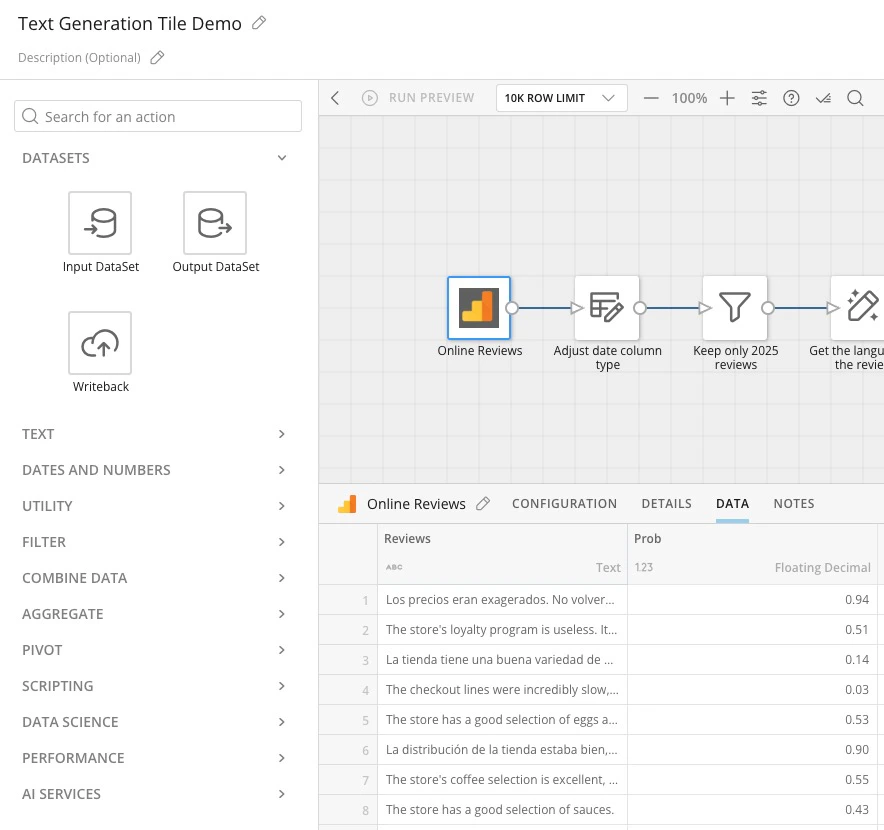

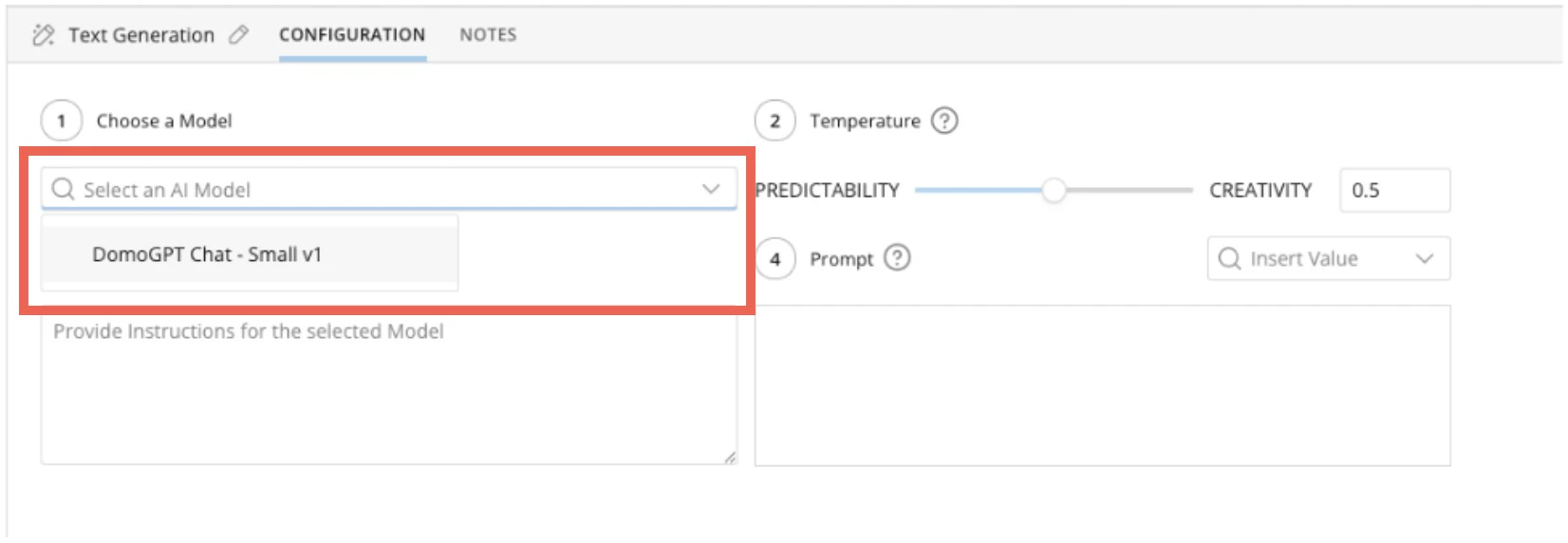

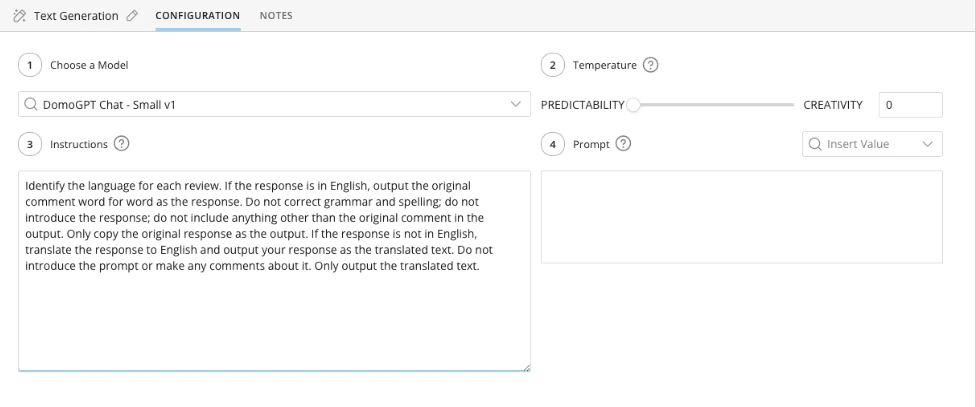
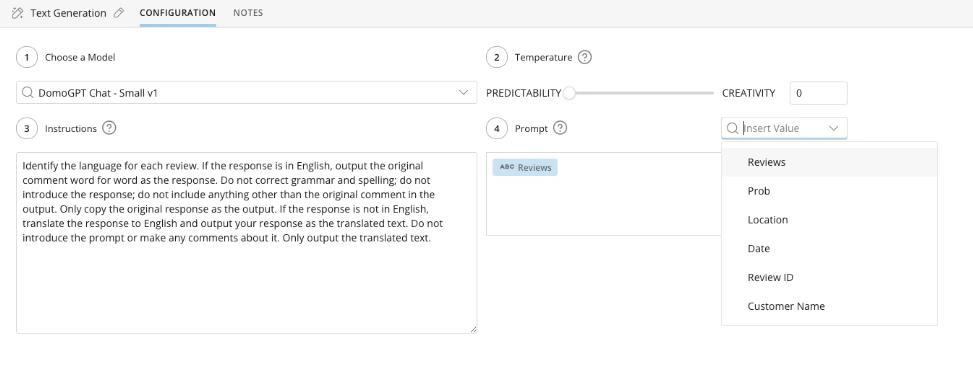
Output. You can use tiles farther downstream in the DataFlow to rename that column.
Notes:
- You can include multiple Text Generation tiles in the same DataFlow, tasking them with different aspects of analysis for the column (or analysis of different columns).
-
You can give multiple instructions in a single Text Generation tile, although you’ll need a way to parse the results of the multiple instructions from the single output column.
For example, you could instruct the model to separate the output of each instruction with a specific delimiter and then use the Split Columns action to parse.
Here’s an example of the output DataSet from a DataFlow leveraging multiple instances of the Text Generation tile to analyze language, translate the review to English, analyze sentiment, and categorize the review based on provided themes.

FAQ
Can I use my own model in the Text Generation tile?
Can I use my own model in the Text Generation tile?
Not currently, but this capability is on the roadmap.
Can you output multiple columns from a single Text Generation tile?
Can you output multiple columns from a single Text Generation tile?
No, it outputs a single column. You can use multiple Text Generation tiles for
multiple instructions. Alternatively, you can instruct the tile to respond to
your instructions by a specific delimiter and then use other Magic ETL tiles
downstream in your DataFlow to parse the responses into their own columns.