

Documentation Index
Fetch the complete documentation index at: https://domoinc-arun-raj-connectors-domo-479695-remove-crime-report.mintlify.app/llms.txt
Use this file to discover all available pages before exploring further.
Intro
Depending on the complexity of your process, creating and configuring a workflow for the first time can require significant time and effort. You can always contact your Domo account team for support. This article describes how to create a workflow from our library of pre-built templates or from a blank canvas. After creating a workflow version, you must validate,deploy, and start it. Learn how below.Glossary: Italicized terms in this article have particular definitions within Workflows. Visit the Workflows glossary to learn the definitions.
Required Grant
You can create new workflows as long as you have at least an Editor system role or a custom role with the Create Workflows grant enabled. Learn about system and custom roles.Note: If you can’t access Workflows even with the appropriate grant, contact your Domo account team to enable the feature.
Access Workflows
You can access Workflows from the main Domo navigation. This table describes the two default views of the Workflows home.| Description | Default view |
|---|---|
| If you have access to at least one workflow (including those you’ve created), the default view lists all your available workflows. | 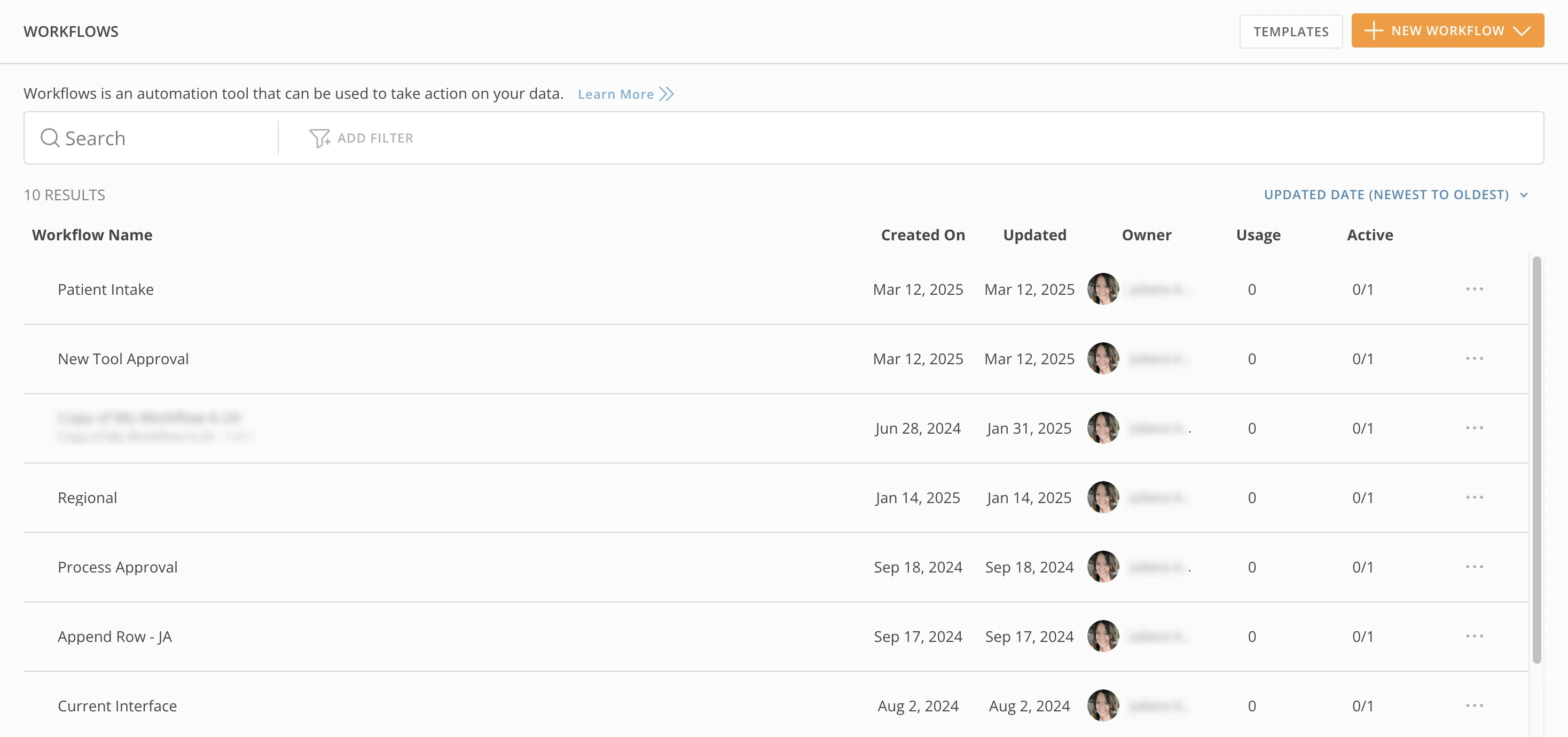 |
| If you don’t have access to any workflow, the default view is the template library. Template Library: The template library contains pre-built workflows for processes, including approval requests and page archiving. | 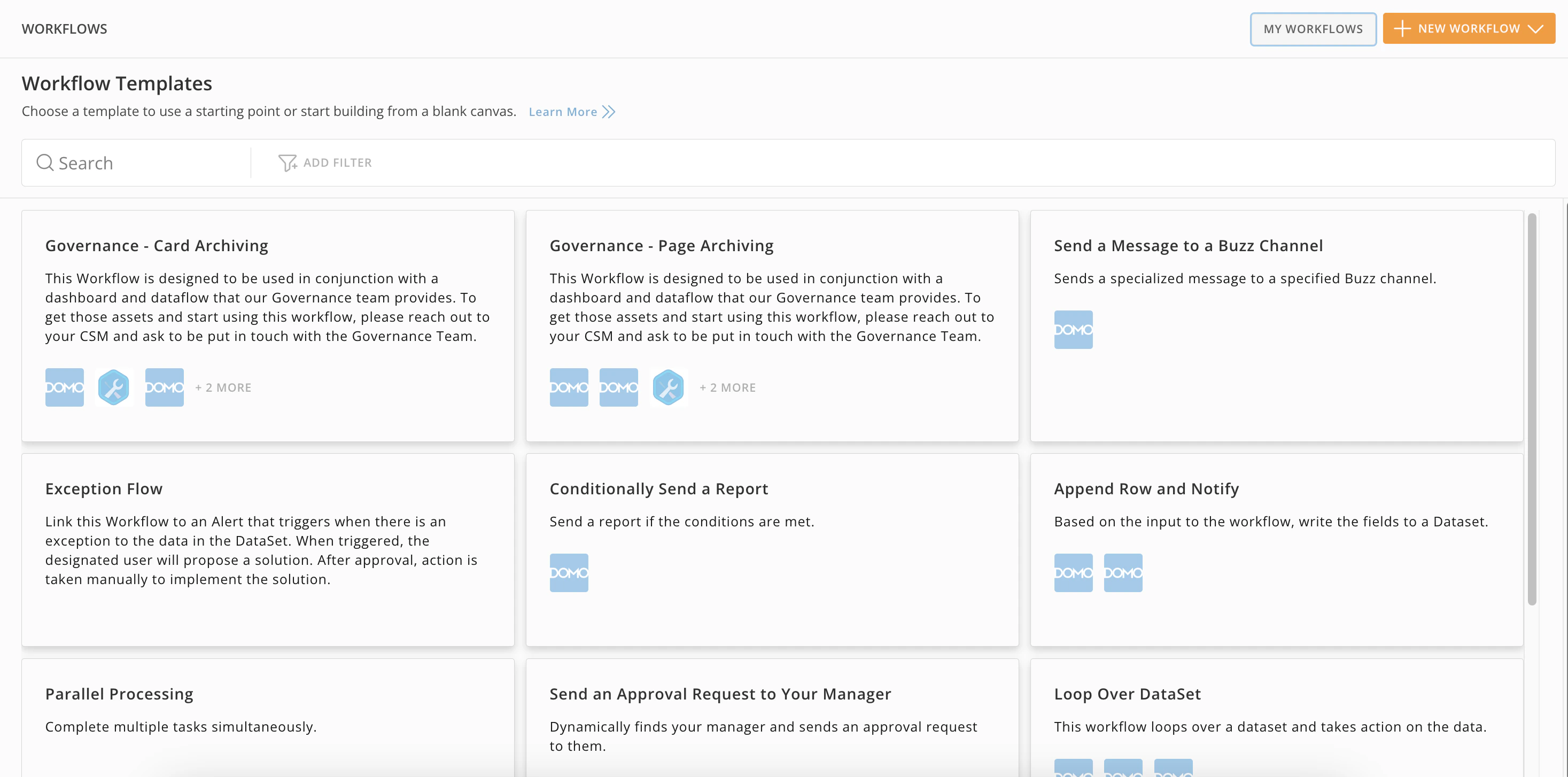 |
Create a Workflow from a Template
You can create a workflow from the template library or create a “template” from an existing workflow you have access to by creating a new version of it or performing a Save As action to reuse and customize it.Note: You must have the Create Workflows grant to create a workflow. Learn more about required grants for Workflows.
- From your default Workflows view, select + New Workflow > Create from Templateto open the template library.
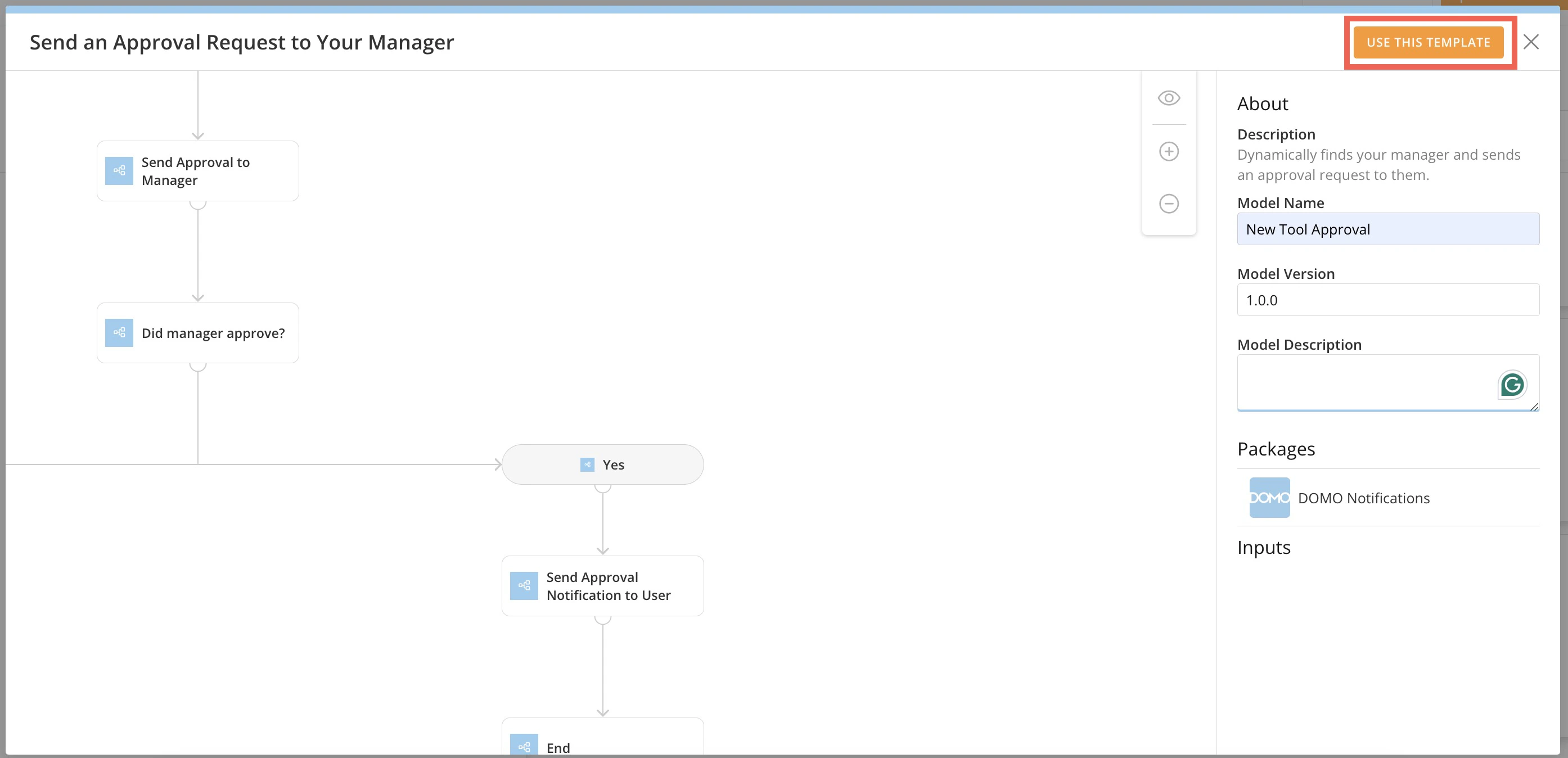
- Choose a template from the library and enter a name in the Model Name field. (The max character limit is 75.) Your workflow must have a name to proceed.
- If you change the pre-populated version number, the number must be in the
<<major.minor.patch>>format.
- If you change the pre-populated version number, the number must be in the
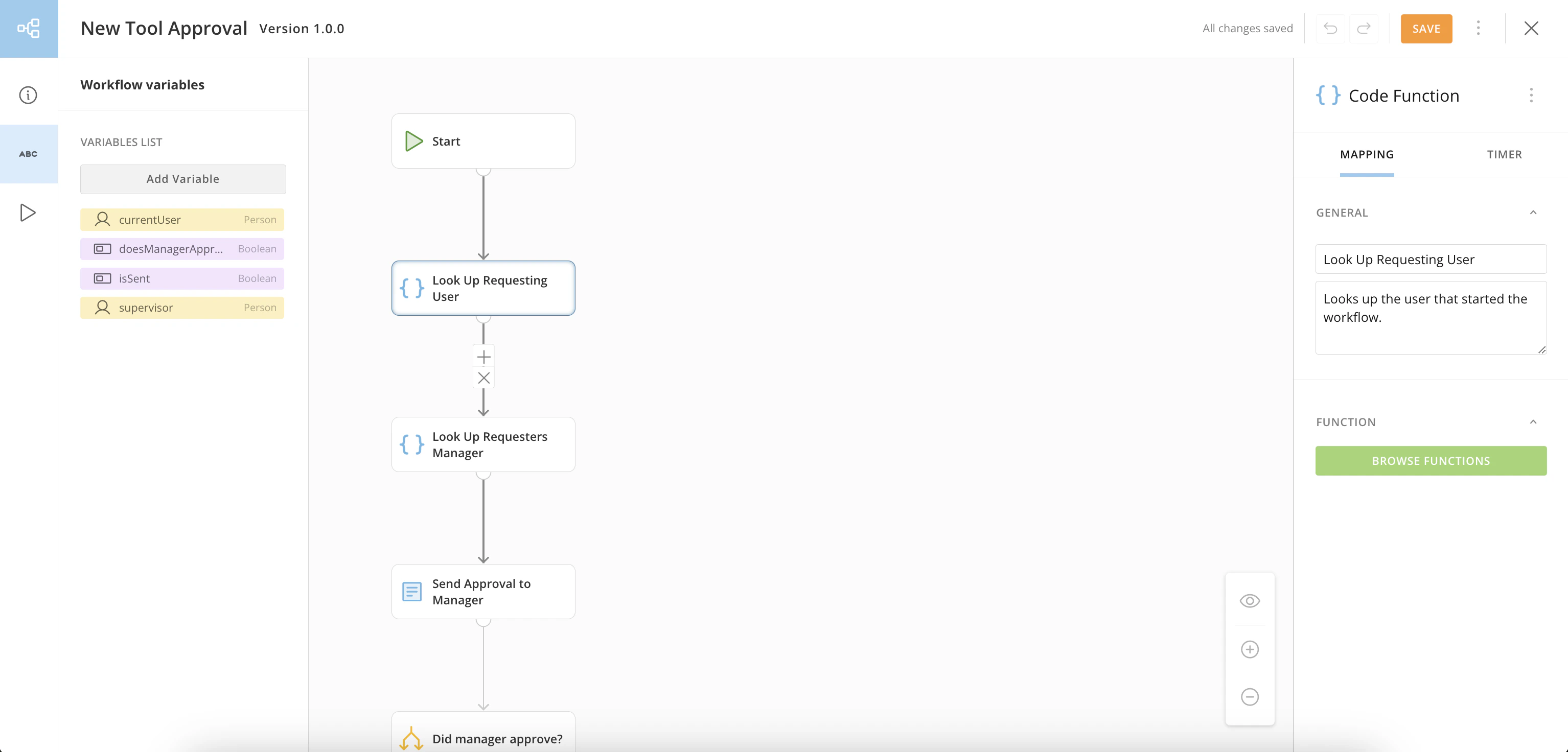
- Selecting a shape and configuring it in the right configuration panel. Click an empty area of the canvas to close the configuration panel.
-
Select a flow (connect), or line, between the shapes to view the
 Add/Remove shape controls and change shapes on the canvas.
-
Click-and-drag shapes and flows around the canvas to change the design of your workflow.
- Select Saveto keep your changes.
Create a Workflow from a Blank Canvas
Note: You must have the Create Workflows grant to create a workflow. Learn more about required grants for Workflows.
- From your default Workflows view, select + New Workflow > Blank Workflow.
- Enter a name for your workflow. (The max character limit for the name is 75.)
-
Select Save and open the canvas.
- If you change the pre-populated version number, the number must be in the <major.minor.patch> format.
-
Add shapes and flows, or lines, to the canvas and configure them. Configuration options include:
- Selecting a shape and configuring it in the right configuration panel. Click a blank space on the canvas to close the configuration panel.
- Select a flow (connect), or line, between the shapes to view the Add/Remove shapecontrols and change shapes on the canvas.
-
- Click-and-drag shapes and flows around the canvas to change the design of your workflow.
- Select Save to keep your changes.
Design Your Workflow
The Workflows canvas is where you design and edit your workflow.Left Panel Information
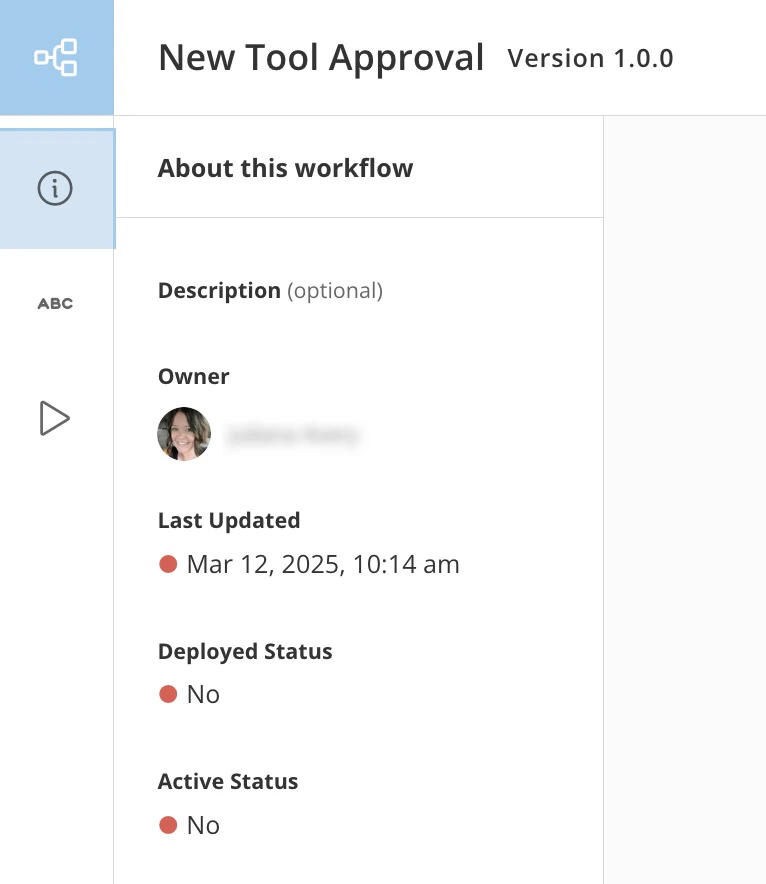
When the canvas opens, the left panel displays information about the workflow in the About this workflow tab. The information includes whether the workflow is deployed and active.
A 🔴 red dot by the Last Updated date means that there are unsaved edits for the version.
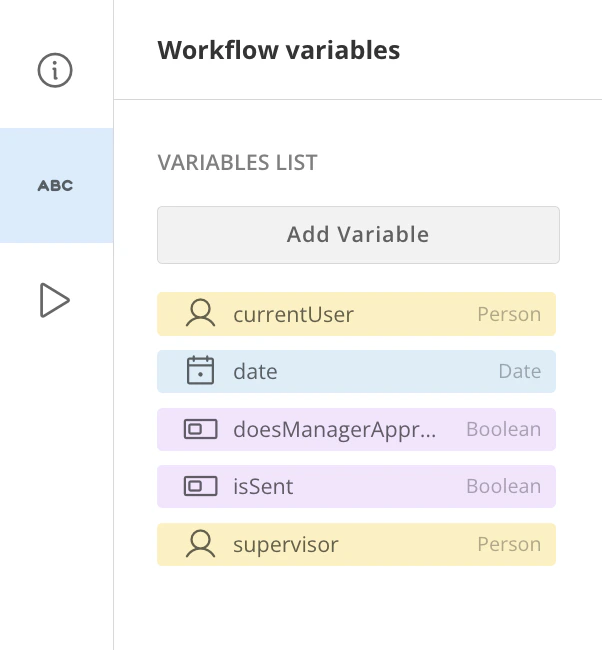
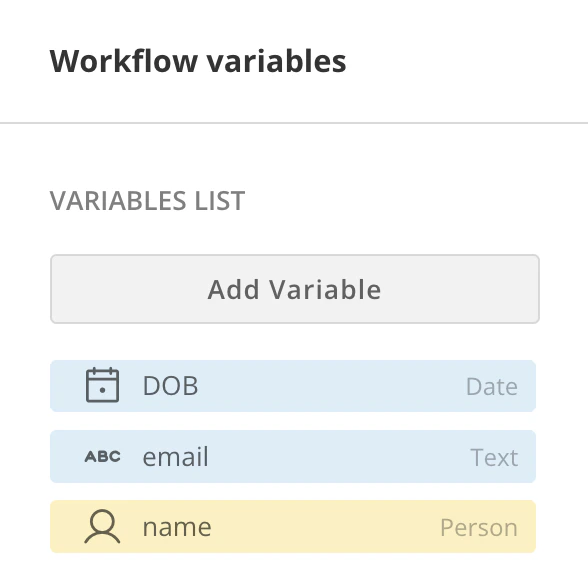
 Workflow variables tab, you can add and view variables color-coded by data type. Learn how to add a variable and use the data association tool below.
Move Around the Canvas
Use the following controls to help you move around the canvas and design your workflow:Element Controls
Use the following mouse/trackpad and hotkeys commands to move shapes and flows around the canvas.Select Elements
-
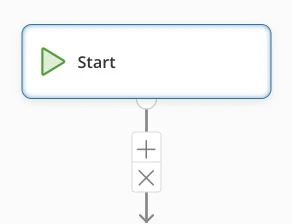
Single element select — Left-click a node or edge of an element to select it.
-
Multi-element select — Hold Shift + left-click and drag the cursor to select multiple elements.
Holding Control (Windows)/Command (Mac) and selecting multiple nodes also selects multiple elements.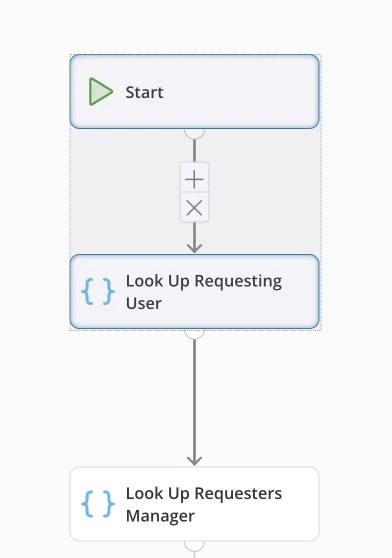
-
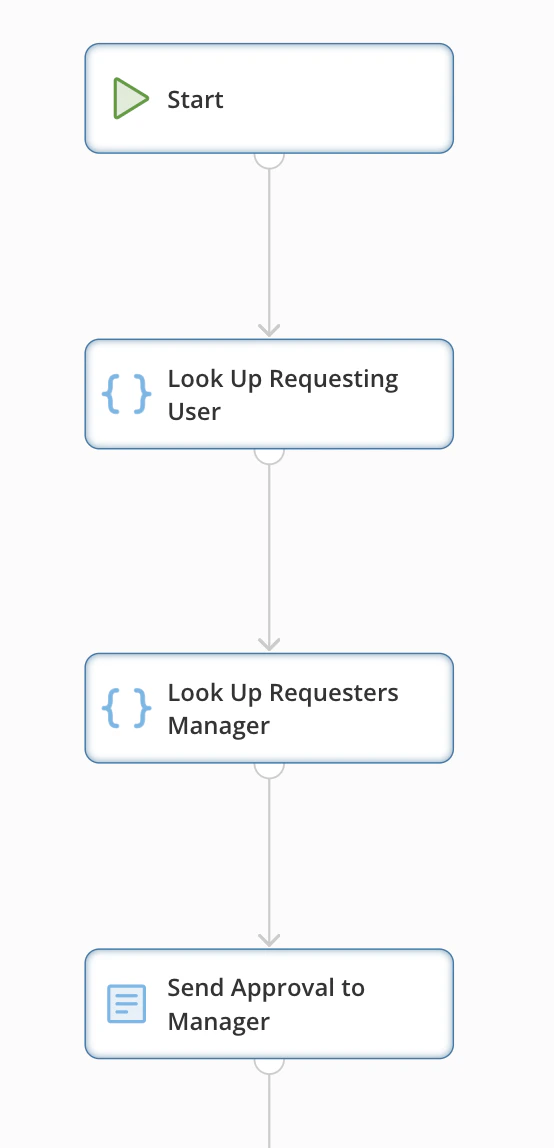
Select All Elements — Press Control (Windows)/Command (Mac) + A to select all the elements.
Pan
- Left-click an empty area of the canvas and drag to move the entire canvas.
Zoom
Zoom with the Zoom in/Zoom outcontrols.
Center
Selecting the eye icon centers your workflow on the canvas.
Use the Configuration Panel
When you add a start or any other shape to the canvas and select it, a configuration panel displays to the right of the canvas, as shown below. The configuration panel may contain tabs, based on the shape. In the example below, the Code Function configuration panel has two tabs: Mappingand Timer. When no shape is selected, no configuration panel displays. To close the configuration panel, select an empty area of the canvas.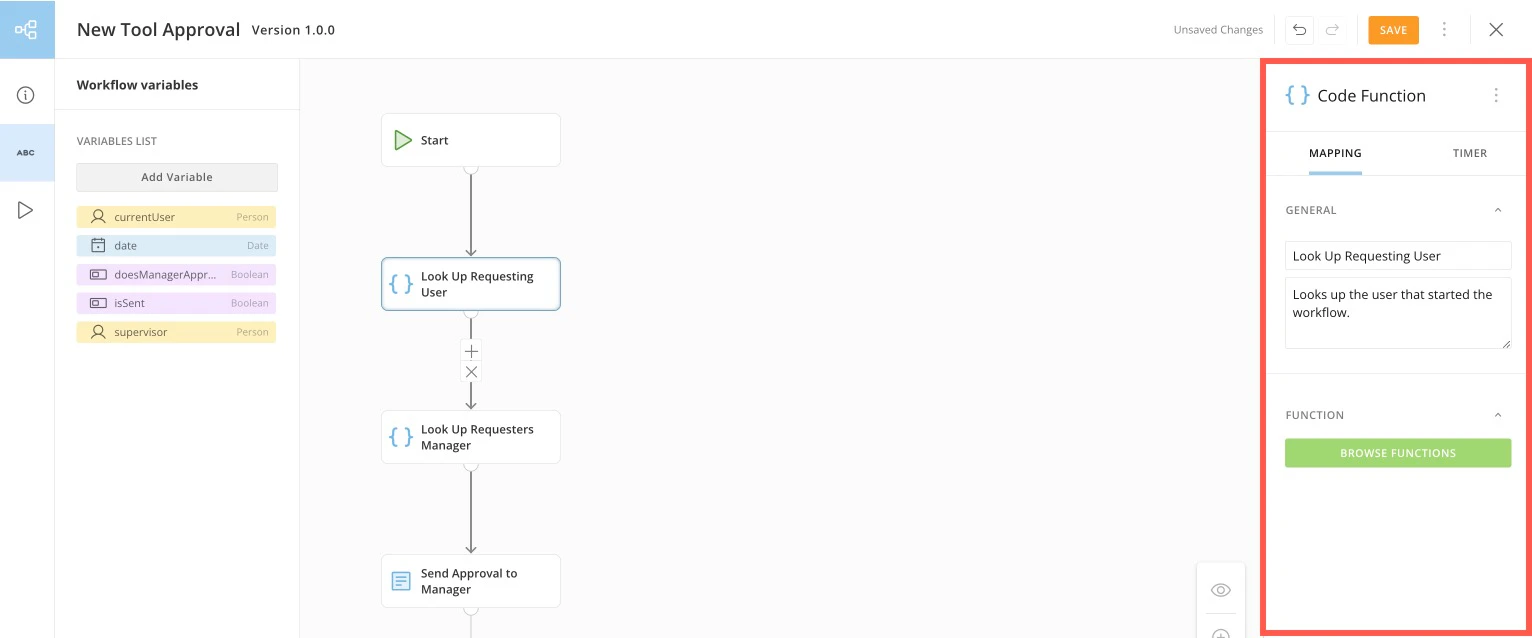
Add a Variable
Follow these steps to add a variable to the Workflow variables list:-
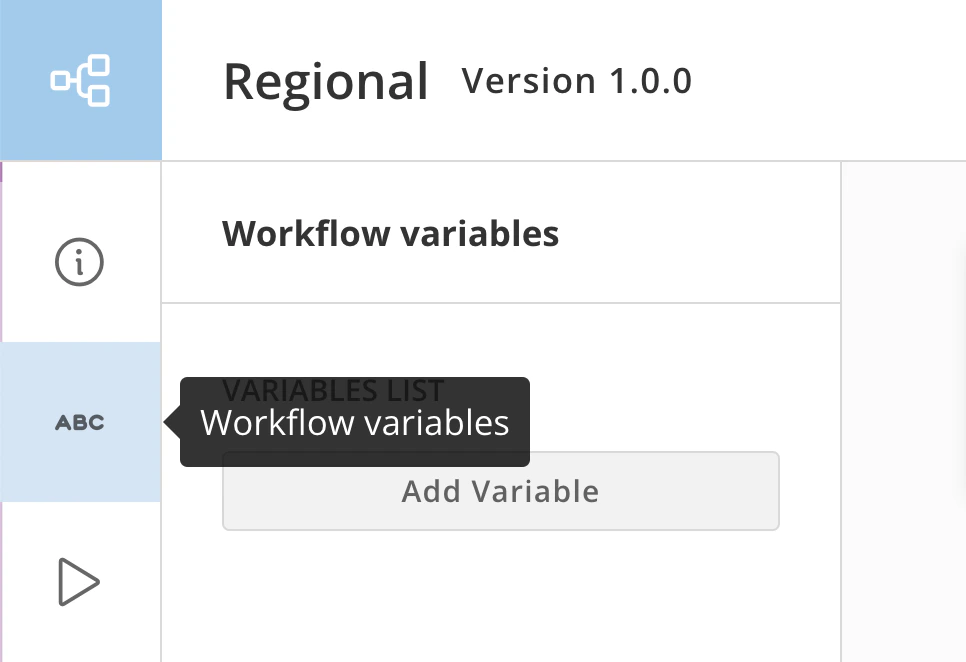
In the canvas left navigation, go to the Workflow variables tab.
- Select Add Variable to open the modal.
- Enter a name in the Variable Name field. You cannot use spaces or special characters in the variable name.
-
Choose a data type from the Data Type dropdown. The data type may require a subtype or have additional options. Learn more about data types.
If you want to make it a list variable, check the box labeled Make List.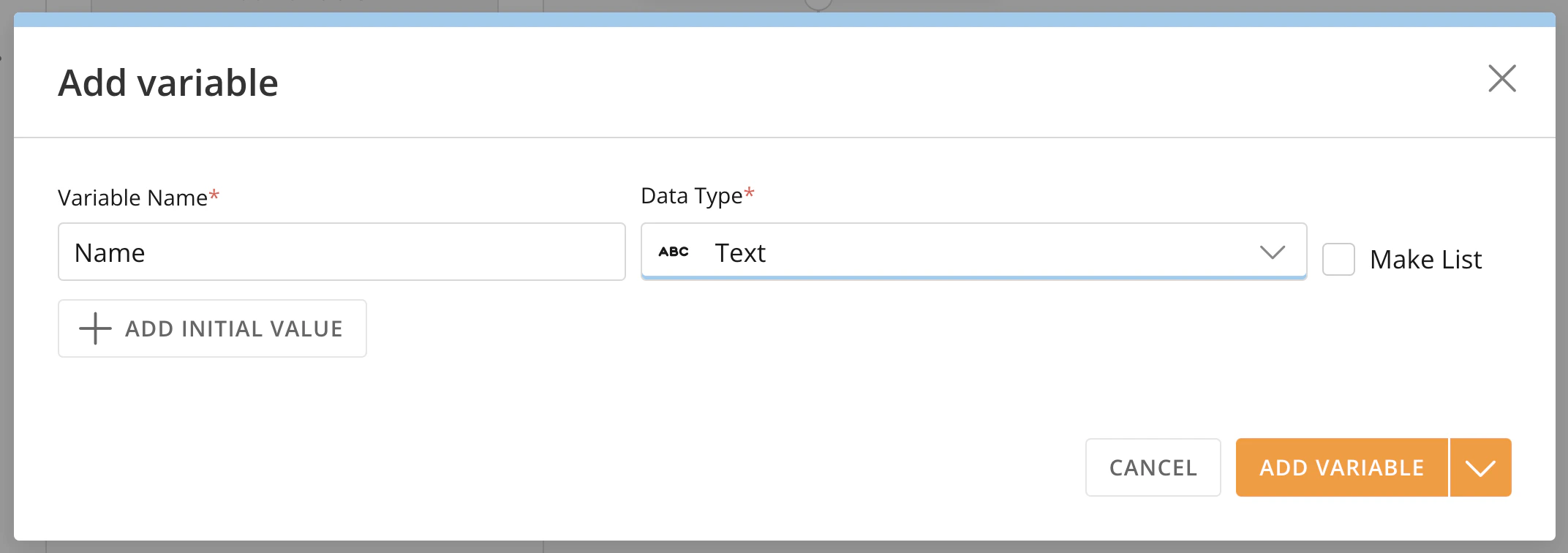
-
(Optional) If you want this variable to always have a certain value when the workflow executes, select + Add Initial Value.
You can then enter an initial value, depending on the data type. Learn more about data types.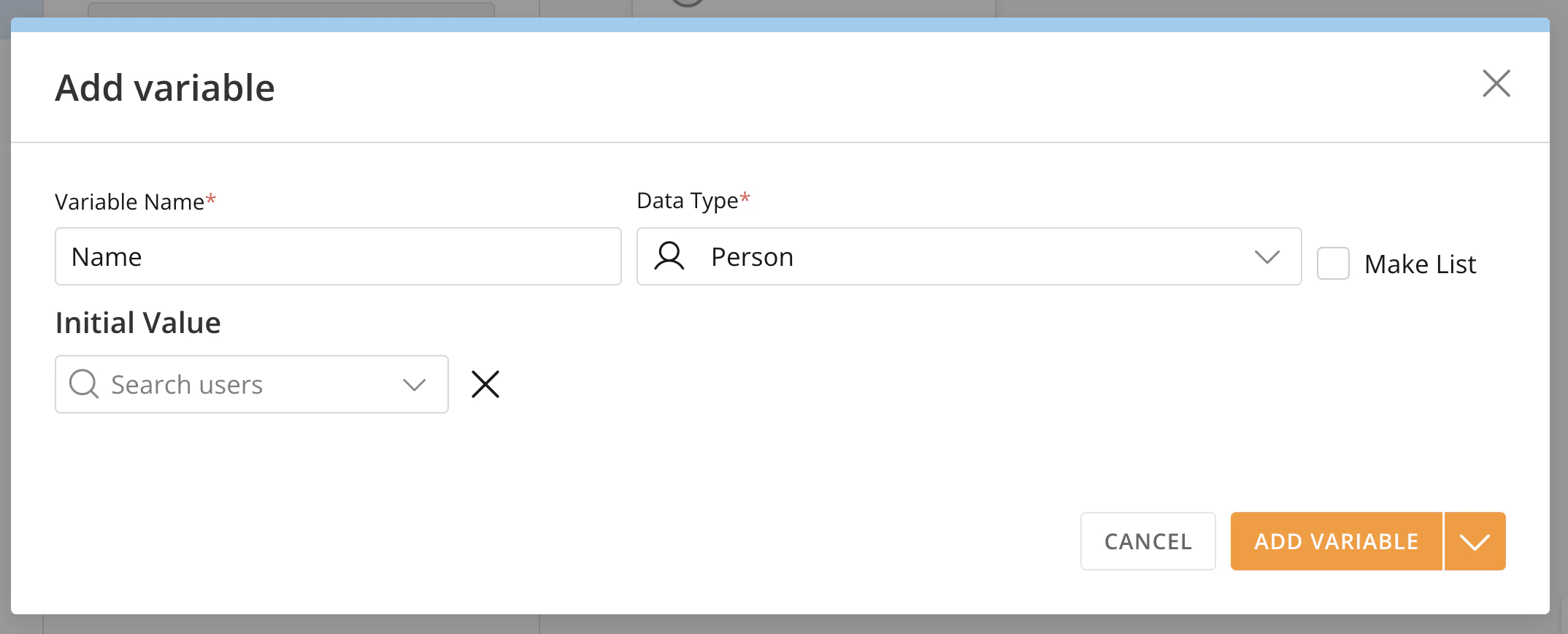
-
Select Add Variable to add the variable to the variables list or choose
 More options > Save and add another to add another variable to the list.
Edit and Delete a Variable
Follow these steps to edit a variable in the Workflows variables tab:- Go to the Workflow variables tab in the canvas left navigation.
-
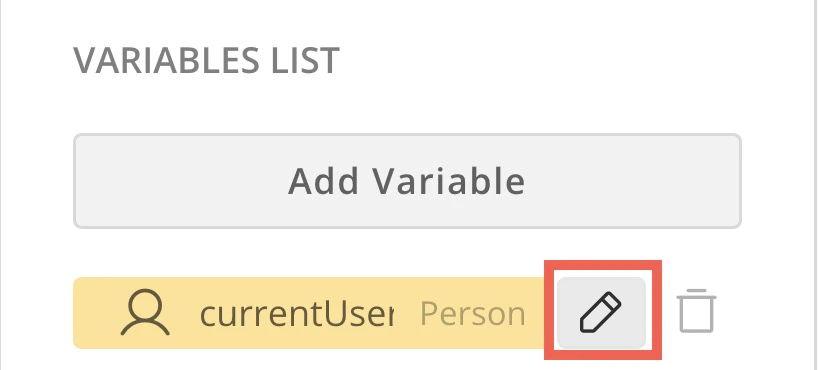
Hover over any variable in the list and select
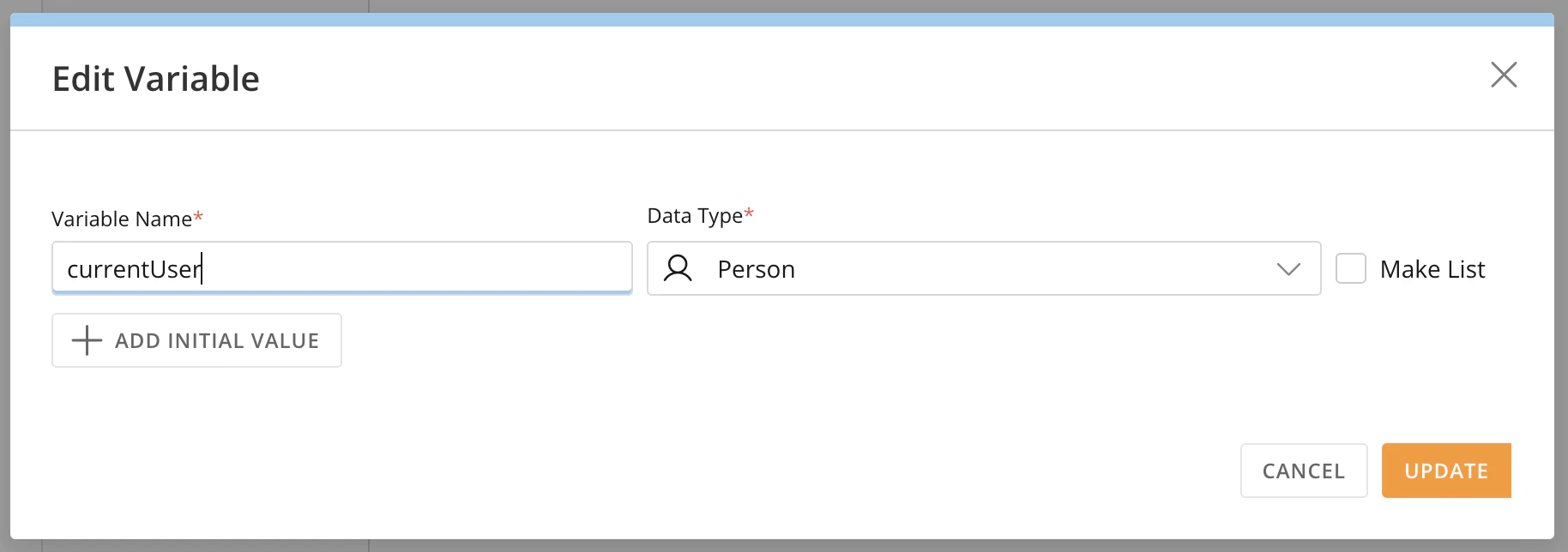
 Edit to open the modal.
-
Edit the name or data type and select Update to save your changes.
- Go to the Workflow variables tab in the canvas left navigation.
-
Hover over any variable in the list and select
 Delete.
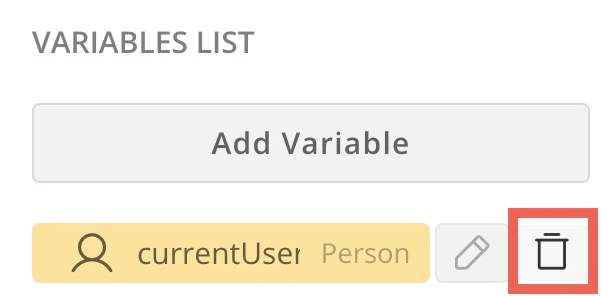
- Confirm removal of the variable.
View Data Association
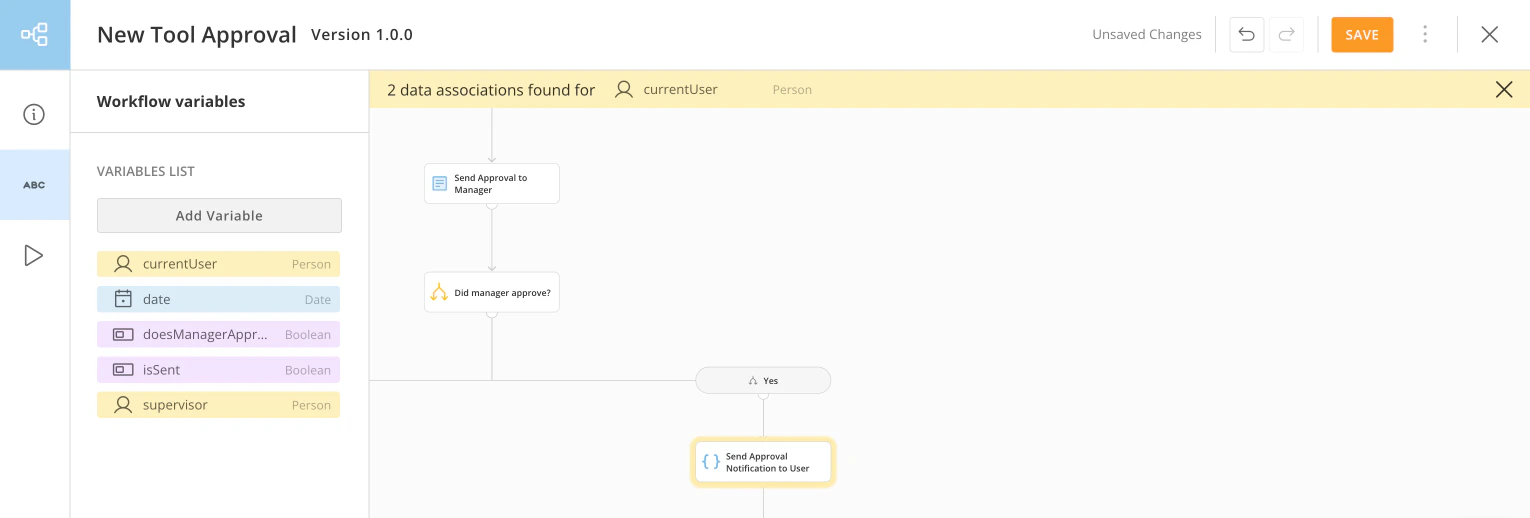
The data association tool allows you to see where variables are in your workflow. In the Workflow variables tab of the left navigation, select a variable in the variables list. The shapes in the workflow that reference that variable are highlighted in the variable’s color and a correspondingly colored banner displays at the top of the canvas. In the example below, the Send Approval Notification to User code function references thecurrentUser variable; both the function and the banner are colored yellow because currentUser has a Person data type.
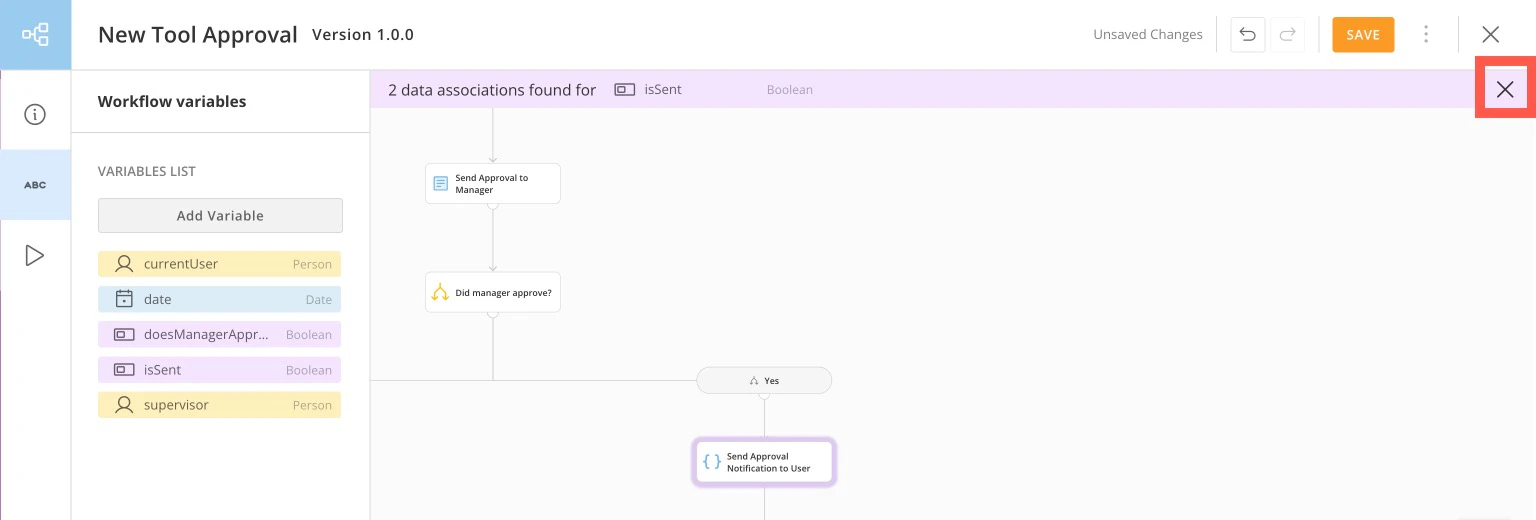
 Close in the banner to exit data association mode and return to edit mode.
Save Your Workflow
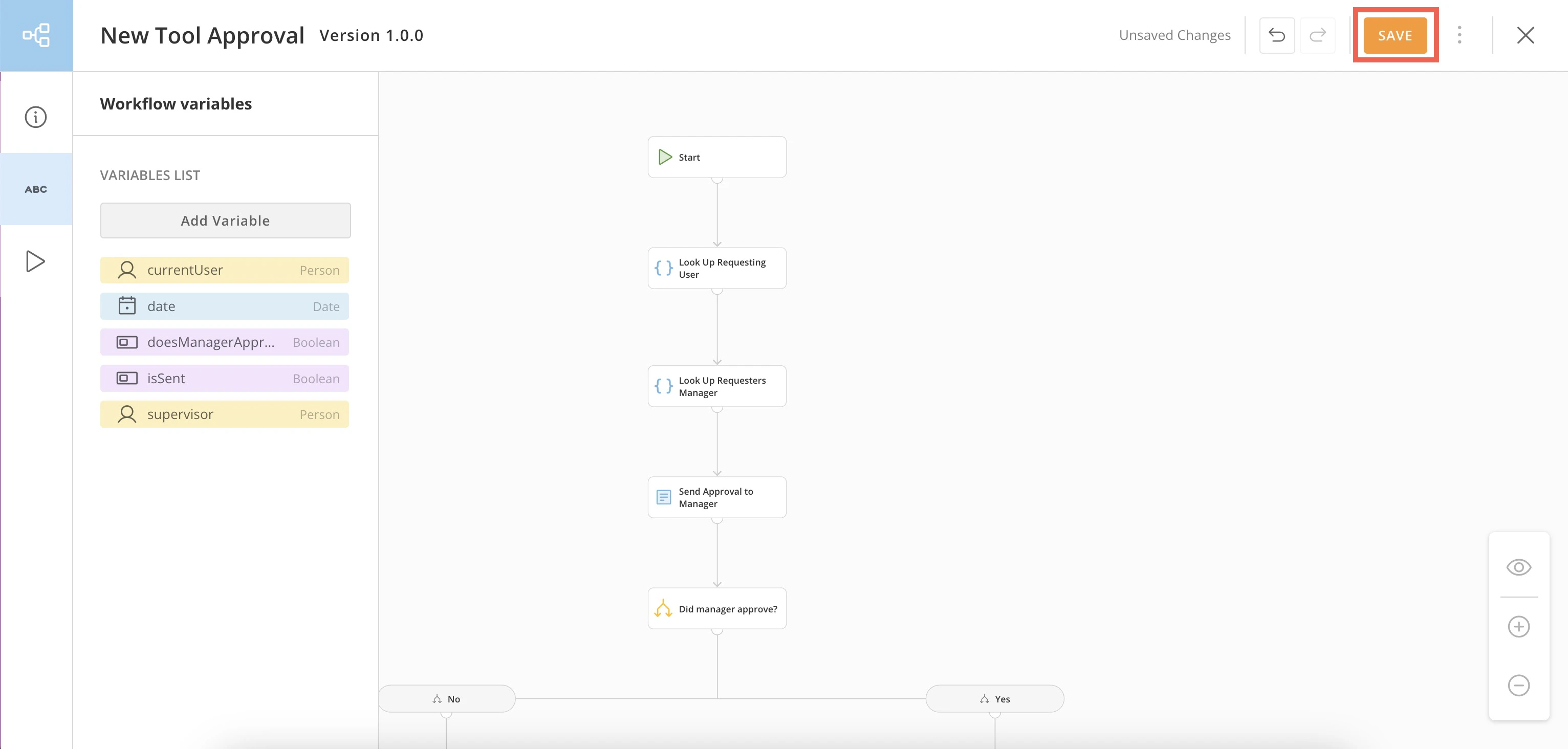
You can keep the changes to your workflow by selecting Save.Note: Before saving, you must configure every shape on the canvas. Otherwise, you’ll receive an error message.
Auto Save
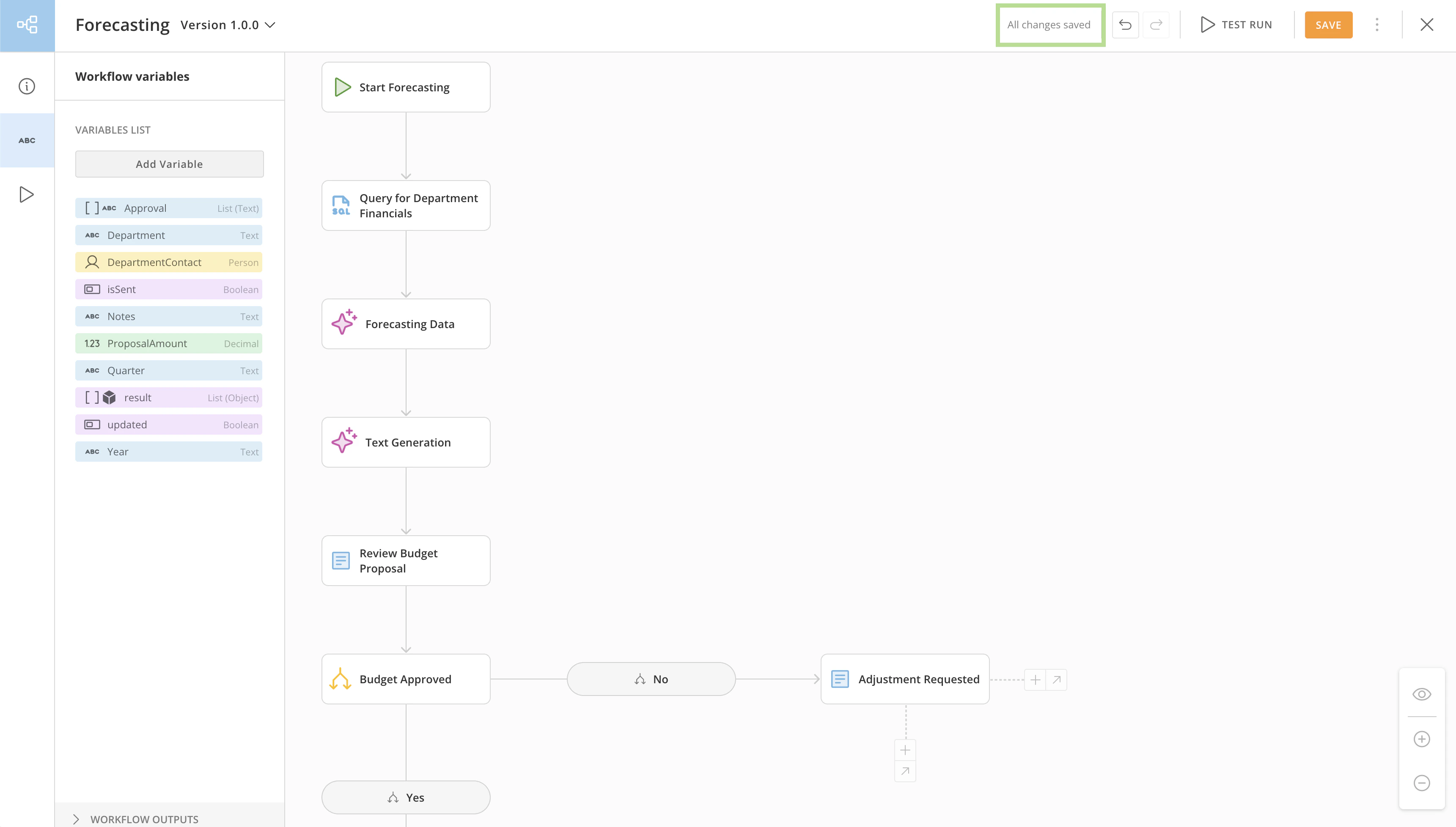
The workflow tool automatically saves the changes you make to the workflow canvas. If there’s a 10-second pause with no mouse movement or keyboard input, your edits are saved automatically. You can check the save status by looking at the indicator in the top header. If there are unsaved changes, it shows “Unsaved Changes.” Once everything is saved—either manually or automatically—it updates to “All changes saved.”Note: Auto save only applies to edits on the canvas. Changes made within configuration modals won’t be saved automatically. Always check the save indicator to confirm that your changes have been saved.
Locking
When editing a workflow version, it is locked to prevent other users from making changes and possibly overwriting your work. If there’s no activity for 30 minutes, the lock releases, and the workflow switches to View Only mode. To continue editing after the lock is released, simply click the “Edit Workflow” option in the three-dot menu.Perform a Save As
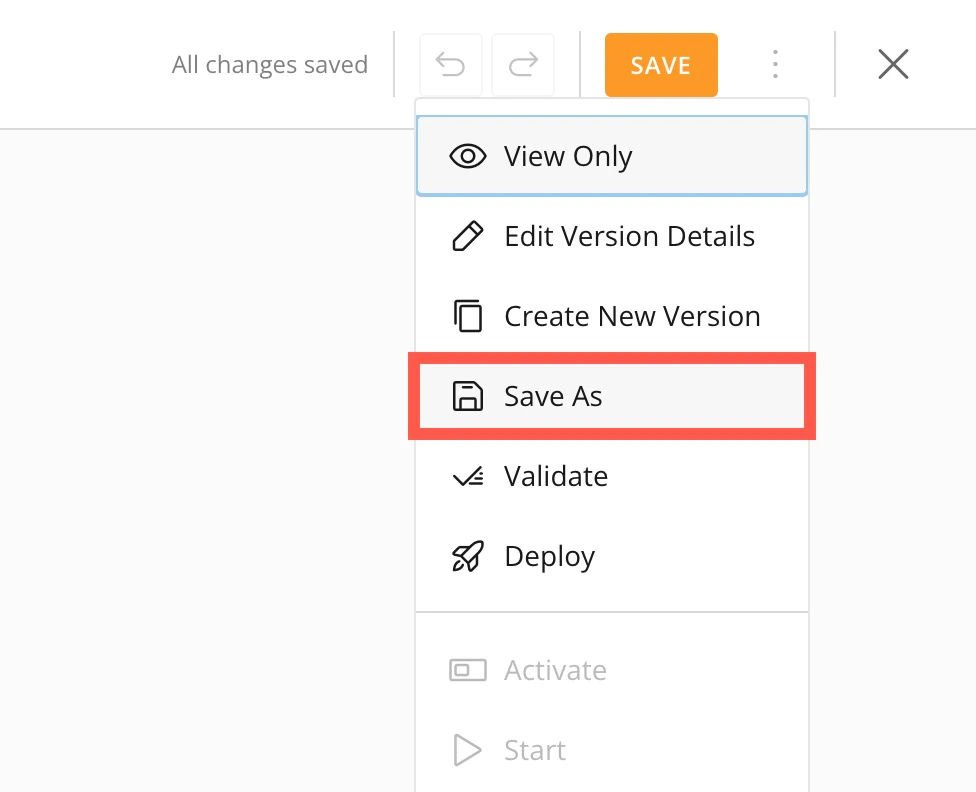
You can perform a ‘save as’ for your workflow by selecting More (vertical three-dot menu) > Save As. If you have unsaved changes, you’ll receive a warning message, but you can choose to ‘save as’ anyway and give the new version a number.
Configure Workflow Start
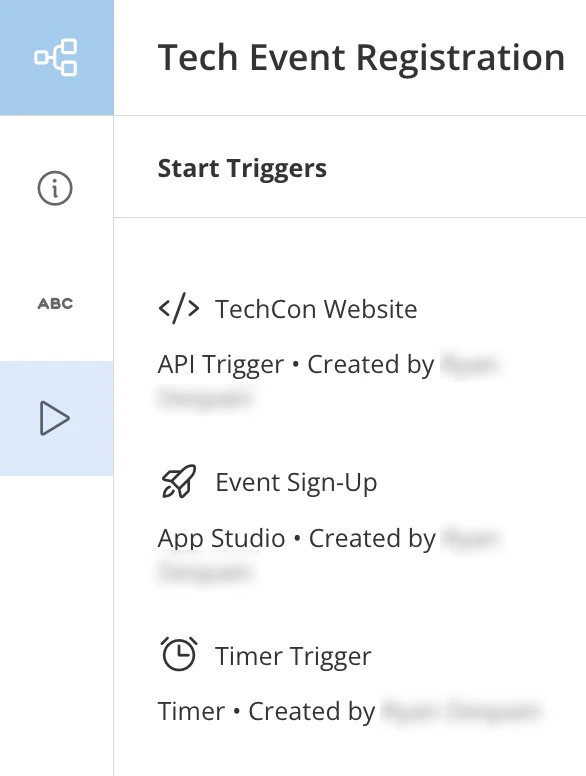
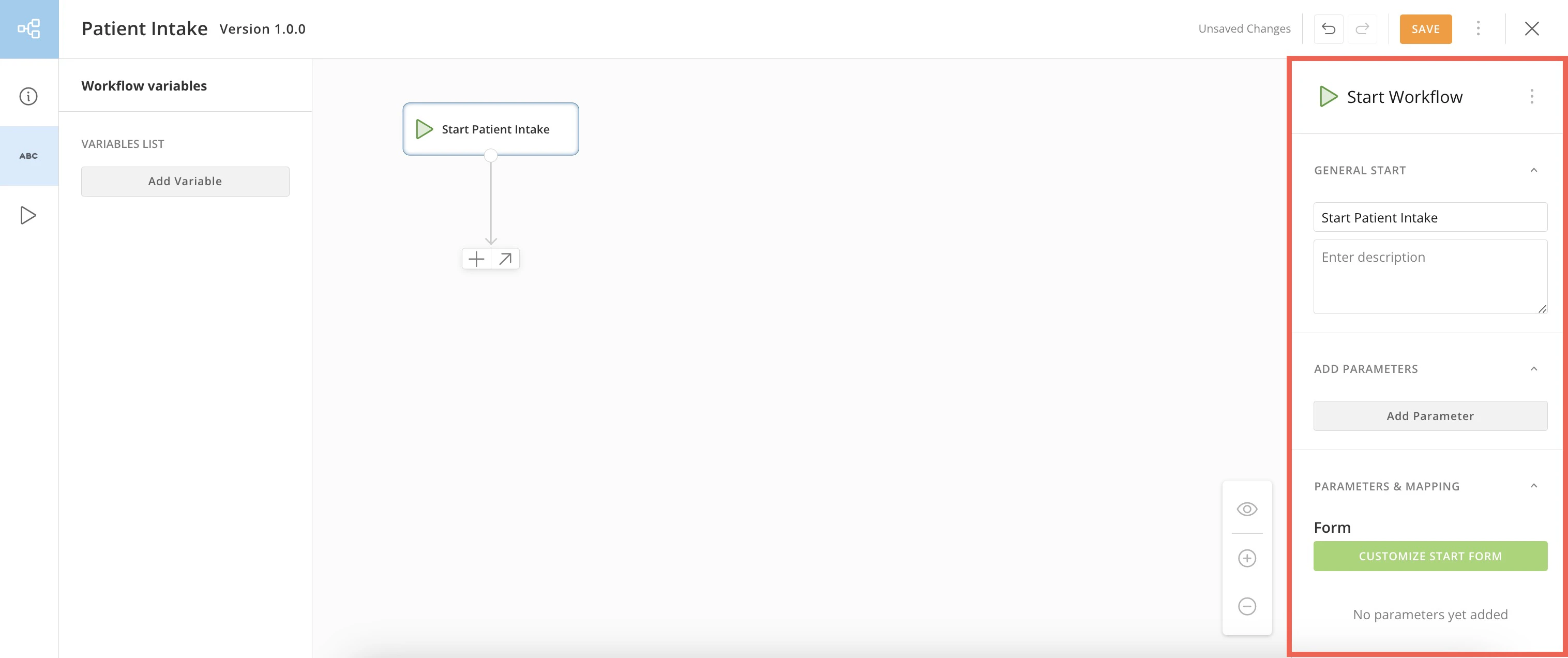
Whether you create a new workflow from a template or a blank canvas, you must configure the workflow starting shape.Note: Instead of using a manual start, you can trigger a workflow using a timer or from inside another Domo feature, such as App Studio. Triggers can only be configured after the workflow is deployed. Learn how to configure a trigger for a deployed workflow version.
In the configuration panel, you can also enter workflow description. In the panel, you can add and configure any parameters the workflow needs as inputs. These can be entered by the workflow user via a form or given an initial or default value that is always passed when the workflow starts.
Note: If your workflow will loop, and you would rather not introduce a manual step for each execution or use a complex code function, you can assign an initial value to a variable, allowing the workflow to begin always using that value for the variable. Learn how to assign an initial value to a variable above.
Add Parameters
Parameters require or allow data values to be passed into the workflow when it executes. Follow these steps to add and configure your starting parameters:-
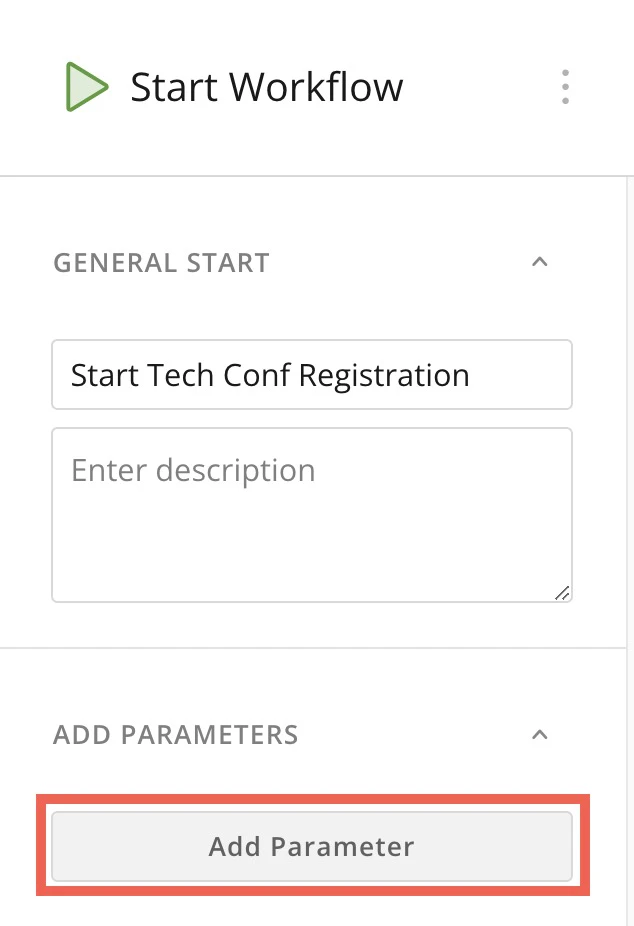
Select your start shape to open the configuration panel, and select Add Parameter to open the new parameter modal.
- In the modal, enter a name for the parameter. Spaces and special characters are not allowed.
-
Choose a data type for the parameter. Learn about the available data types.
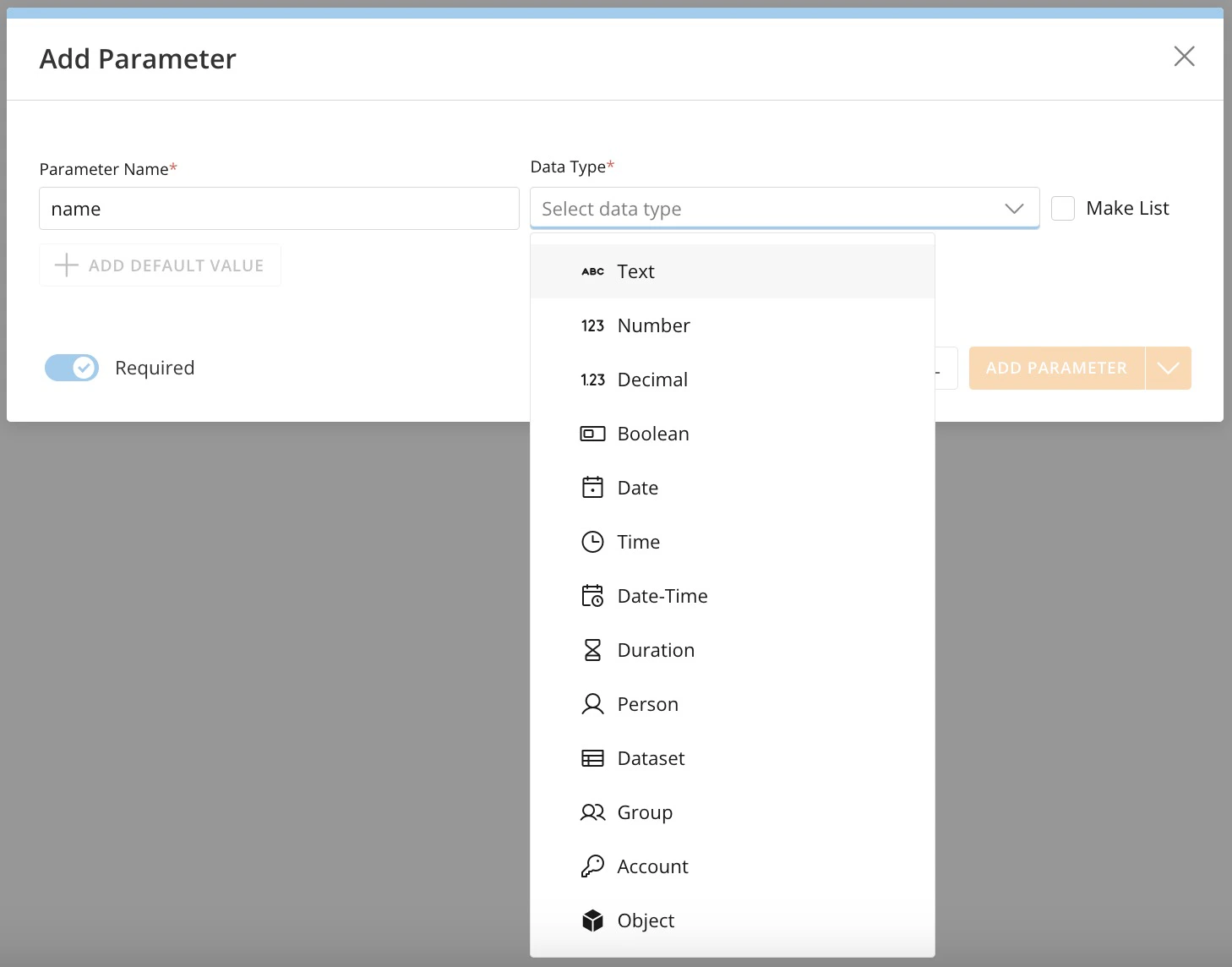
- Use the Required toggle to indicate whether the parameter is required. By default, new parameters are marked as required.
-
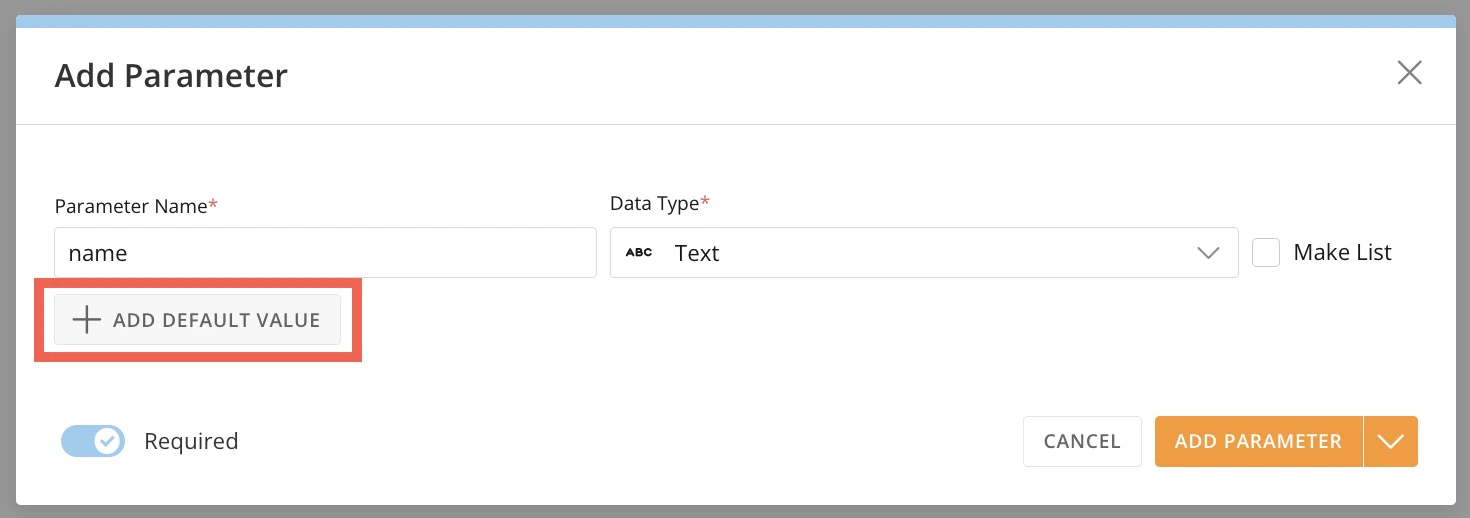
(Conditional) If you want to assign a default value to a parameter, select + Add Default Value after defining the name and data type. Default values can be changed until that workflow version is deployed.
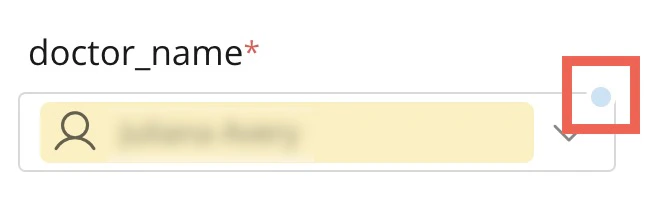
Parameters with a default value display with a blue dot in the parameters list.
-
Select Add Parameter.
-
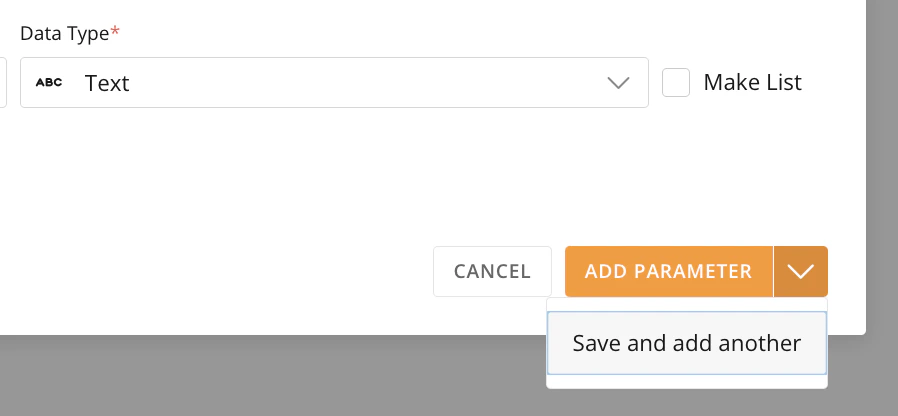
(Optional) You can choose More (orange down arrow icon) > Save and add another if you are adding more than one parameter.
-
(Optional) You can choose More (orange down arrow icon) > Save and add another if you are adding more than one parameter.
- Repeat these steps for as many start parameters as needed.
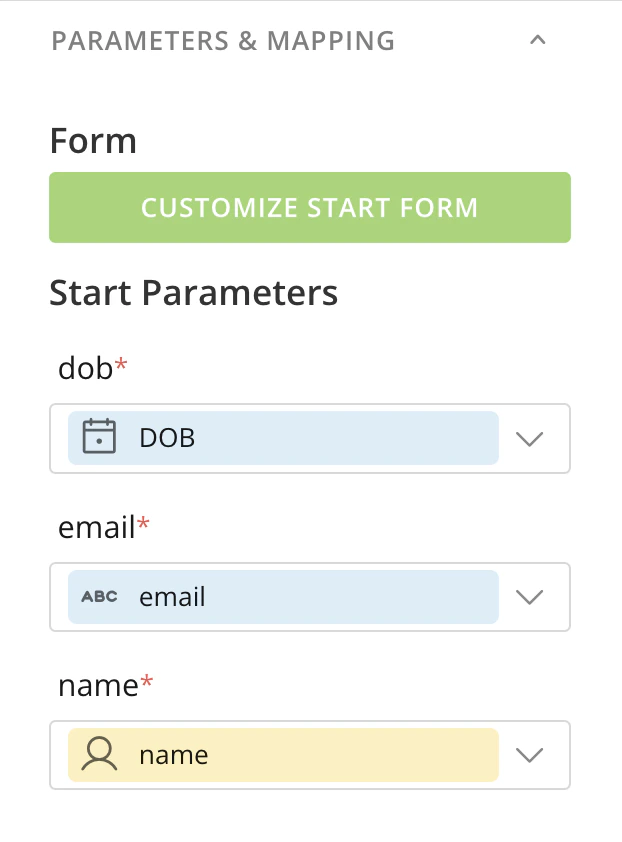
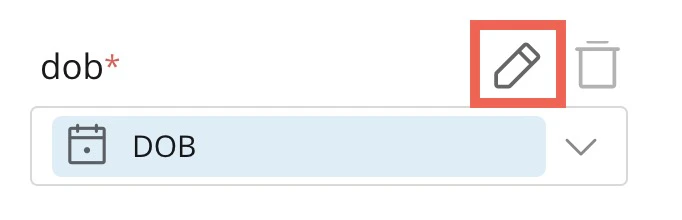
Note: A corresponding variable with the same name and data type is mapped to the parameter and added to the workflow variables list, accessible from the left navigation. You can map a parameter to a different variable, but it must be of the same data type.
 Edit.
Edit.
Add Shapes to Your Canvas
Your workflow is a series of shapes—representing actions—connected by flows (or lines). After adding shapes to your canvas, you can drag them around to change the visual design of your workflow. Dragging a shape also drags any flows attached to it. Add a shape to the canvas by selecting Add action at the end of any flow to display the action menu.
Select
 Add Flow to add another connecting line.
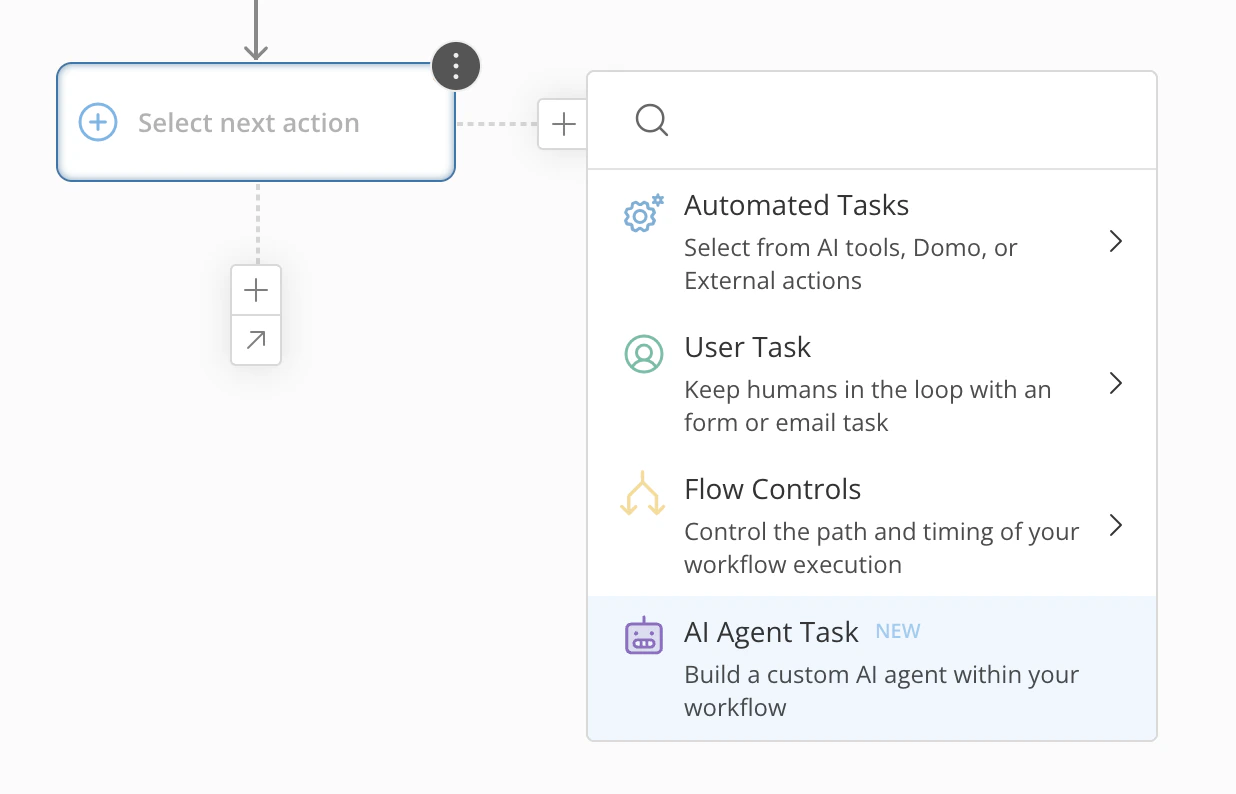
- Automated Tasks
- User Tasks
- Flow Controls
- AI Agent Task
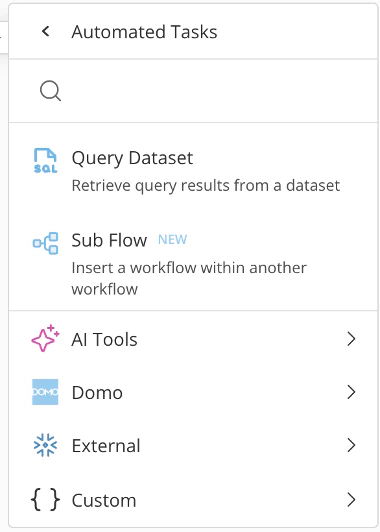
- Query DataSet — Query and retrieve data from a Domo DataSet in your workflow. You can include variables in your query and preview it before sending. Learn how to add a query table.
- Sub Flow —Insert a workflow within another workflow. Learn how to add and configure subflows.
-
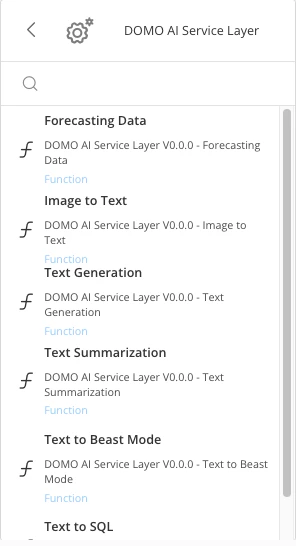
AI Tools — Pre-built AI functions to perform tasks in Domo. These include:
-
Domo AI Service Layer — Use services like Image to Text, Text Generation, and Text to SQL.
-
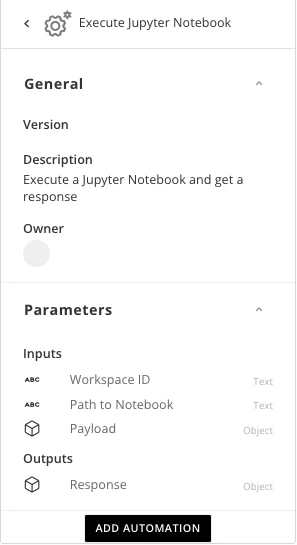
Domo Jupyter — Add and execute a Jupyter Notebook in your workflow. Learn more about Jupyter Notebooks in Workflows.
-
Domo AI Service Layer — Use services like Image to Text, Text Generation, and Text to SQL.
- Domo — Select a pre-built function to perform a specific task within the Domo Platform.
-
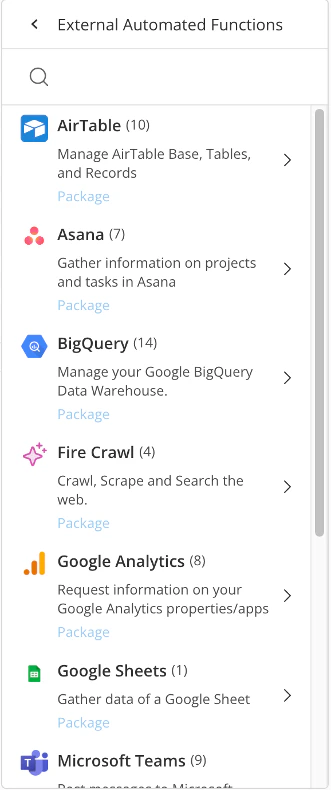
External — Select a pre-built function to integrate with an external system.
-
Custom —A custom function automatically executes a predefined code package to perform a specific task before proceeding to the next step in the workflow. It can have multiple incoming flows but only one outgoing flow.
Learn how to configure and test a custom function.
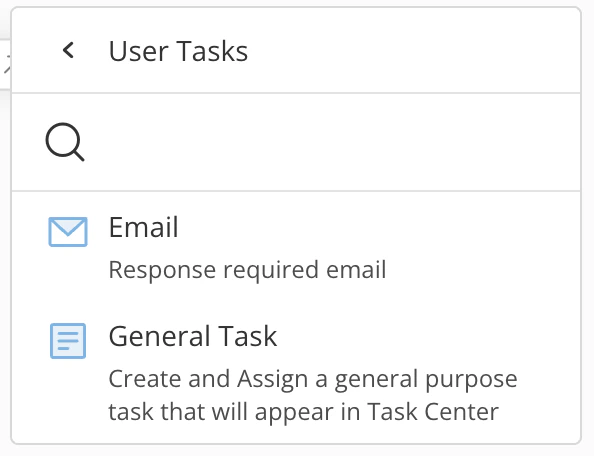
- Email — Automatically sends an email to chosen recipients. Recipients can then respond using options embedded in the email body. Learn how to configure an email.
- General task — Allows you to choose a queue and assign a needed form to a specific user. Learn how to configure a general task.
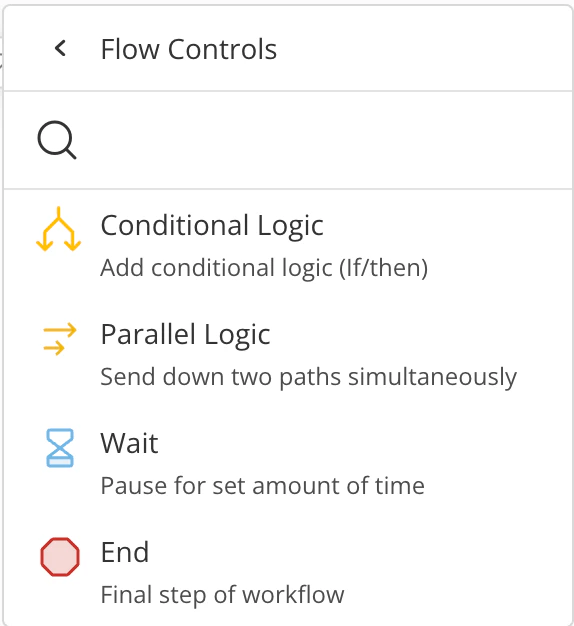
- Conditional Logic — Applies IF/THEN statements to your workflow. Learn how to configure conditional logic.
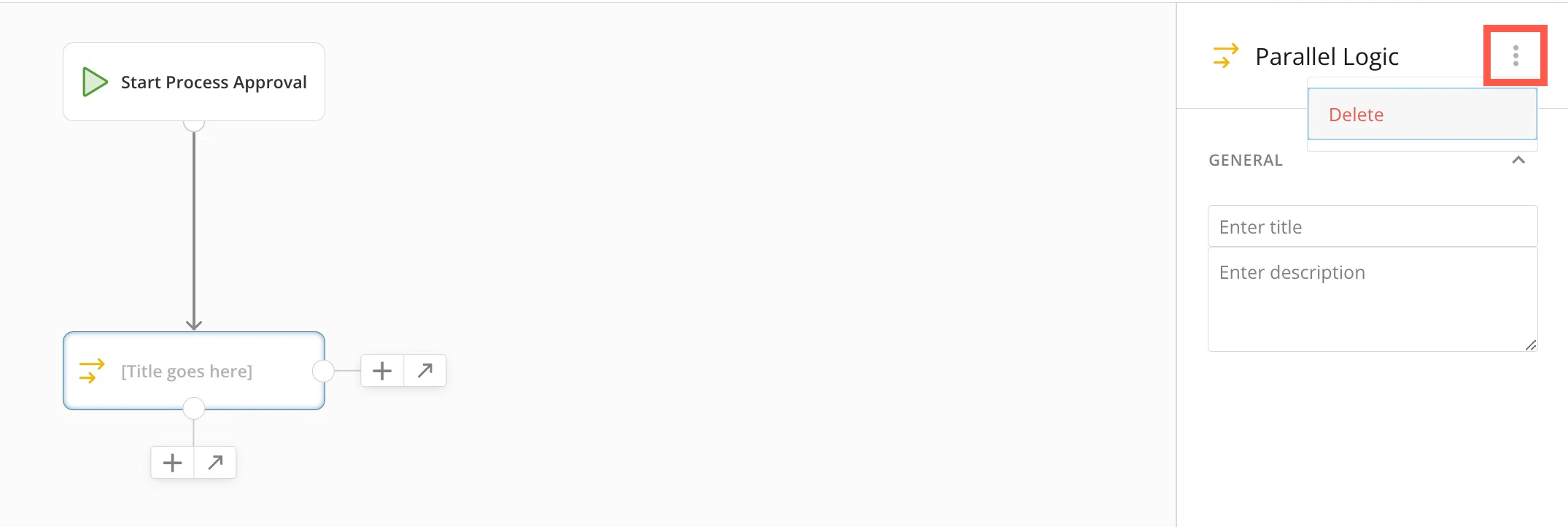
- Parallel Logic — Forces your workflow to perform independent steps in parallel. Learn how to configure parallel logic.
-
Wait — Delays the workflow for a specified interval before continuing. Wait actions can only have one outgoing flow.
After adding a wait action, you can name it in the configuration panel. Use the settings dropdown in the parameter section to enter a custom value.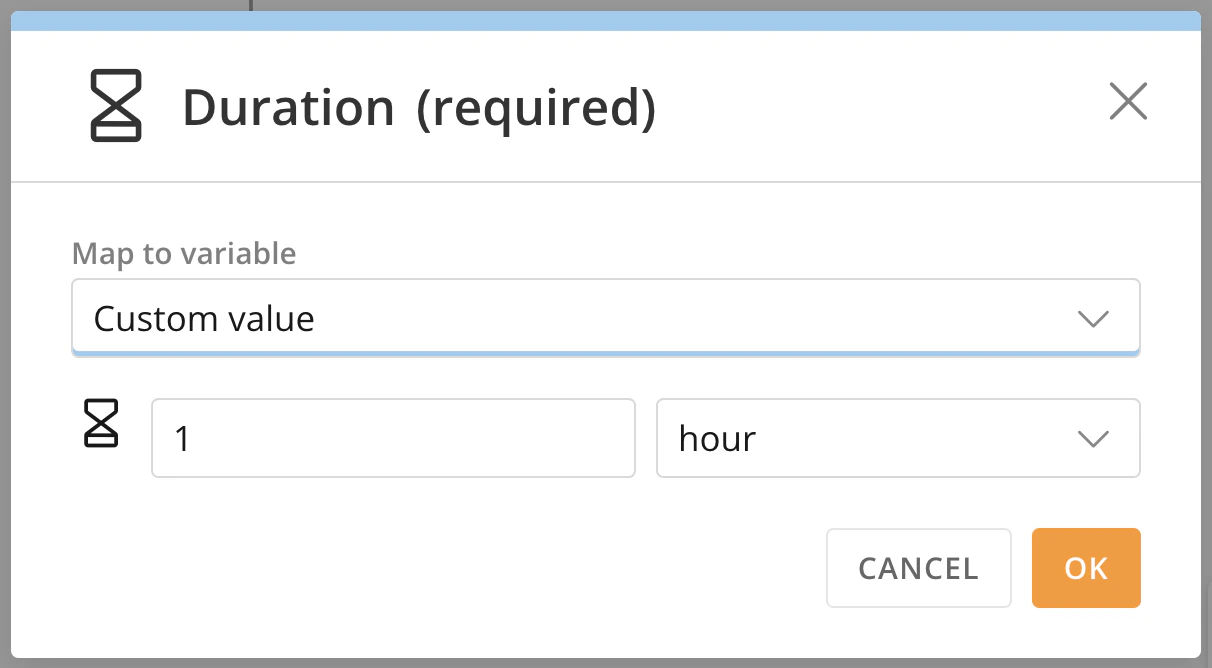
-
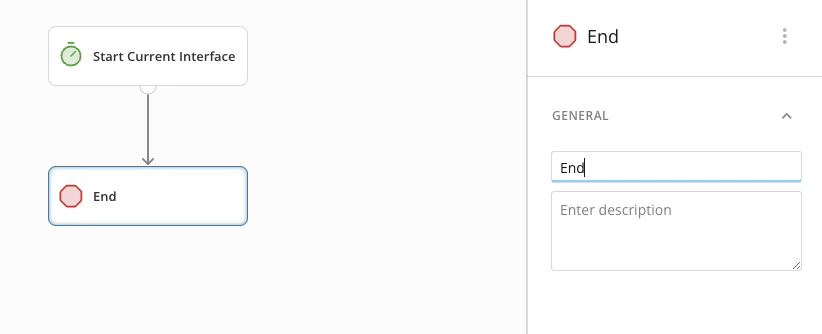
End — Terminates the workflow. A workflow can have multiple End shapes if the design has places where one flow branches into two or more. Name and describe each End shape in the configuration panel.
Validate a Workflow
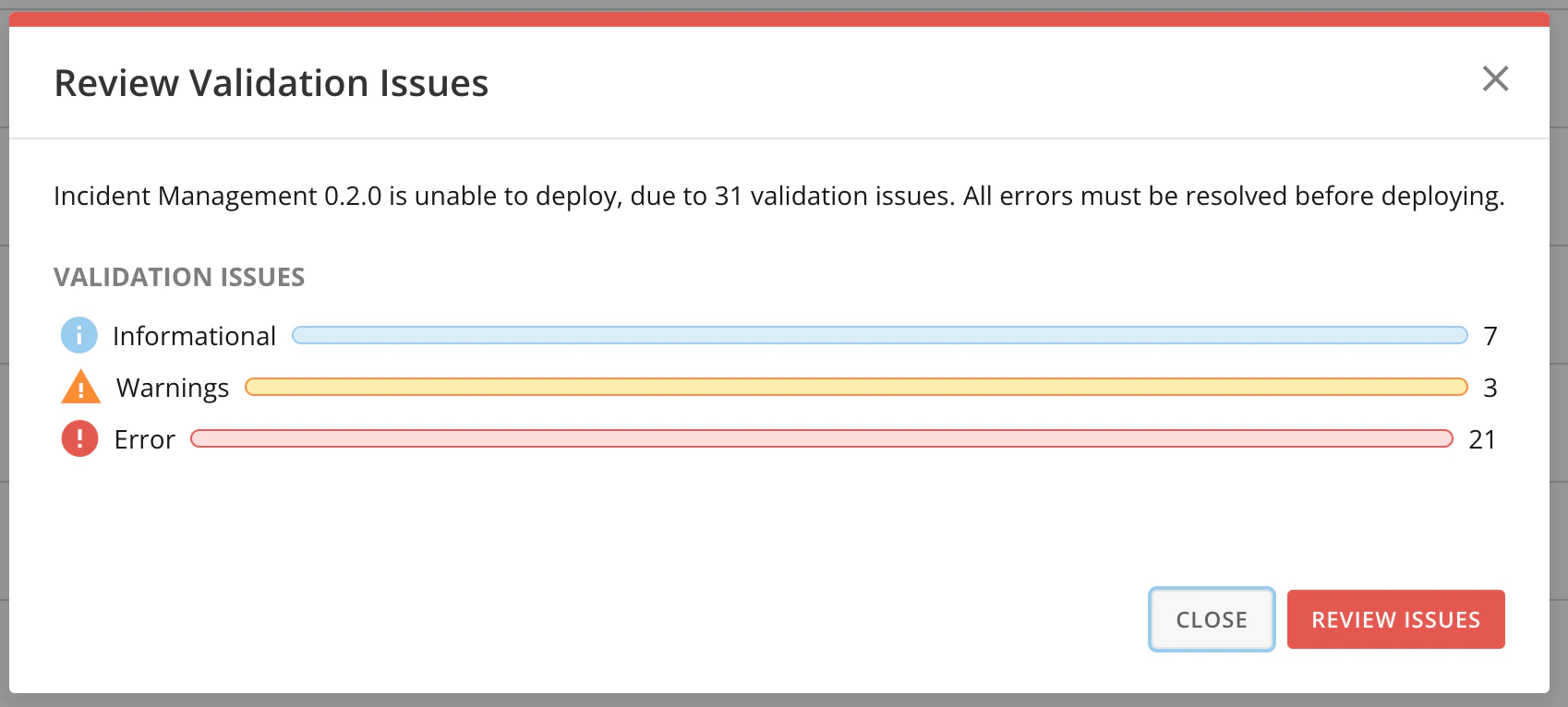
Validating your workflow identifies issues and incorrectly configured shapes. If there are issues, the system navigates you to a Validation view to correct them. There are three kinds of validation issues:- Informational — You don’t need to correct informational issues before deploying your workflow. These issues are typically superficial and don’t impact workflow performance. Informational issues are color-coded blue.
- Warning — Youdon’t need to correct warnings before deploying a workflow, but we strongly recommend doing so. Warnings usually indicate that a best practice is not being followed and are color-coded yellow.
- **Error —**Errors must be corrected before you can deploy a workflow. Errors are color-coded red.
Access Validation Mode
You can put a workflow version into validation mode by deploying it from either of two locations:- From the canvas, choose Action menu > Deploy.
- From the version list, select
 Action menu (three vertical dots icon) > Deploy.

Review Issues in Validation Mode
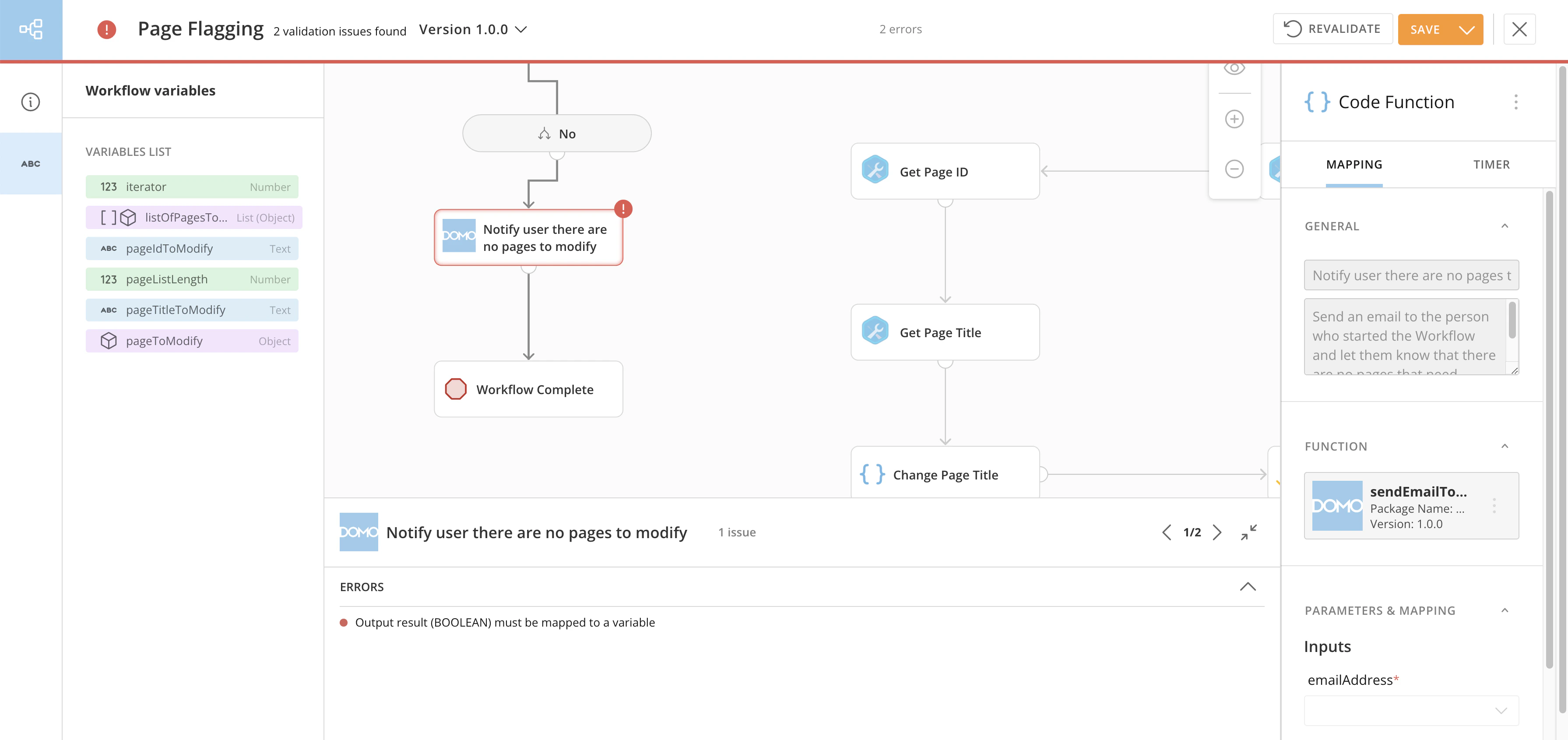
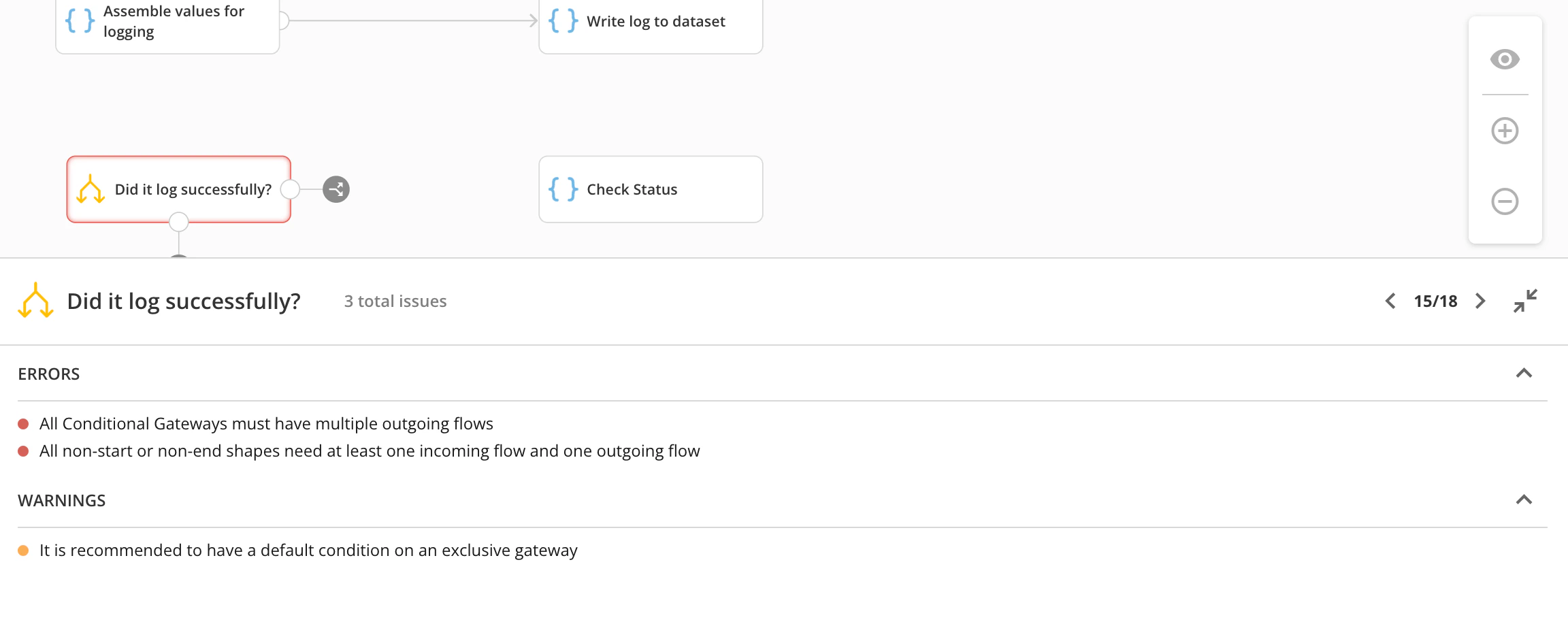
In validation mode, any shape with validation issues displays with the icon and colored border associated with its most severe validation issue. Selecting a shape also expands the message panel at the bottom of the canvas with details of each error.Note: When you select a variable from the list in the Workflow variables tab, you leave validation mode and open the data association tool.
Message Panel
The message panel displays information about all issues detected in the workflow version and how to resolve them, separated by individual shapes. General workflow validation issues display when no shape is selected.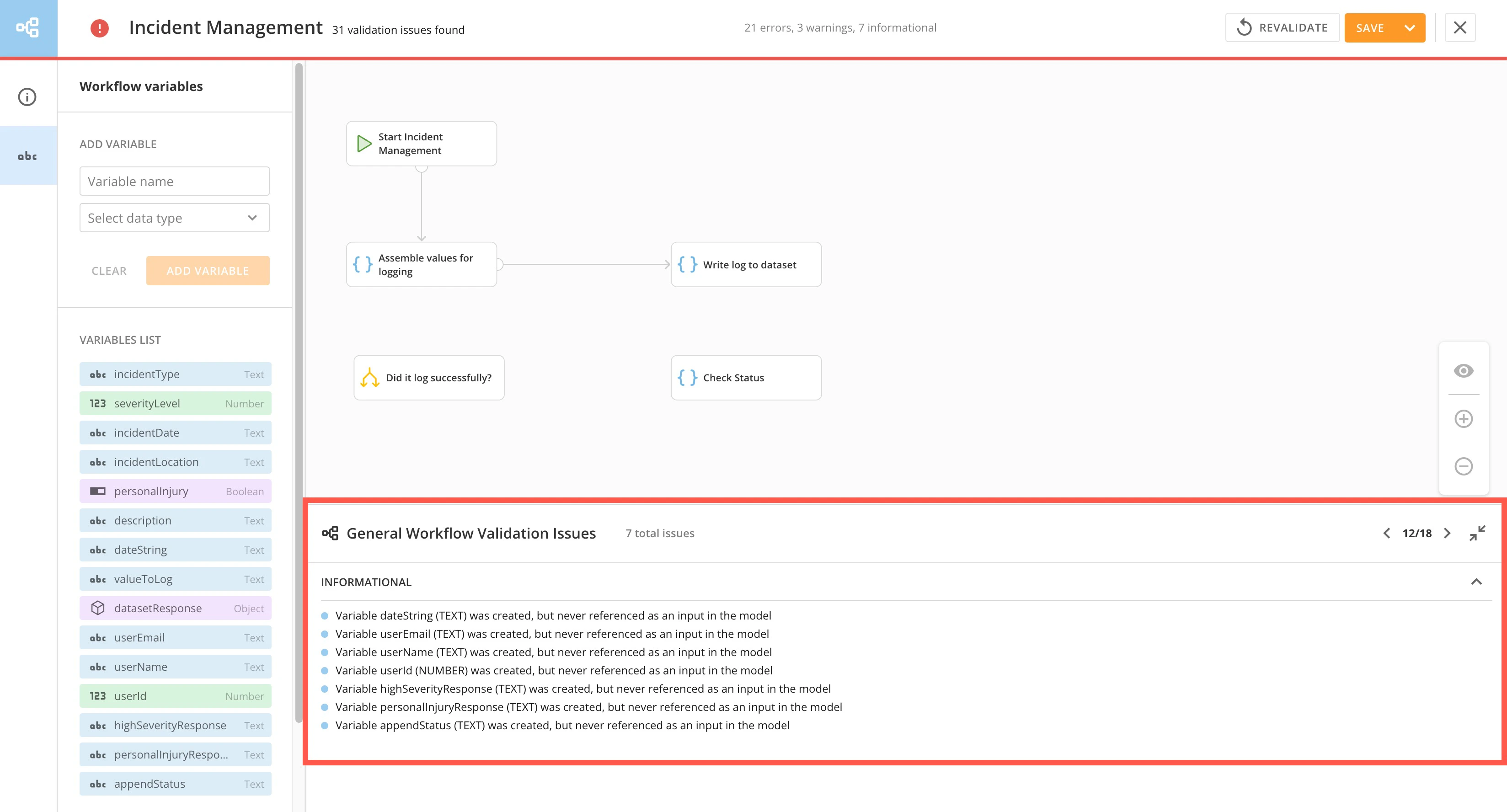
 collapse the message panel. When the message panel is collapsed, you can select
  Expand to reopen the message panel.

Deploy a Workflow
Workflows must be deployed before they can run. A deployed version can be started manually or started by a trigger. Deploying a version puts it into validation mode; after it’s validated, it deploys. If you have Deploy or Admin permission to the workflow, you can select Action menu > Deploy for a version from the version list or from inside edit or view mode. Next step: Learn how to start your workflow.Start a Workflow
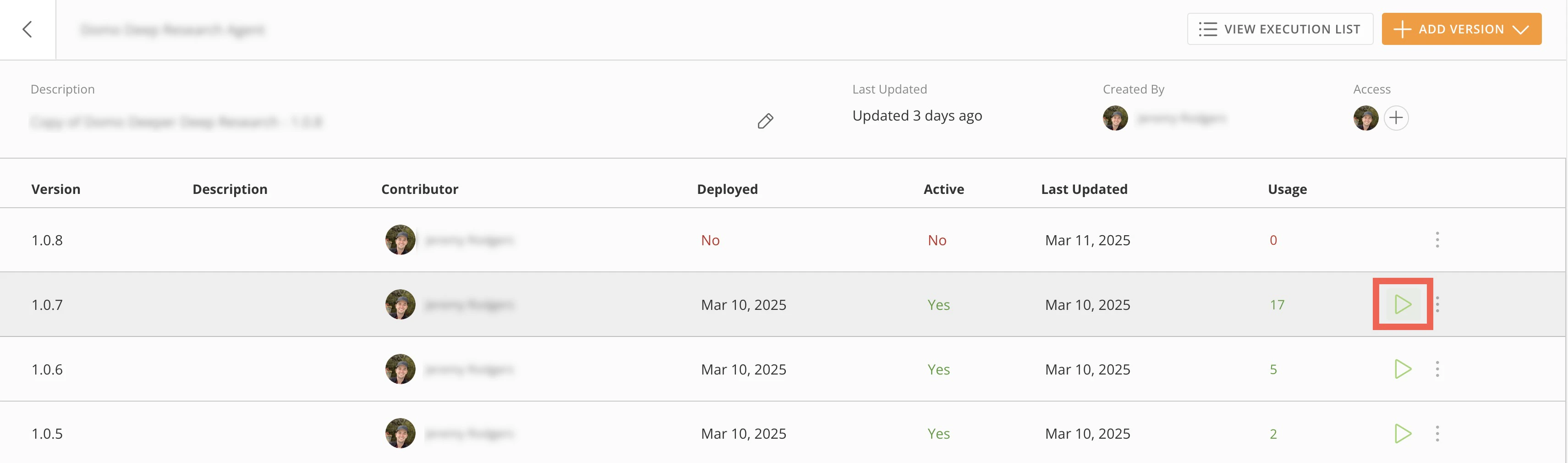
To start a workflow, you must have Execute or Admin permission to it. Your workflow must be validated and deployed before starting. You can start a workflow version from the version list page by selecting Start (or from the canvas in edit or view-only mode by selecting
  Action menu > Start).
Note: Users with the Manage Workflows grant and Admin or Execute permission to a workflow can configure alternative triggers for it, such as from within an App Studio app. Learn more about workflow triggers.